This guide explains how to justify absences in e-Schooling, both for Guardians and Students (who request the justification) and for Class Directors and Administrators (who process or validate the absences).
1. Guardian and Student View
Step-by-Step to Justify Absences
1. How to Access the Student’s Absences
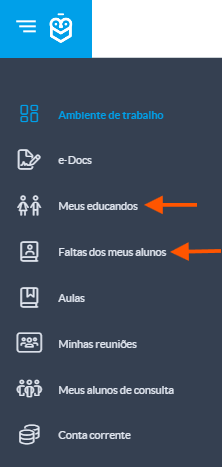
The Guardian has two options to access absences:
- Option 1: Menu “Absences of My Students” → choose the student (if there is more than one).
- Option 2: Menu “My Students” → select the student → open the new section → choose the Absences submenu.
2. Locate the Absences
You can justify an absence individually or select multiple absences to justify in bulk
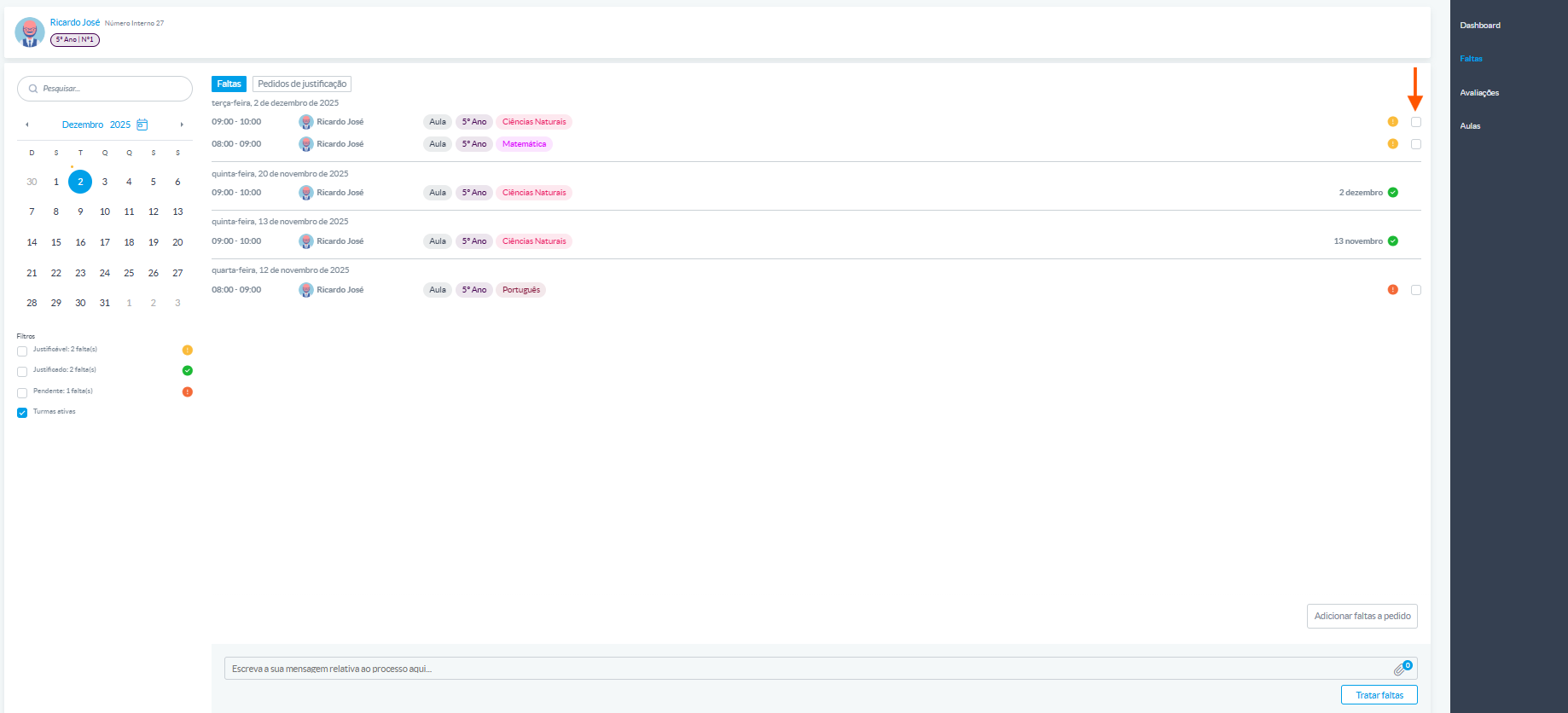
Select the absence you want to justify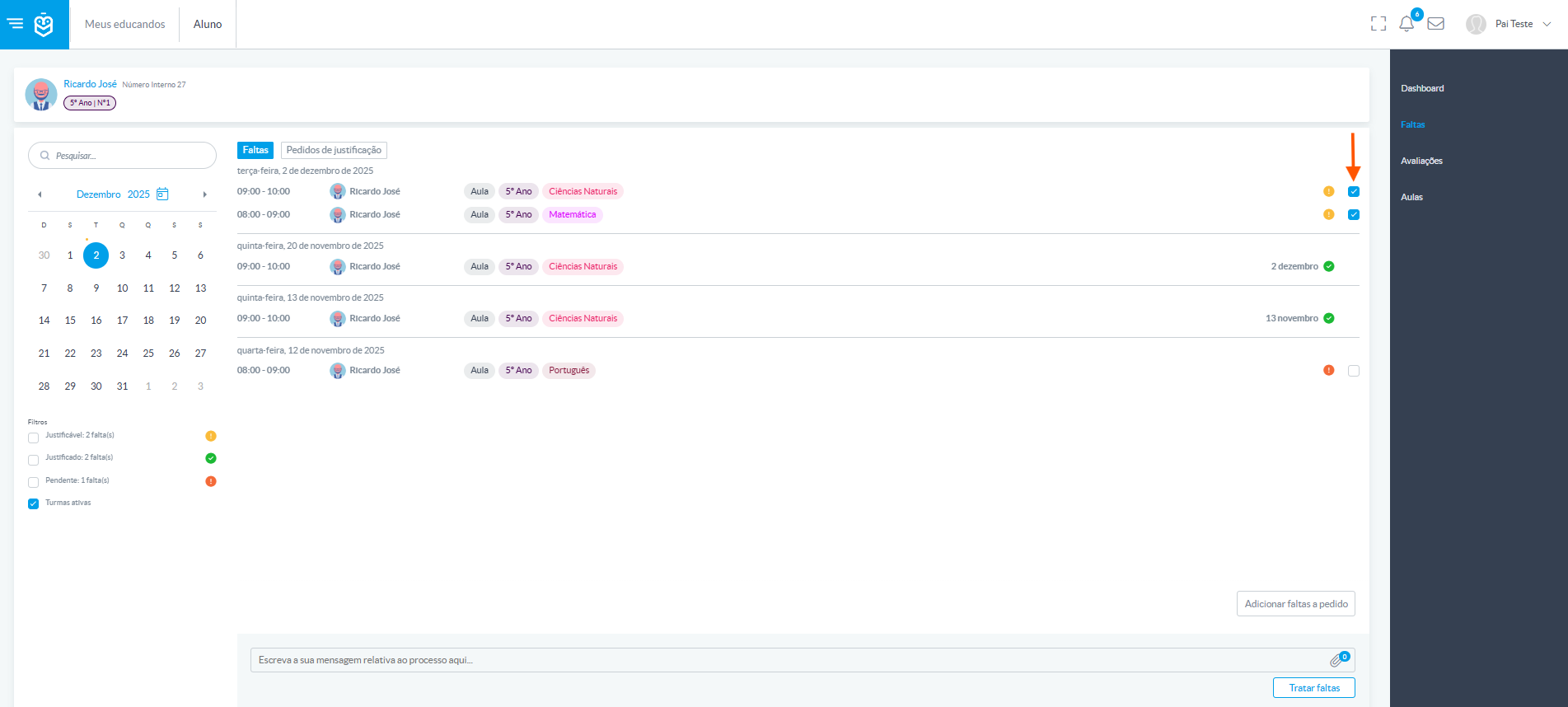
Write a mandatory message explaining the reason for the absence

Attach documents (optional but recommended), such as a medical certificate.
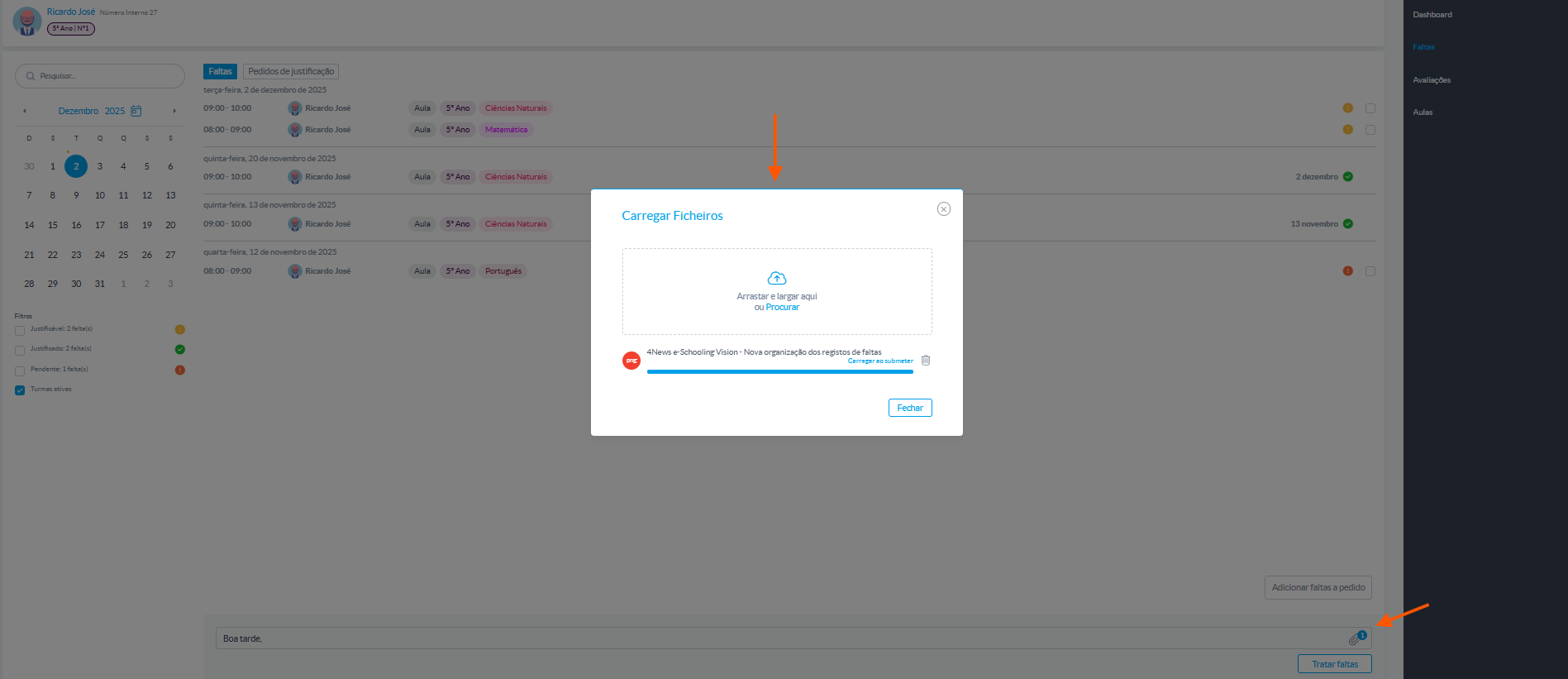
Click “Process Absences”.
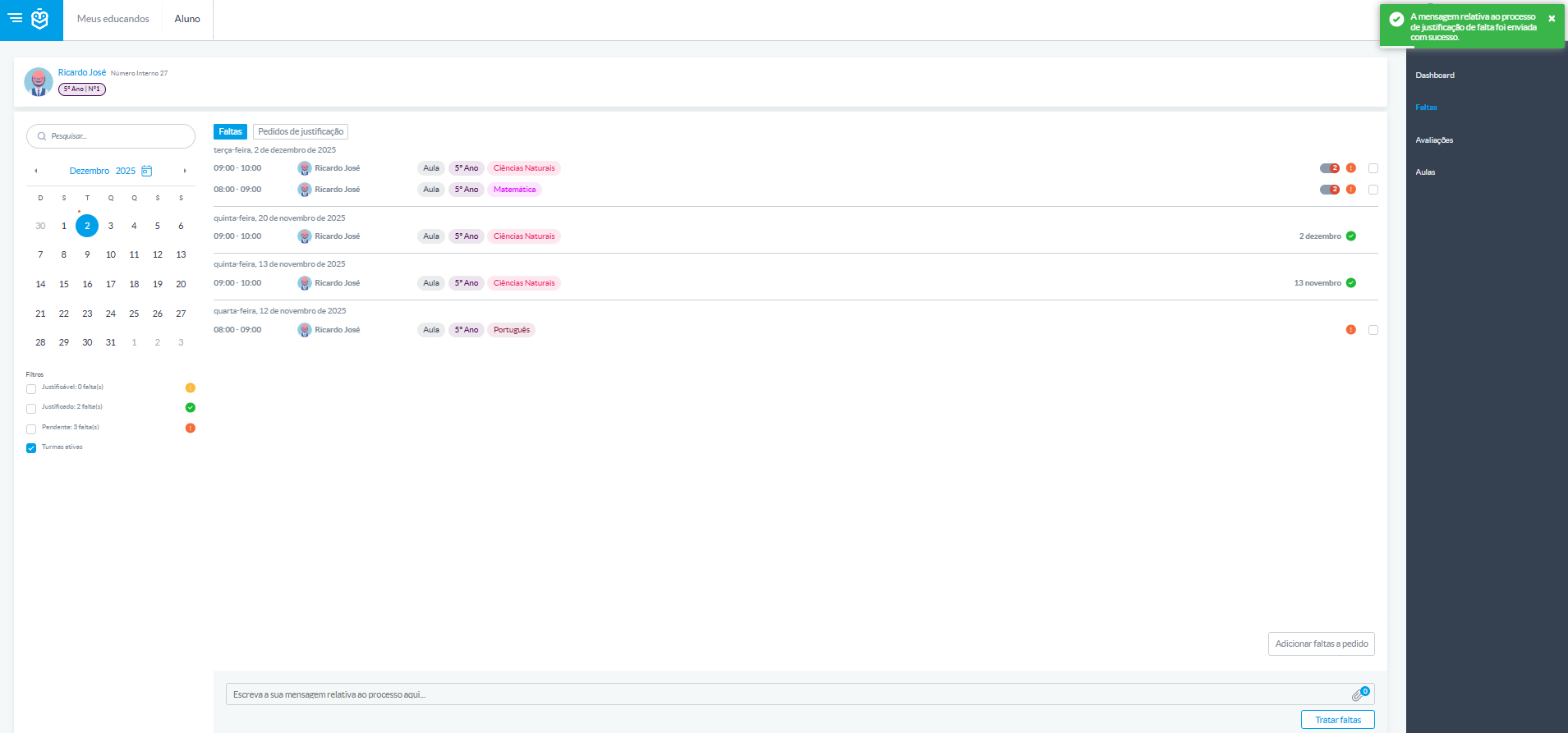
After submission: The Class Director or Administrator will be notified (bell icon).2. Class Director and Administrator View
Step-by-Step to Process Absences
1. How to Access the Class
The Class Director or Administrator has two options to access the class:
- Option 1: Menu “My Classes” → select the desired class.
- Option 2: Menu “Management” → Classes → choose the class.
2. Access the Absence Management Area
After selecting the class, click the Absence Management submenu.
You can view all absences recorded for the students in the class.
Check the status of absences:
- Justifiable – can be processed.
- Justified – already validated.
- Not Justifiable – cannot be changed.
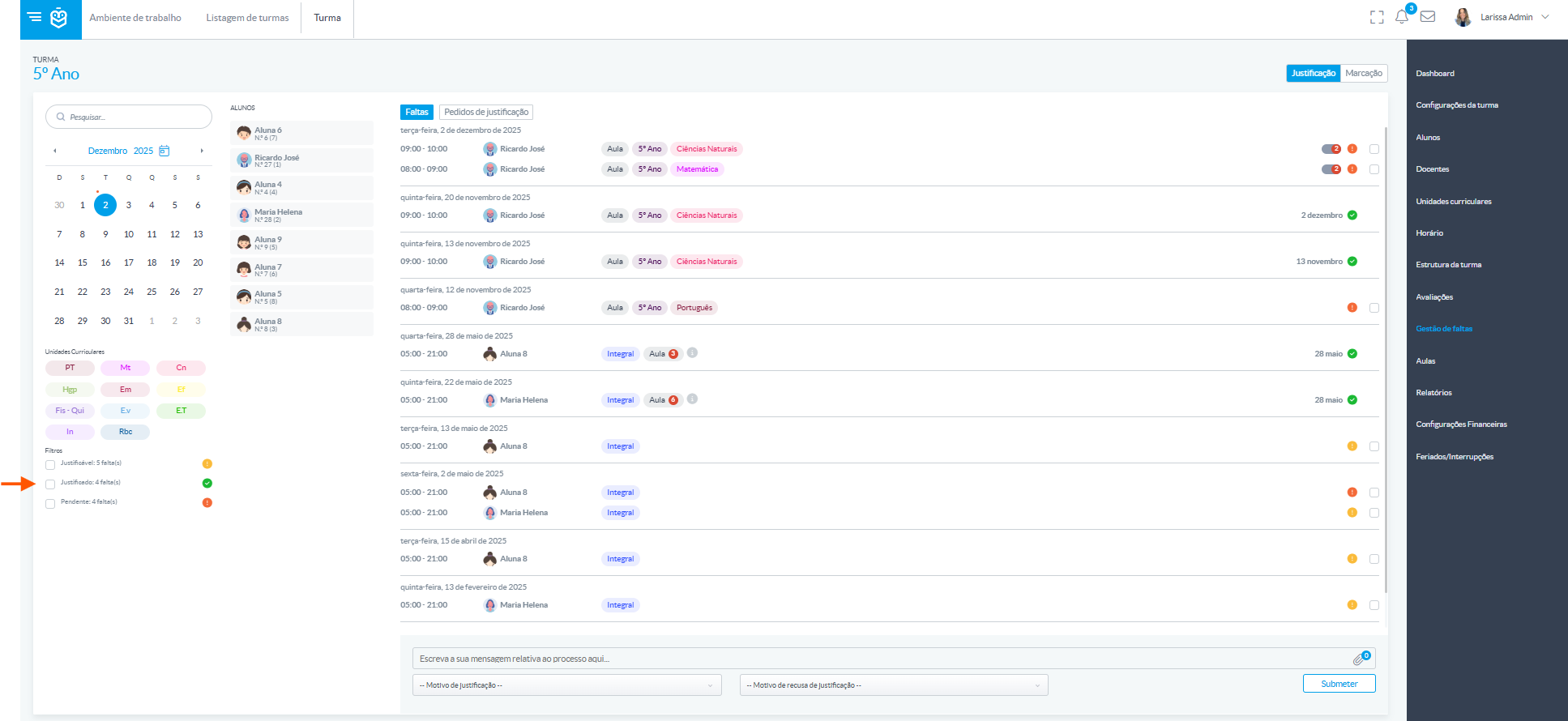
Filter by student or date to make the search easier.
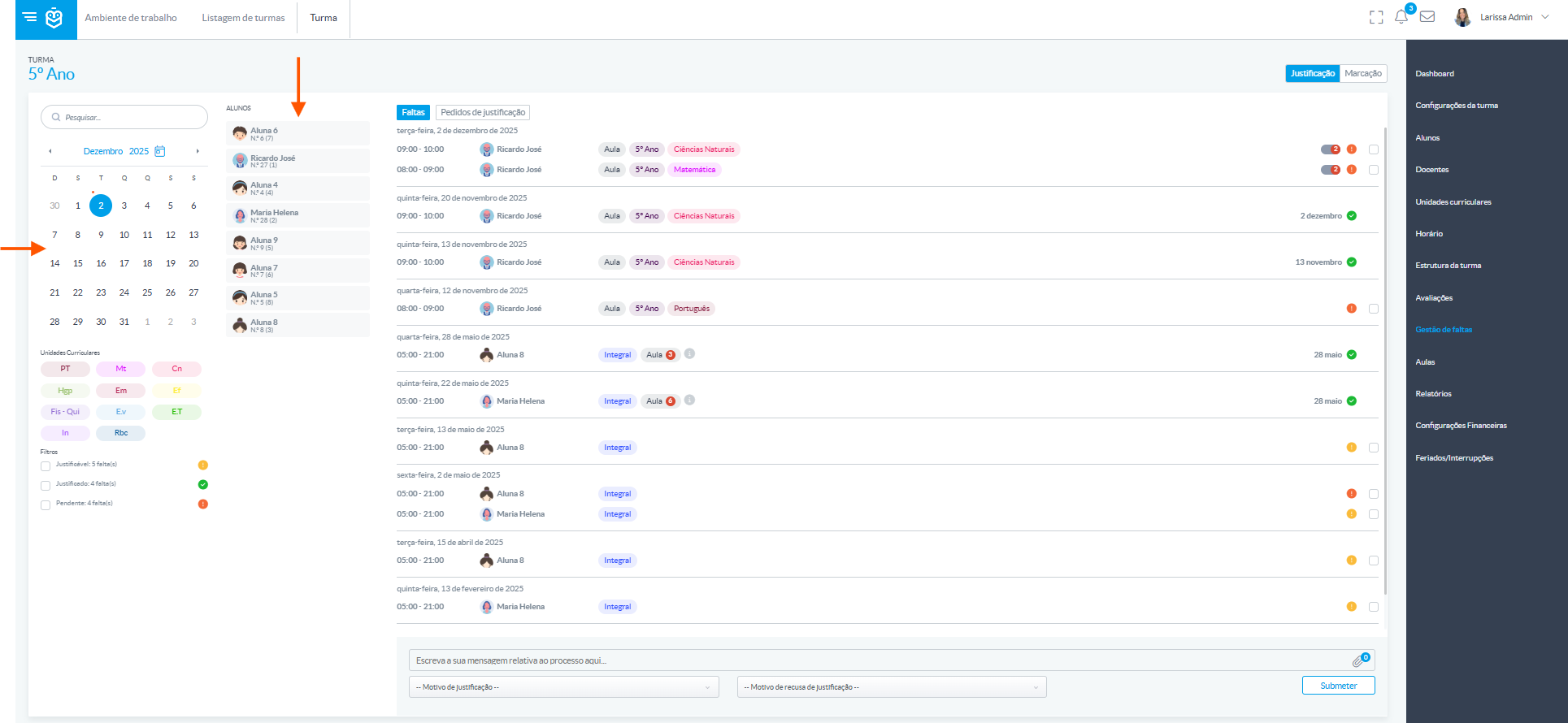
3. Select the Absences to Process
From the list displayed, choose the student whose absences you want to process.
Example: Select the student Ricardo José.
All absences for that student will be displayed, including:
- Justification requests sent by the Guardian.
- Absences still justifiable.
Mark the absences you want to validate or reject.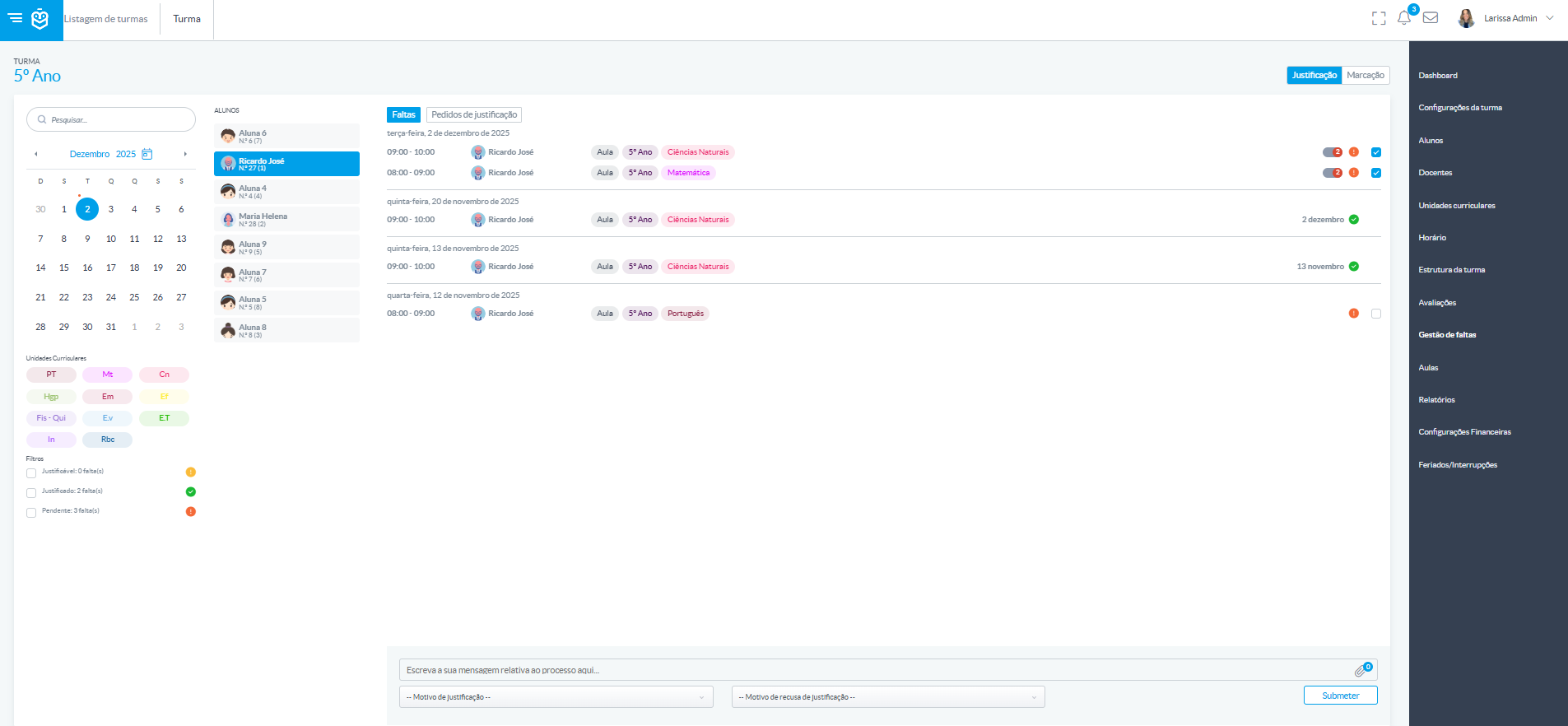
4. Choose the Reason for Justification or Rejection
If you accept the justification, select one of the available reasons:
- Predefined options: Medical Appointment, Illness, Family Bereavement.
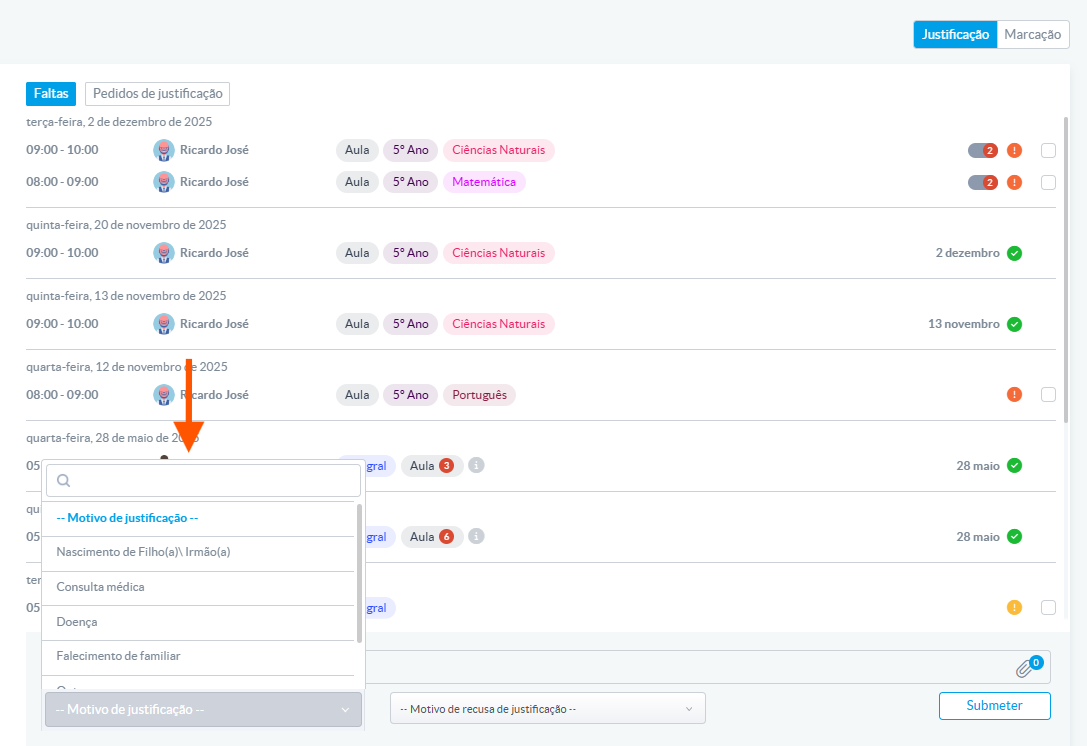
If you reject the justification, select a reason for rejection:
- Predefined options: Missing Documentation, Missed Time.
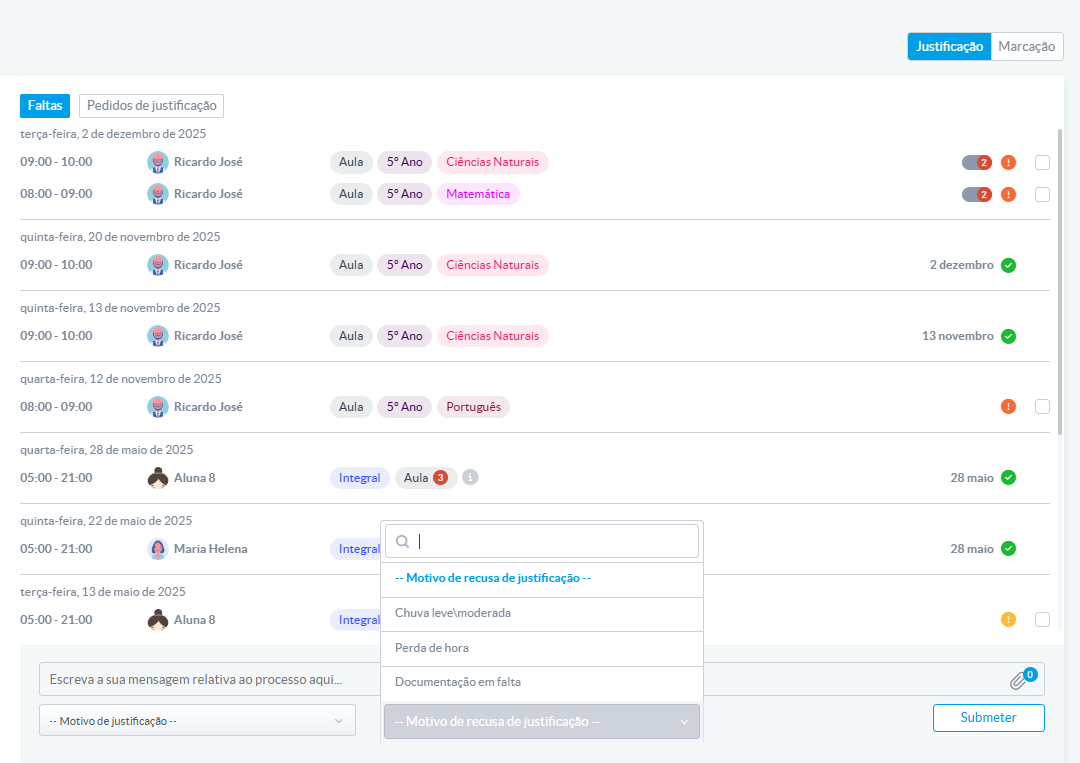
After choosing the reason and submitting, the Guardian or Student will be notified of the decision.Justifying absences is a simple and essential process to keep the history up to date. After submitting or processing absences, the system sends notifications to all parties involved. If you have any questions, contact the school’s administrative services.
Was this article helpful?
That’s Great!
Thank you for your feedback
Sorry! We couldn't be helpful
Thank you for your feedback
Feedback sent
We appreciate your effort and will try to fix the article