This article explains how teachers can record student performance directly in lesson mode in e-Schooling, allowing for continuous assessment of student development throughout the school term.
Guardians will have access to the recorded information as it is updated in the system, according to the permissions defined by the school.1. Access Lesson Mode
To record student performance, you must access the lesson mode of the relevant lesson:
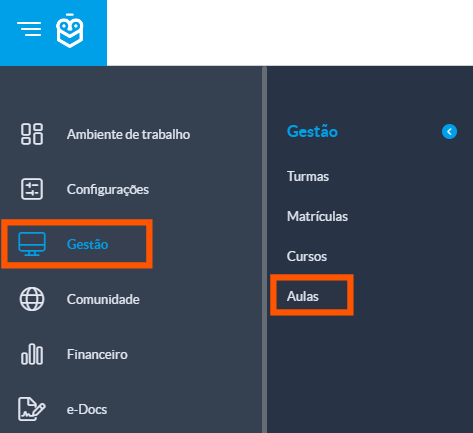
Go to: Management > Lessons
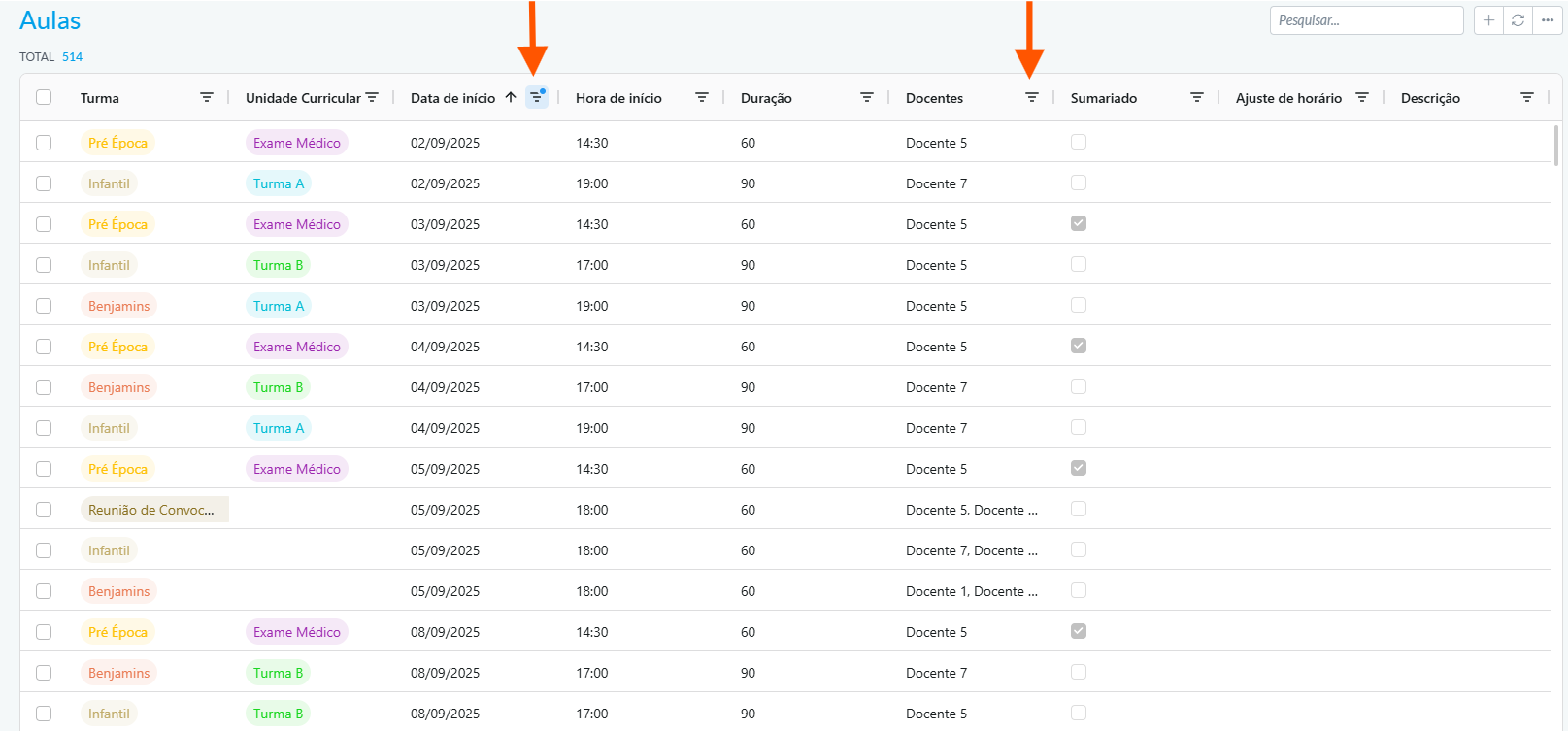
Use the available filters (such as start date or teacher) to locate the desired lesson
2. How to Record Performance
After entering lesson mode, follow the steps below to record a student’s performance:
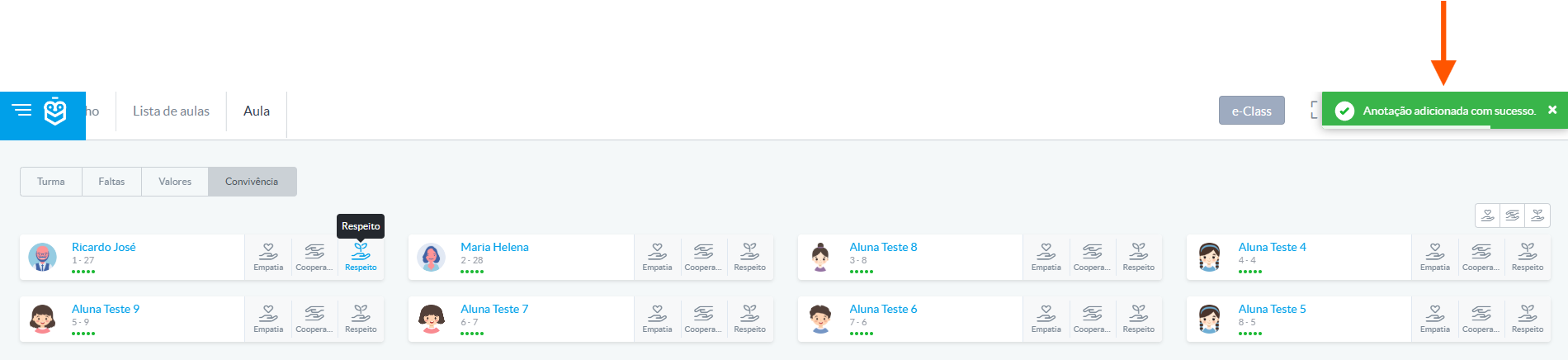
In the central area of lesson mode, you will find the list of present students

Select the parameter you wish to record (e.g., Class, Absences, Values, or Social Interaction)

To record performance, simply click on the icon of the desired parameter (e.g., Respect)

The system will automatically register the selection and display a success notification in the top-right corner
Each school can configure the available parameters, adapting them to its pedagogical practices and educational goals.The student performance recording feature allows teachers to document each student’s journey in a structured way, contributing to a more complete view of their engagement and progress in class.
Was this article helpful?
That’s Great!
Thank you for your feedback
Sorry! We couldn't be helpful
Thank you for your feedback
Feedback sent
We appreciate your effort and will try to fix the article