This article guides users on how to generate and print assessment grids in the e-Schooling system, allowing them to view and document students’ performance in an organized way.
1. Print Assessment Grid
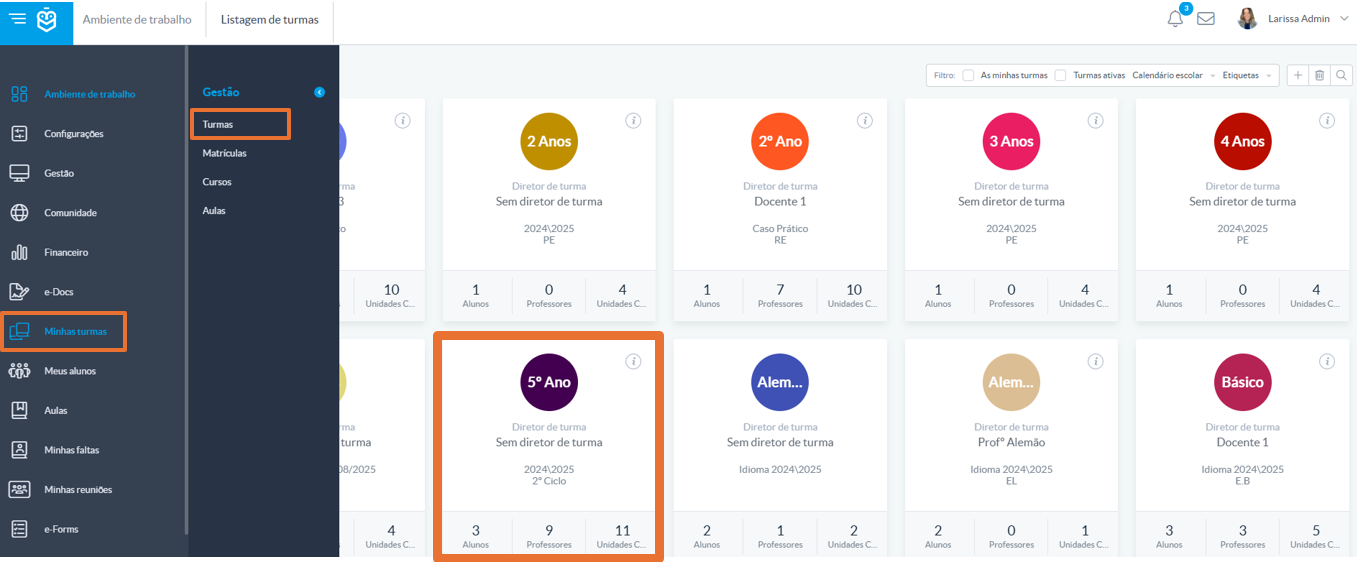
In the side menu, go to My Classes > Classes and click on the desired class.
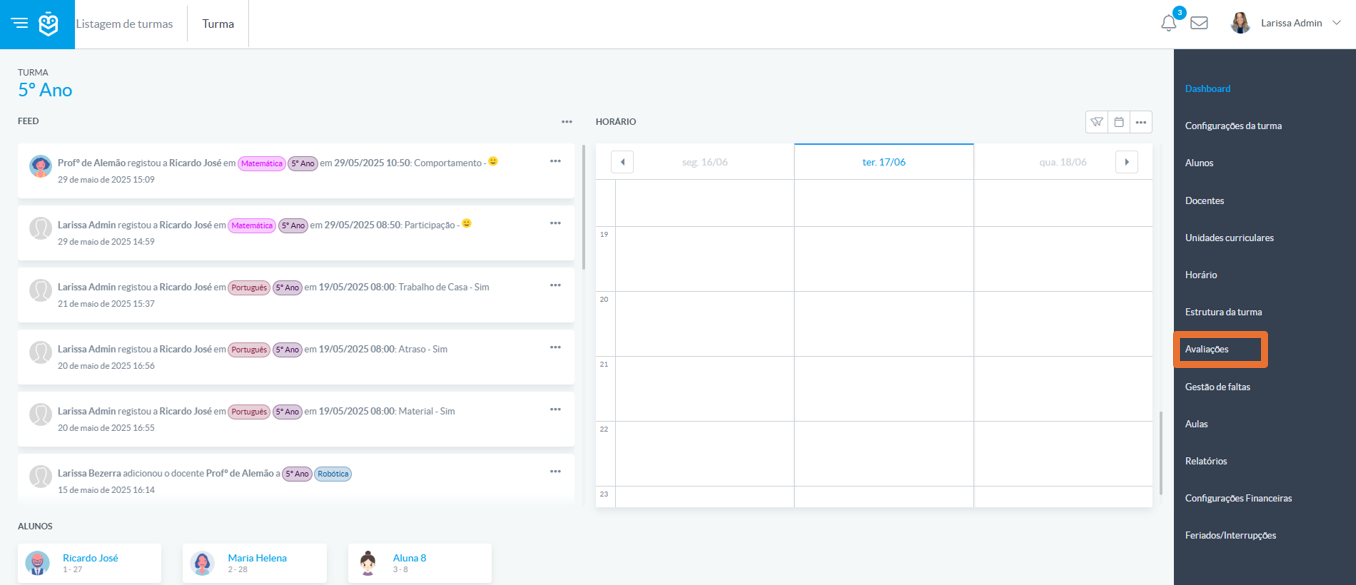
After selecting the class, click on Assessments to view the options for recording and printing the assessment grid.
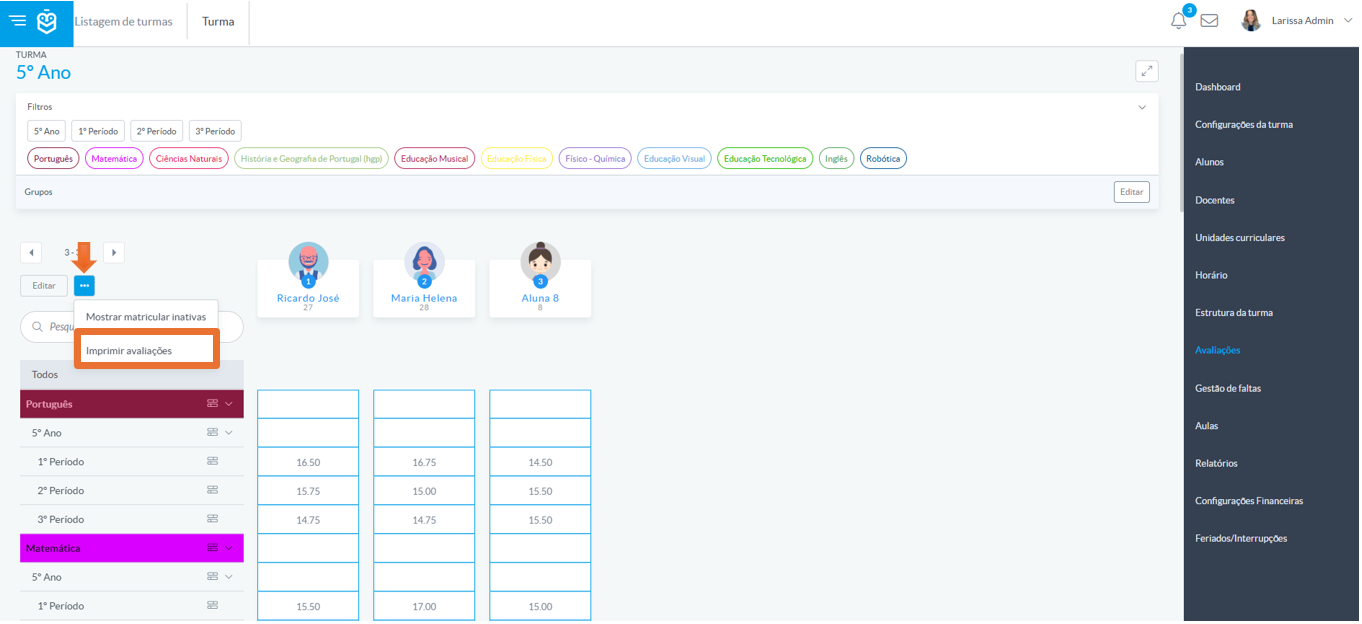
In the Assessments section, click the three-dot icon (...) in the top-right corner of the grid and select the “Print Assessments” option.
After selecting 'Print Evaluations', a preview window will automatically open with the available printing options:
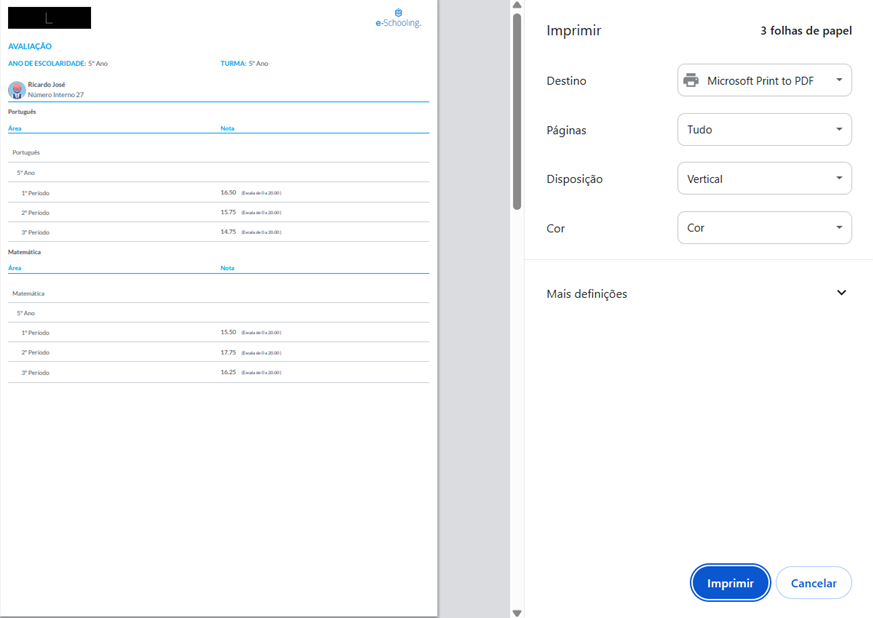
Alternatively, you can simply access the grid directly in your browser, as shown in the second screenshot.
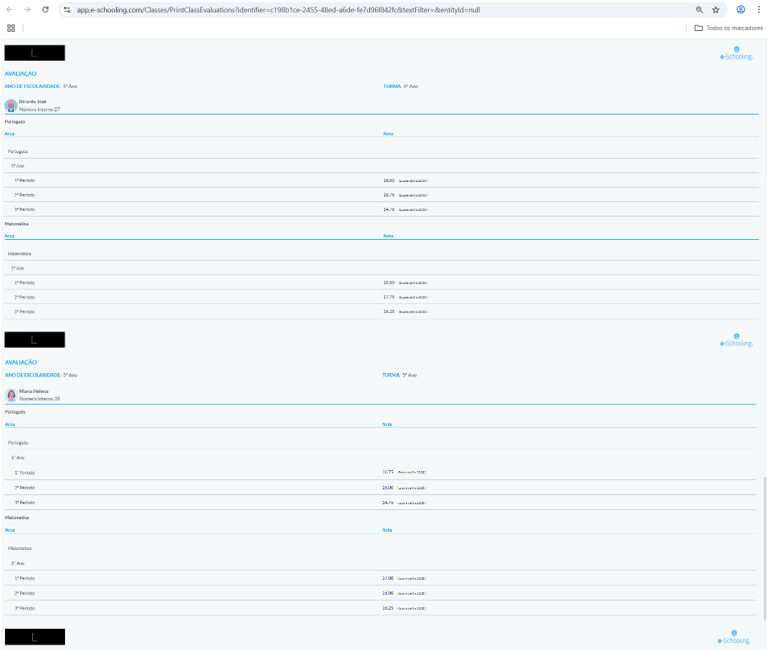
With these steps, you’ll be able to easily generate and print the student evaluation grid, ensuring an organized and accessible record of their academic performance.
2. Settings Before Printing
When generating the assessment grid for printing, it is possible to configure a custom text to appear in the footer of the report.
The system suggests a default text, but you can adapt it according to the school’s context, the academic term, or the pedagogical guidelines you want to communicate to guardians.
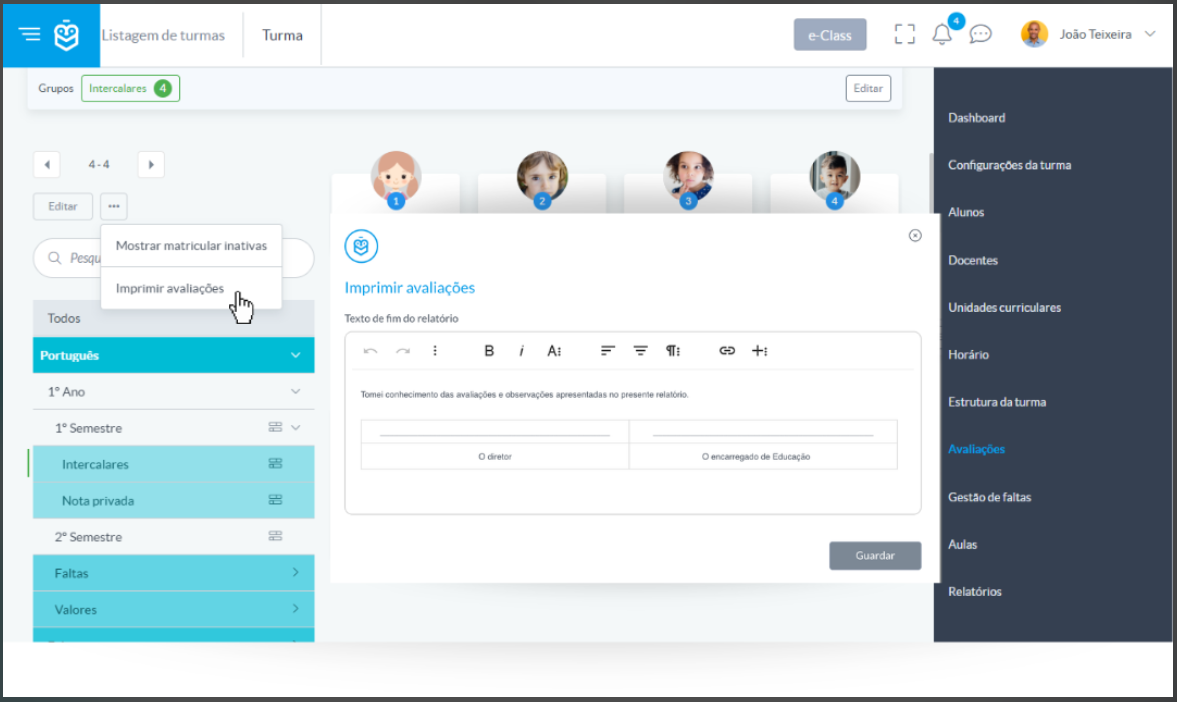
Use this feature to reinforce important information, such as meeting dates, assessment policies, or institutional messages.
Was this article helpful?
That’s Great!
Thank you for your feedback
Sorry! We couldn't be helpful
Thank you for your feedback
Feedback sent
We appreciate your effort and will try to fix the article