This article explains how to create timetable entries for a class in e‑Schooling, including recurring lessons and single (non‑recurring) lessons, as well as how to make adjustments, select students, manage teachers, and view active or inactive lesson lines.
1. Access the Class Timetable
After entering the desired class, use the top menu and select Timetable, where you can view and manage all lessons associated with the class.
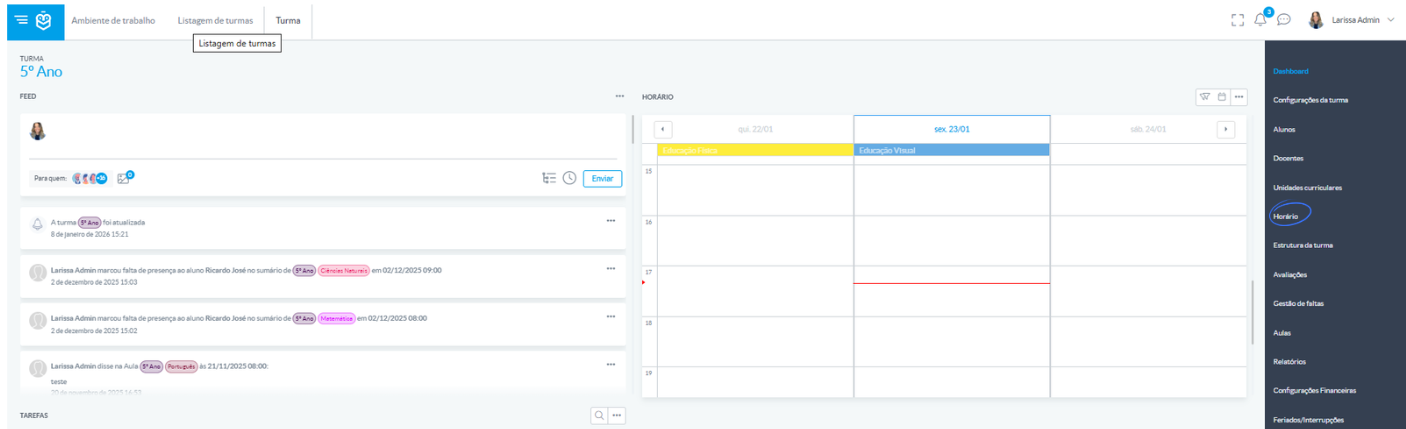
In this screen, you can:
- Create recurring timetable lines, which repeat weekly over a defined date range
- Create single lessons, intended for specific groups of students or individual students, without recurrence
2. How to Create Recurring Timetable Lines
To create a timetable line that repeats weekly:
In the subject section, click the arrow next to the subject name to view the associated teachers and ensure the subject process has been started.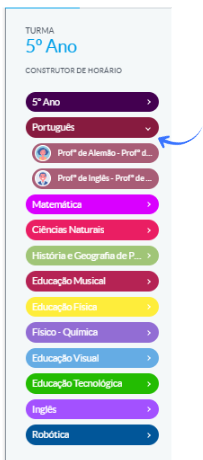
If you need to change the teacher, associate the new teacher with the subject before creating the timetable line.Drag the teacher into the desired day and time in the timetable grid.
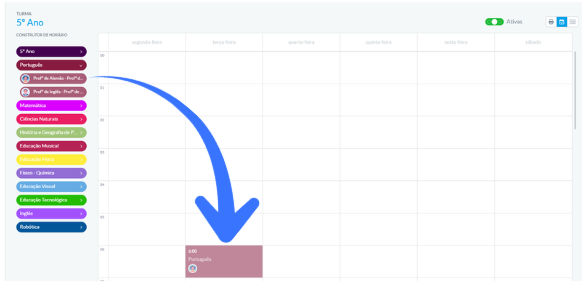
In the lesson creation window, configure: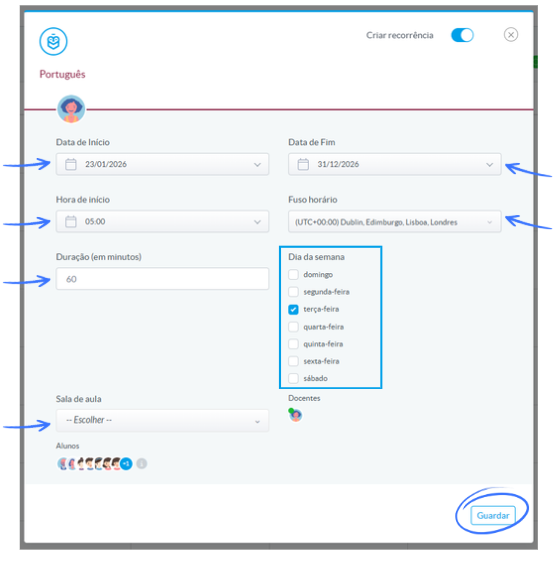
- Start and end date (within the class period)
- Hour and minutes
- School’s time zone
- Duration in minutes
- Days of the week the lesson should repeat
- Classroom, if available in the system
- Student Selection
In the Students field, you can choose who will participate in the lesson using one of the following options:
All students with an active enrolment on the lesson date
(Automatically includes all students who are active on that date.)Select student(s) respecting active enrolment on the lesson date
(Allows you to manually select only students with an active enrolment.)Select students ignoring active enrolment on the lesson date
(Allows selecting students even without an active enrolment — useful in exceptional situations such as regularisations, class transitions, or specific groups.)
Click Save.
The timetable line will now appear in the class’s weekly grid.
3. How to Create Single (Non‑Recurring) Lessons
Single lessons are one‑off lessons created without weekly repetition.
To create a single lesson:
Open the lesson creation window (by dragging the subject or clicking to add a new lesson).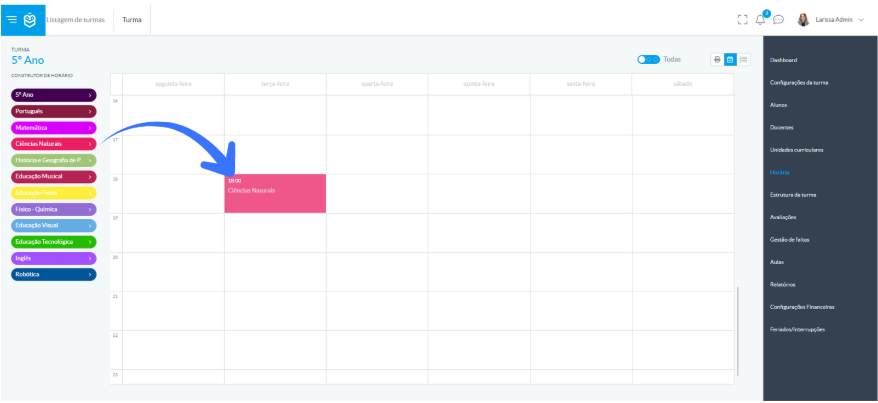
Disable the “Create recurrence” toggle located in the upper‑right corner of the window.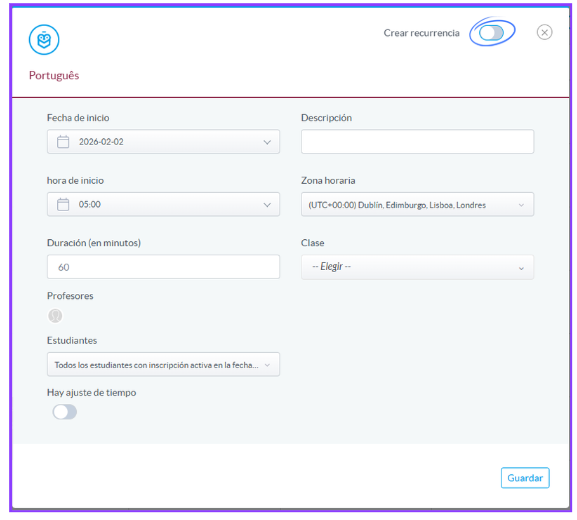
When this option is turned off, the system understands that the lesson will occur only on a specific date.Define:
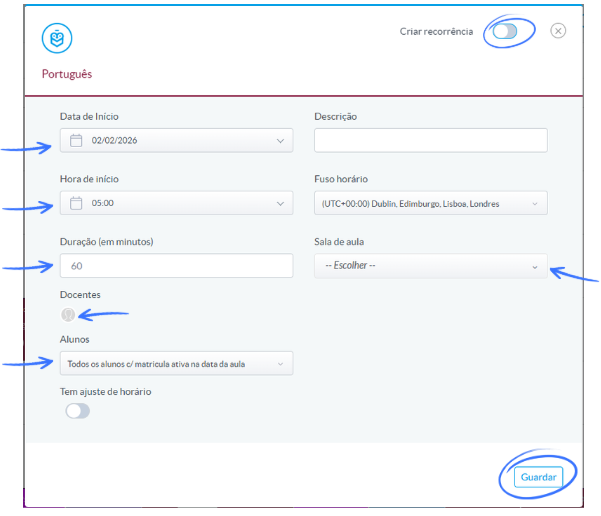
- Start date (the single lesson date)
- Start time and duration
- Classroom, if applicable
- Teacher, if not already selected
- Students Selection
When creating a single (non‑recurring) lesson, you can select the students using the following options:
- All students with an active enrolment on the lesson date
- Select student(s) respecting active enrolment on the lesson date
- Select students ignoring active enrolment on the lesson date
Click Save.
Single lessons do not appear in the timetable grid.
They are listed only in the Lesson Agenda, along with other single or additional lessons.
4. Edit or Delete Timetable Lines
You can adjust or remove timetable lines directly from the grid.
Edit a timetable line
Click the line you want to modify.
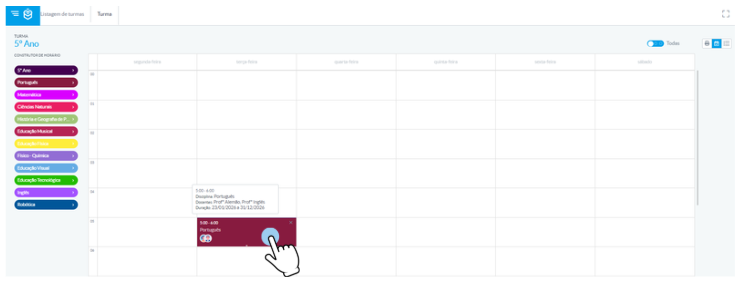 Change dates, times, weekdays, classroom, or students.
Click Save to update.
If a lesson already has a recorded summary, it cannot be deleted, but some adjustments may still be allowed.If a lesson already has a recorded summary, it cannot be deleted, but some adjustments may still be allowed.
End or Delete a Timetable Line
There are two options:
- End (adjust end date)
Use this when you want the lessons to stop occurring after a certain date, without deleting the history.
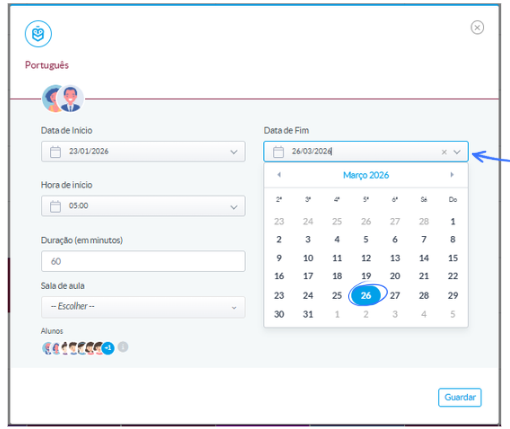
- Open the timetable line.
- Update the End Date to the last day the lesson should occur.
- Save.
The line remains registered but no longer appears as active outside the configured period.
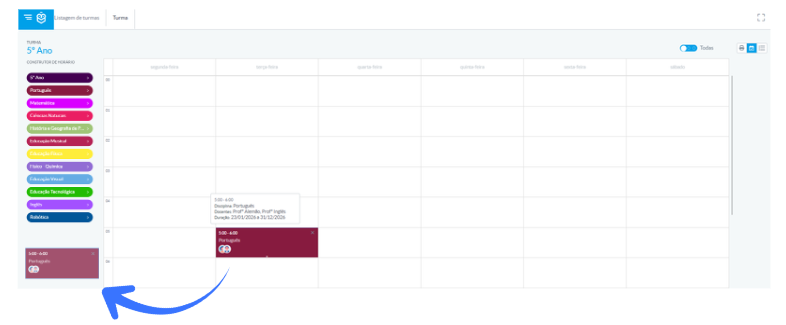
- Delete (remove permanently)
Use this when the line was created incorrectly and should not remain in the system.
- Drag the line outside the timetable grid to remove it
- From the lesson list:
Go to the lesson listing, select the line, and click Delete
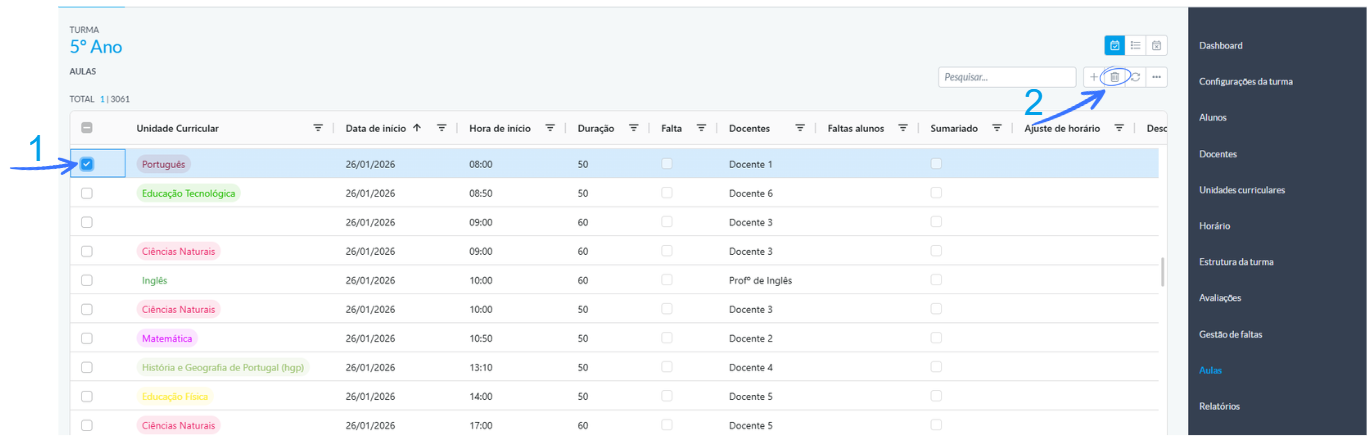
Only lines without recorded summaries can be deleted.5. Active, Inactive, and All Lessons
At the top of the timetable, you can choose which lines to display:
Active – lines within the current period Inactive – lines already finished or not yet started
 All – displays all lines, regardless of date

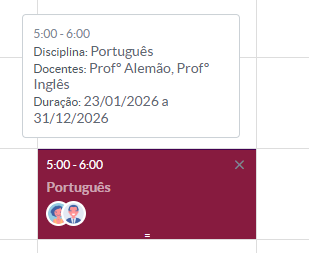
Hovering over each line shows detailed information such as:
- Subject
- Teacher
- Schedule
- Classroom
- Duration
Was this article helpful?
That’s Great!
Thank you for your feedback
Sorry! We couldn't be helpful
Thank you for your feedback
Feedback sent
We appreciate your effort and will try to fix the article