Users are entities who have access to e‑Schooling and can view information, edit data, and/or interact with the school community. User creation is done directly from the entity’s profile.
1. Access the “Manage User” Option
Go to the entity’s profile (Student, Teacher, or Staff Member) and, in the submenu corresponding to the entity type, click Manage User.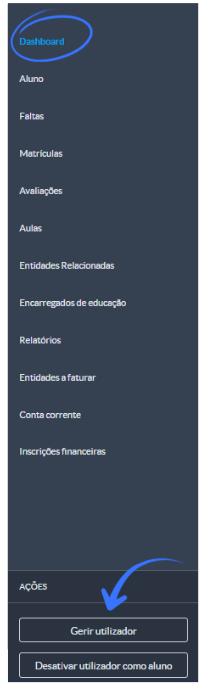
2. Associate the Entity with a User Group
When selecting Manage User, a window will appear where you can configure the association between the entity and the appropriate user group.
Next:
Click Create User.
Fill in the user’s email address.
The system will automatically suggest the appropriate user group(s) based on the entity type.

Automatic group suggestions:
Students and Teachers → receive only one type of user group.
Staff Members (Não Docentes) → may be suggested multiple groups, such as Employee, Administrative, Technician, among others.
After entering the user’s email and confirming the suggested group(s), click Create to complete the process.
The user will receive an email with the instructions needed to activate their e‑Schooling account.
After receiving the activation email, the user can follow the instructions in the article How to Access e‑Schooling to complete the account setup: https://help.e-schooling.com/a/solutions/articles/202000096195?lang=en&portalId=202000010592
3. Available Actions After User Creation
After creating the user, the school has some additional actions available to ensure the account activation is successful:
Resend Activation Email
If the user reports they did not receive the activation email, you can resend the message by clicking the Send email button on the right side of the screen.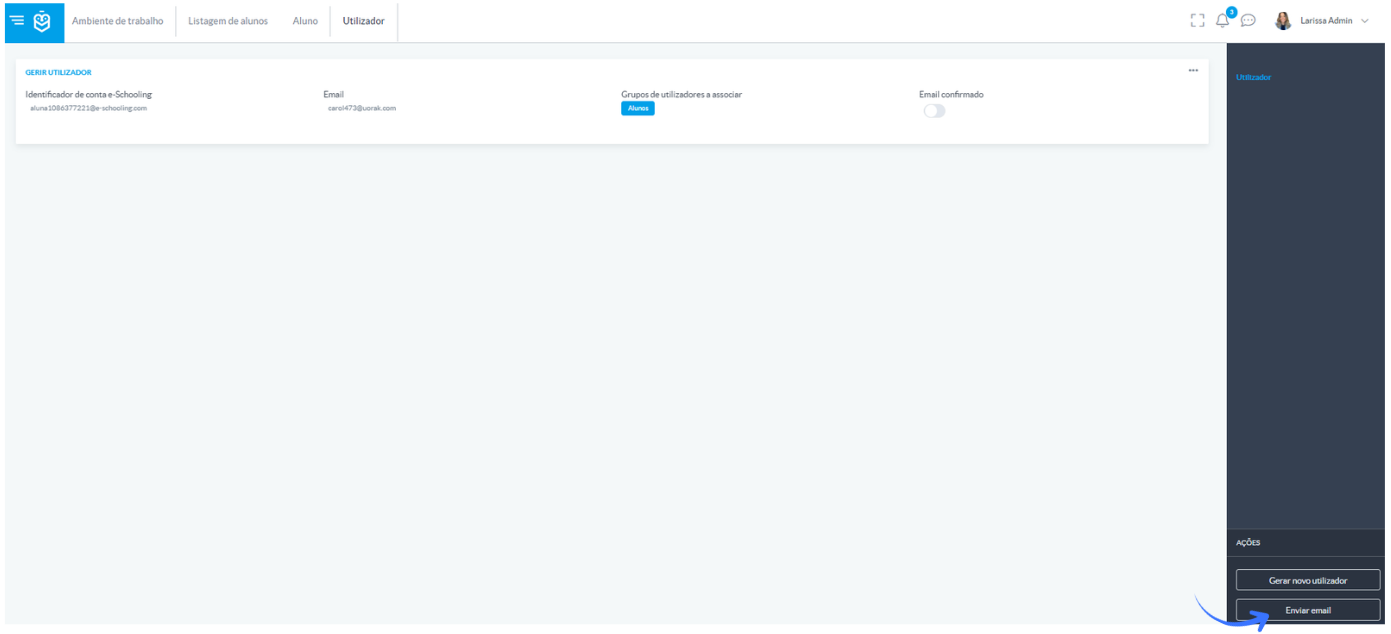
Change the User’s Email Address
If the user requests an email update, you can generate the user again by selecting Generate new user.
After entering the new email, a new activation request will be sent.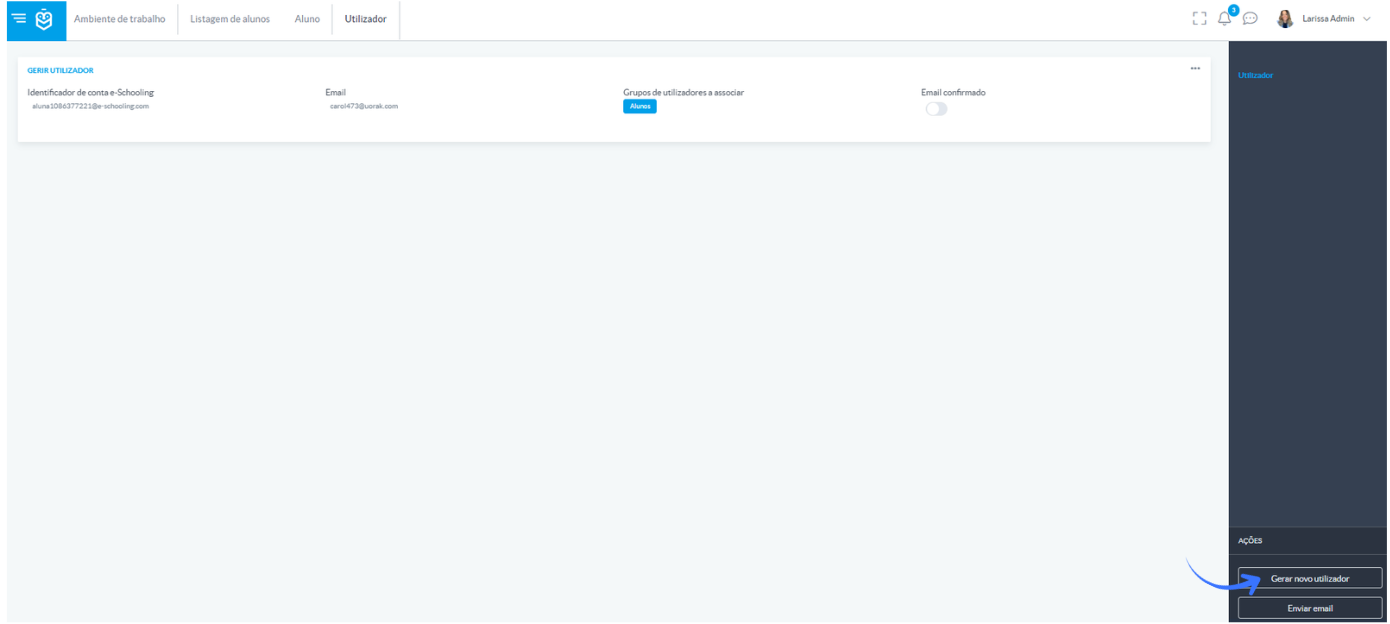
Check Whether the User Has Confirmed the Account
In the same screen, you can verify whether the user has confirmed access.
To do so, check the Email confirmed indicator.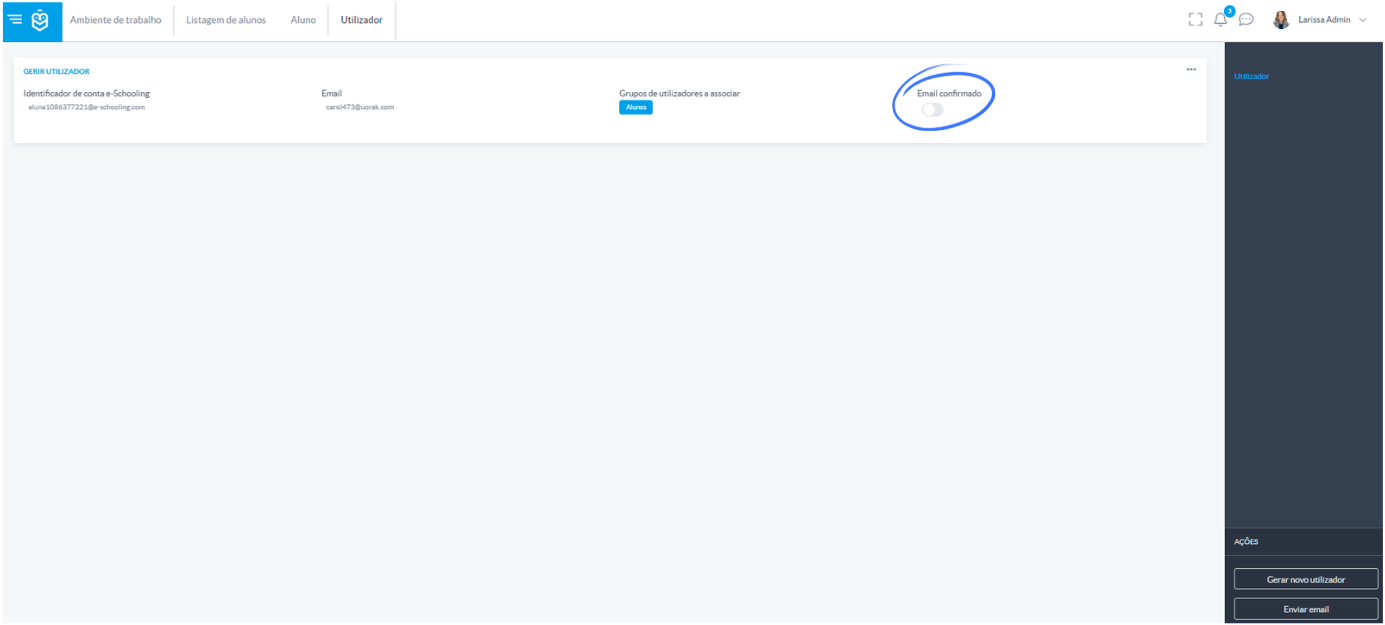
Was this article helpful?
That’s Great!
Thank you for your feedback
Sorry! We couldn't be helpful
Thank you for your feedback
Feedback sent
We appreciate your effort and will try to fix the article