This article explains how to create tasks in e-Schooling, both in the main feed context (user/admin) and in the pedagogical context (lesson mode), enabling effective management of activities and responsibilities.
1. Creating Tasks in the Main Feed (User/Admin)
This feature is ideal for supporting the organization of activities and responsibilities related to the user’s role within the school.
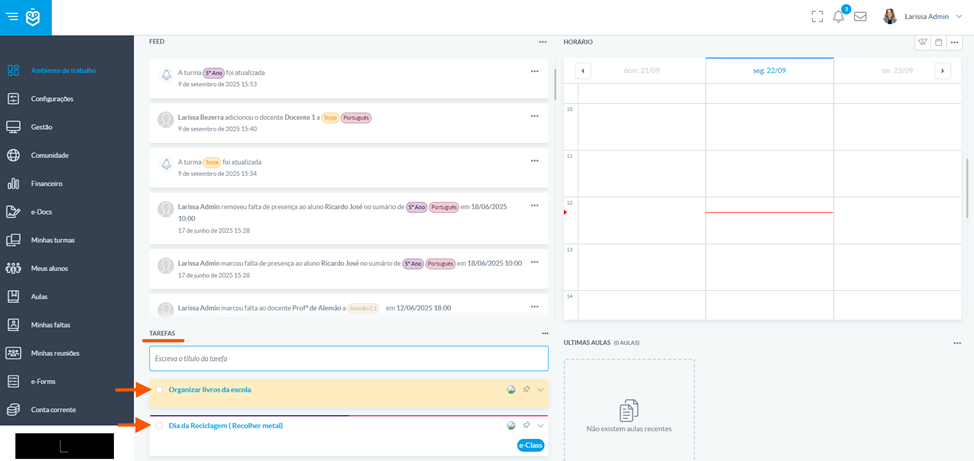
How to create a task?
Go to the main feed and locate the Tasks section
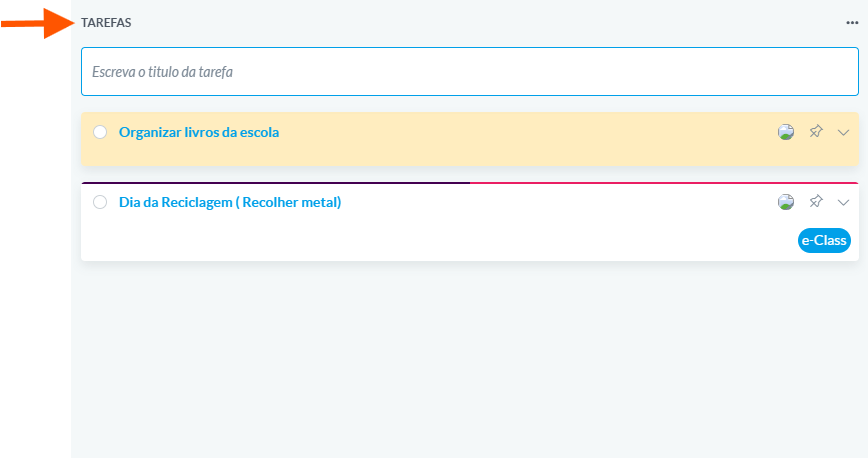
In the field “Enter the task title”, type the name of the task

Set the task’s visibility

End date (if applicable)
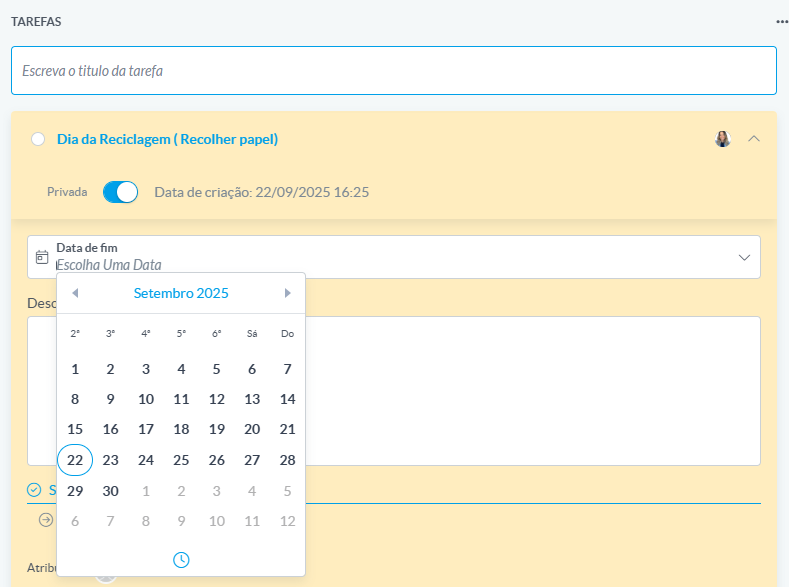
Task description

Subtasks (with assignment and attachments options)

When creating a subtask, use the “Assigned to” field to indicate who will be responsible for that activity. This way, each user will know exactly which tasks have been assigned to them.Use the comments field to collaborate with other users.

Click Save to finish.
2. Creating Tasks in Lesson Mode
This feature is available in e-Class (lesson mode) and allows you to record specific activities associated with a lesson.
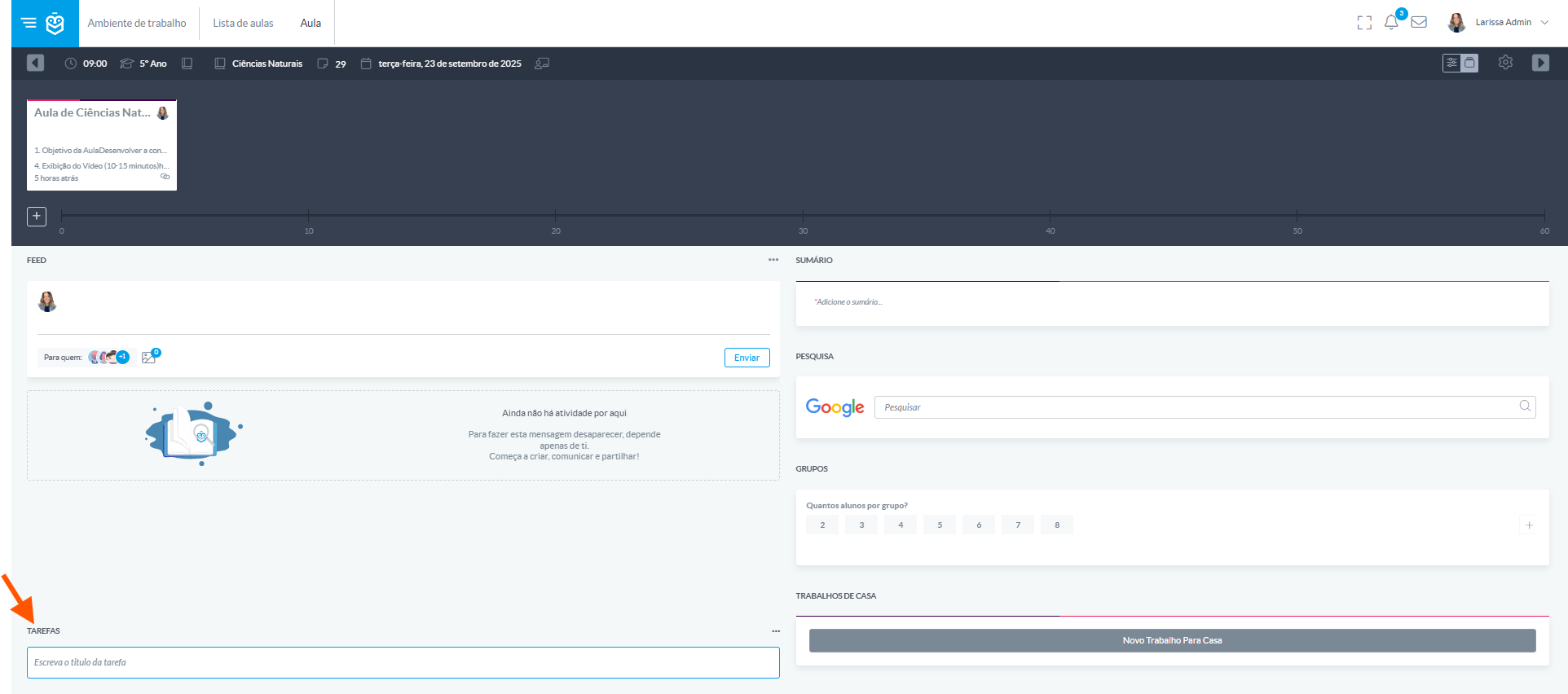
How to create a task?
In the field “Enter the task title”, type the name of the activity

Set the task’s visibility (private or public)

Indicate the task’s end date
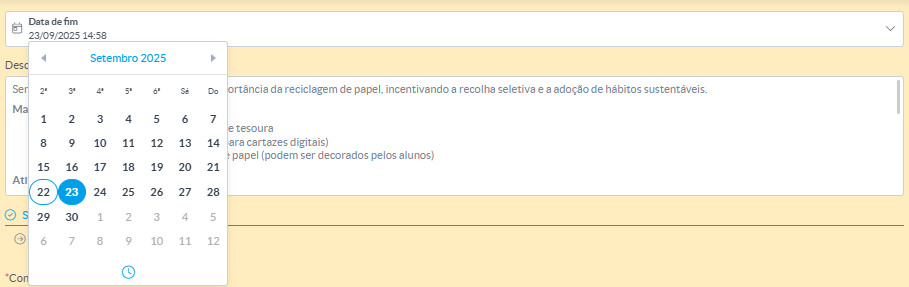
Fill in the Description field with instructions and objectives for the activity

Create subtasks as needed, using the “Enter a description” field

The Context field is automatically filled with the class, subject, and date/time of the lesson, since the task is being created within lesson mode.

Use the Assigned to field to indicate those responsible for each subtask and attach supporting documents if necessary.

Use the comments field to interact with students or other teachers.

Click Save to finish.
Creating tasks in e-Schooling allows for more efficient management of time and responsibilities, whether in the administrative or pedagogical context. Both approaches promote organization, collaboration, and continuous follow-up.
Was this article helpful?
That’s Great!
Thank you for your feedback
Sorry! We couldn't be helpful
Thank you for your feedback
Feedback sent
We appreciate your effort and will try to fix the article