Tags (labels) are a simple and effective way to organize content in e‑Schooling, allowing you to classify communications and homework to make them easier to find in the feed.
1. Creating tags
Tags are created and managed in the Support Tables area within the system settings.
How to access
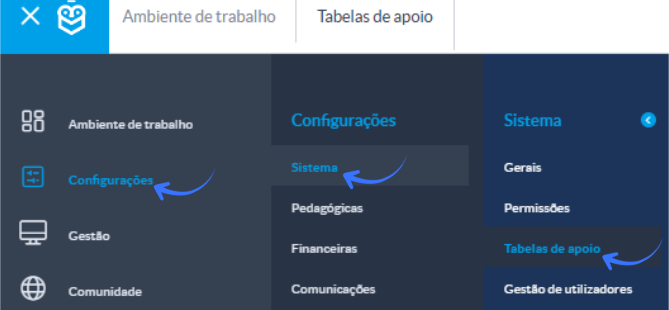
- In the side menu, select Settings.
- Go to System.
- Click Support Tables.
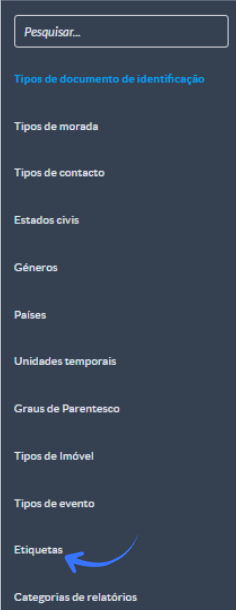
Managing tags
On this page, you will find the list of all existing tags, including:
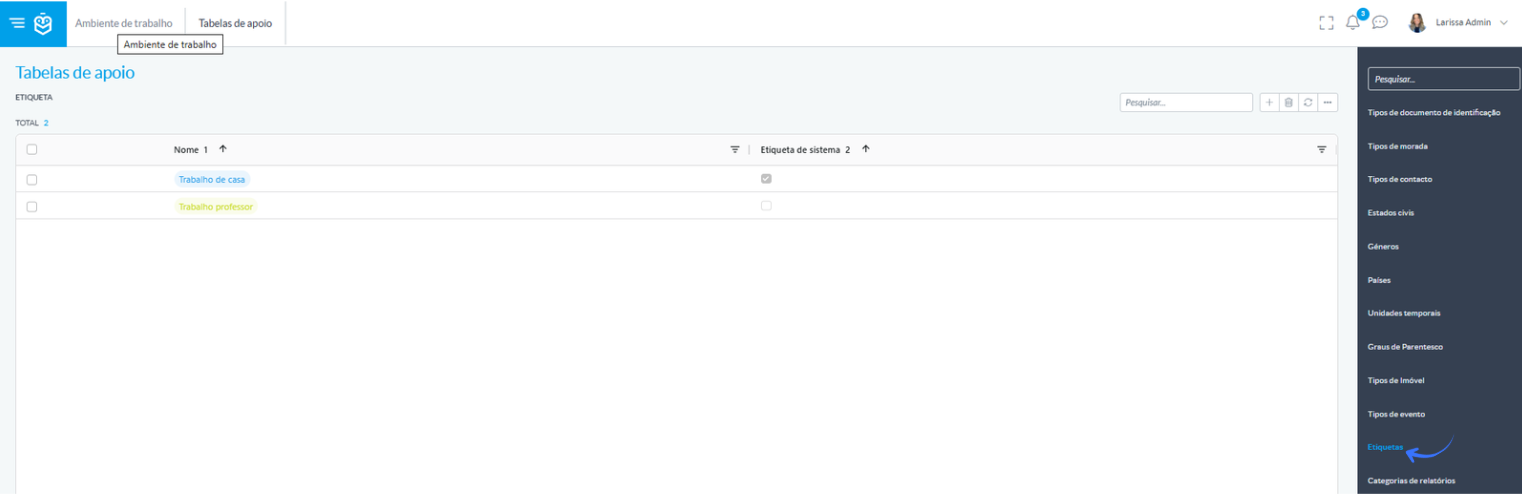
- Tags created by the school, which can be edited or removed.
- System tags, identified with the “System Tag” field enabled, which cannot be edited or deleted (for example, Homework).
Create a new tag
In the upper‑right corner of this screen:
Click the “+” button to create a new tag.
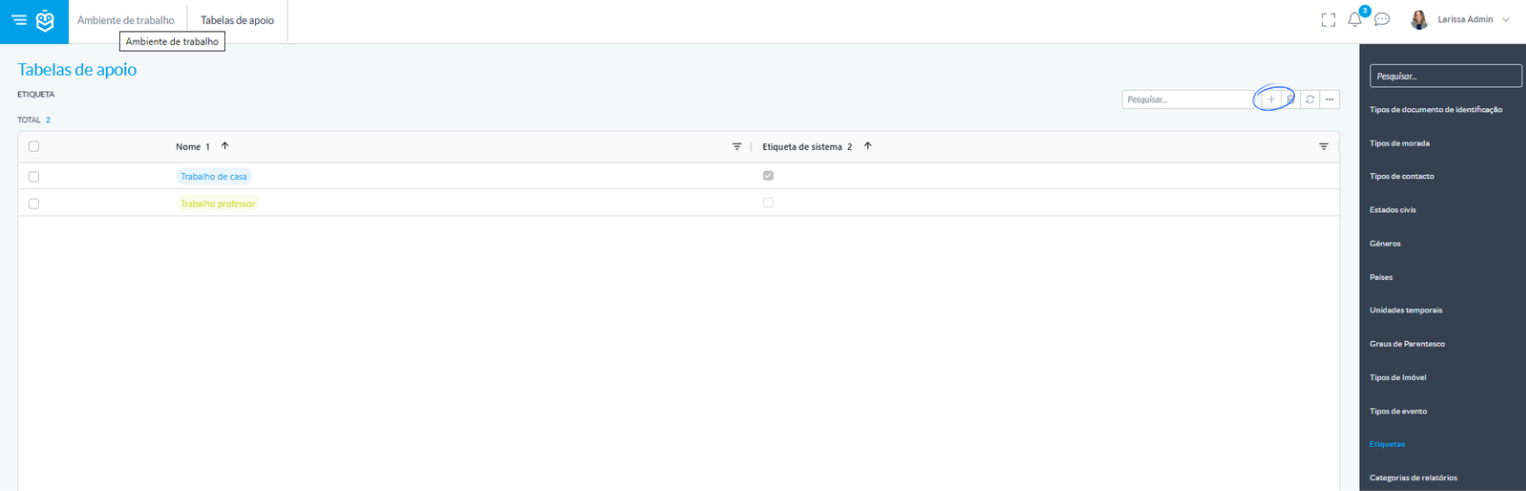
Then:
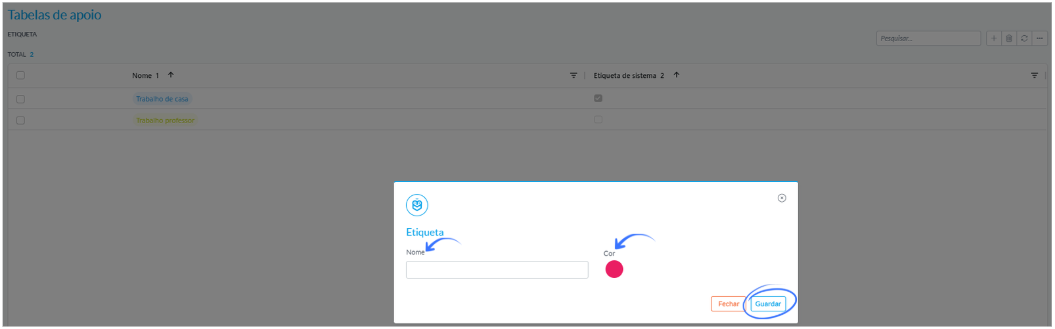
- Enter the name of the tag.
- Choose the colour that will visually identify it.
- Save to add the tag to the list.
2. What tags are used for
Tags allow you to:
- Organize posts by theme
- Quickly identify the type of content
- Make feed searches easier
- Simplify navigation for all users
With well‑defined tags, accessing information becomes faster and more intuitive.
3. System tag “Homework”
The platform includes the “Homework” tag, automatically created by the system

This tag:
- Cannot be edited
- Cannot be deleted
- Is always automatically applied when a teacher creates a task in lesson mode
Using this tag makes it easy to filter all homework in the feed, ensuring consistent organization across the school.
4. Associating tags with content
When creating communications or homework, you can select one or multiple tags
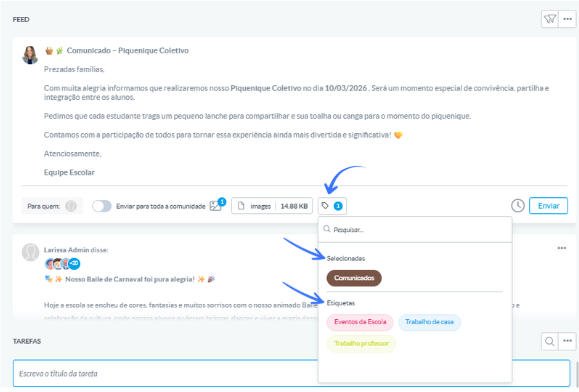
The selected tags appear highlighted in the post and are available for future searches
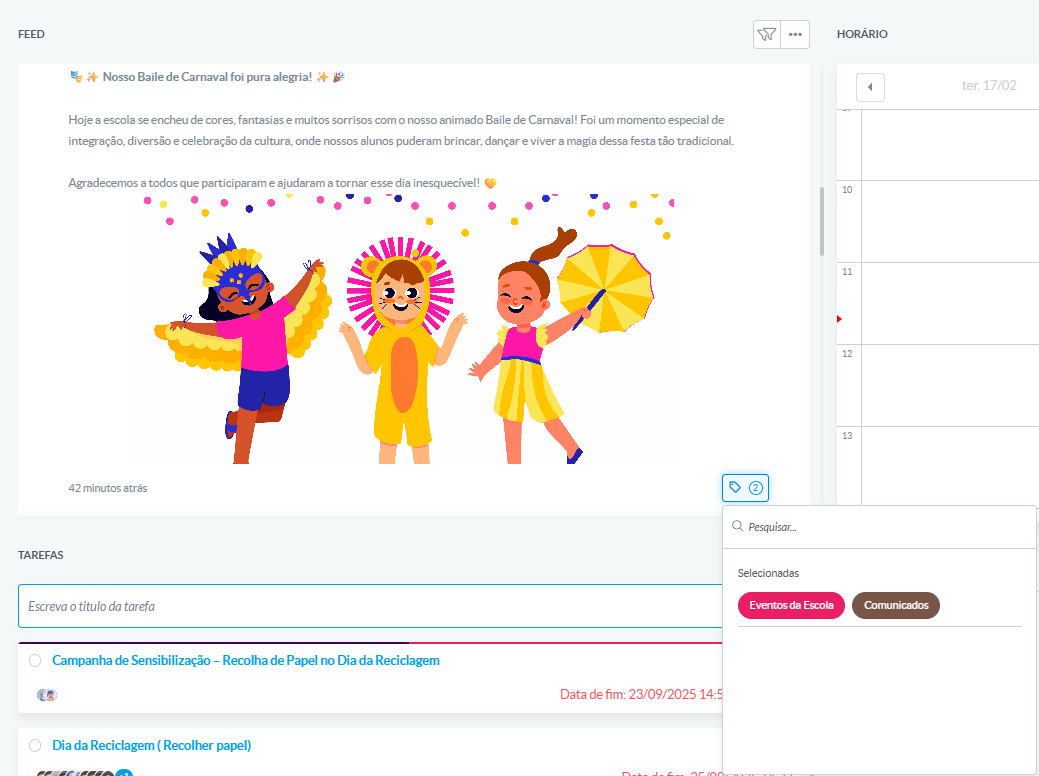
5. Filtering content in the feed by tags
The feed allows filtering posts using the applied tags.
To use the filter:
- Go to the feed
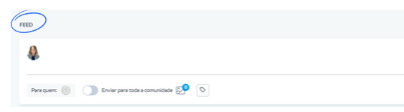
- Open the filters area
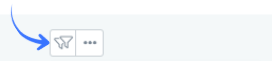
- Select the tag you want to view
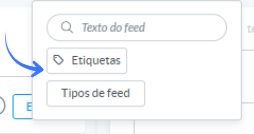
The feed will display only the posts associated with the selected tag.
Using tags helps keep the feed organized, making it easier to find what you need and allowing each user to quickly access relevant information.
Was this article helpful?
That’s Great!
Thank you for your feedback
Sorry! We couldn't be helpful
Thank you for your feedback
Feedback sent
We appreciate your effort and will try to fix the article