This article explains how to view and delete previously scheduled lessons in e-Schooling, whether due to error, duplication, or the need to adjust planning. Proper deletion of lessons ensures the integrity of records and prevents inconsistencies in schedules and pedagogical indicators.
1. Where to View and Delete Lessons
Lessons can only be deleted from within the class environment, where lessons are organized according to the associated schedule:
Management > Classes > Select class > Schedule
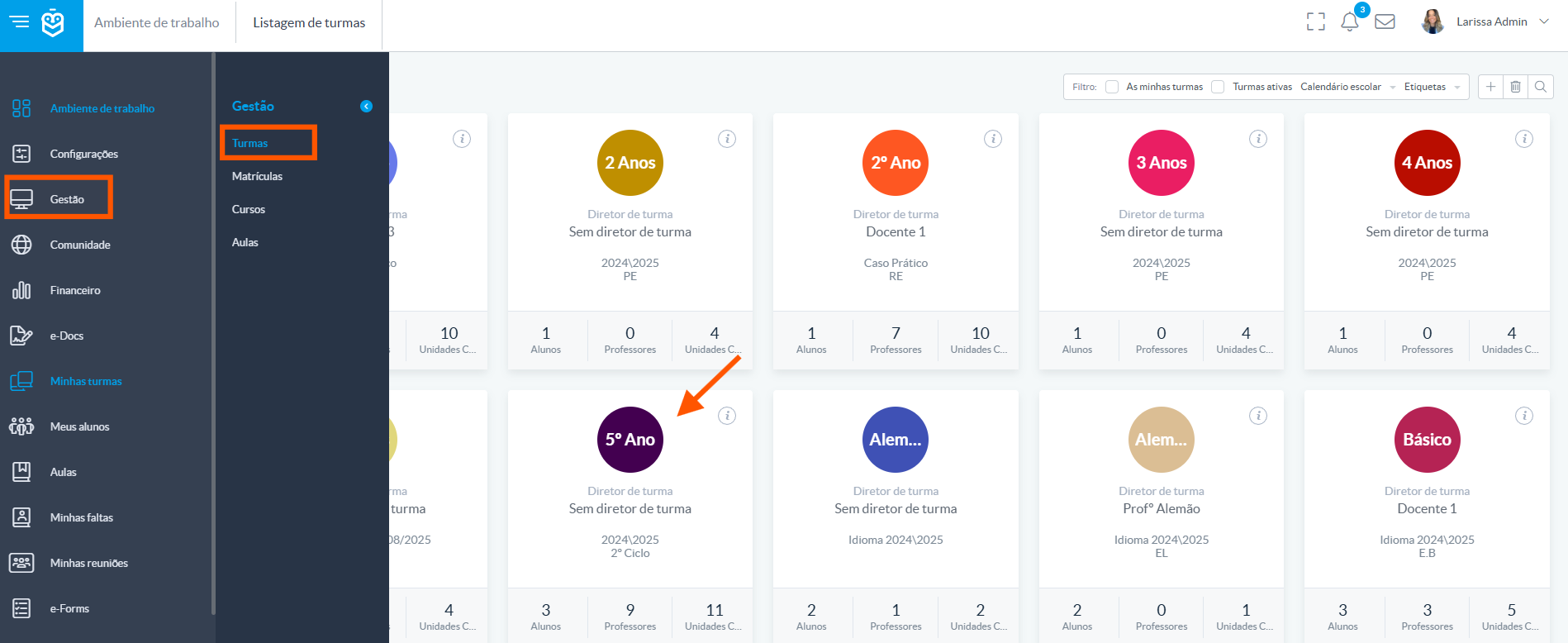
2. Steps to Delete a Lesson
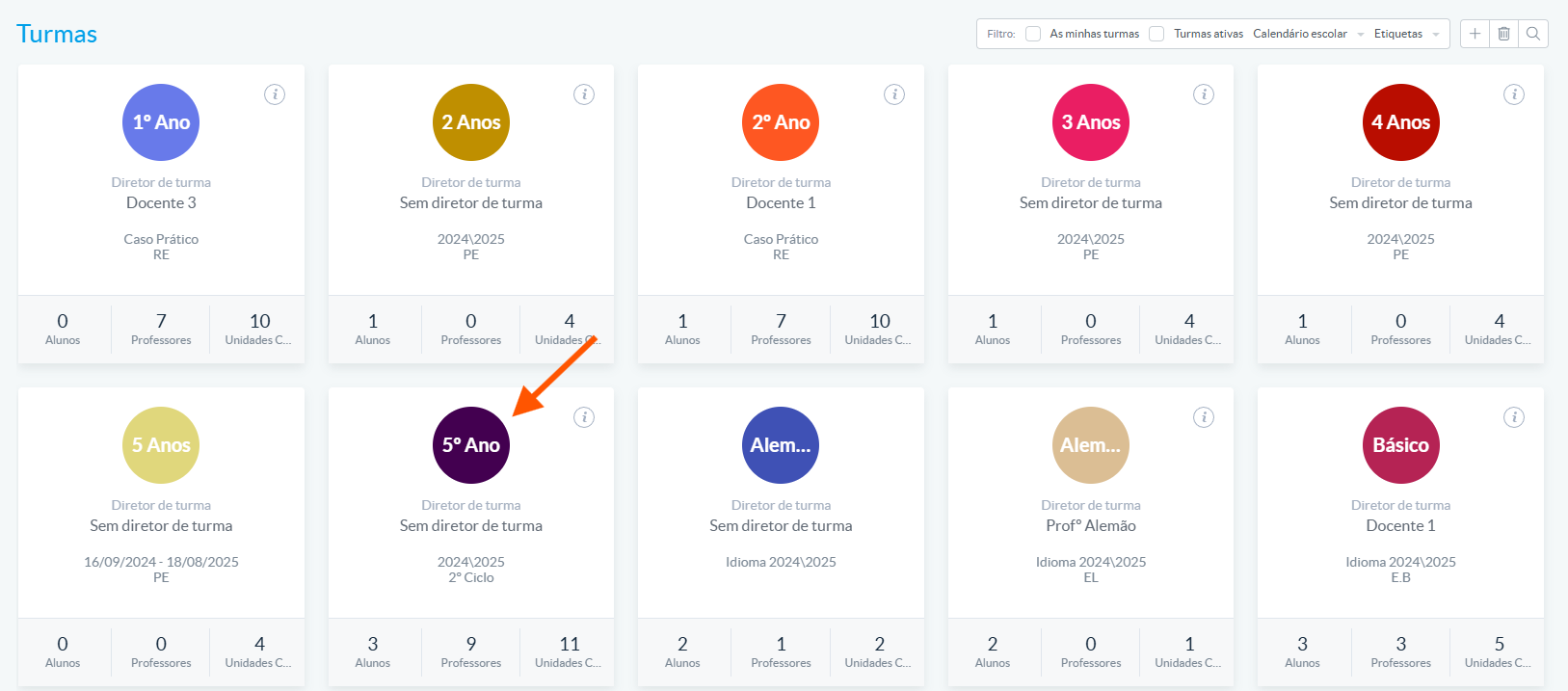
Access the class where the lesson is scheduled (e.g., 5th grade)
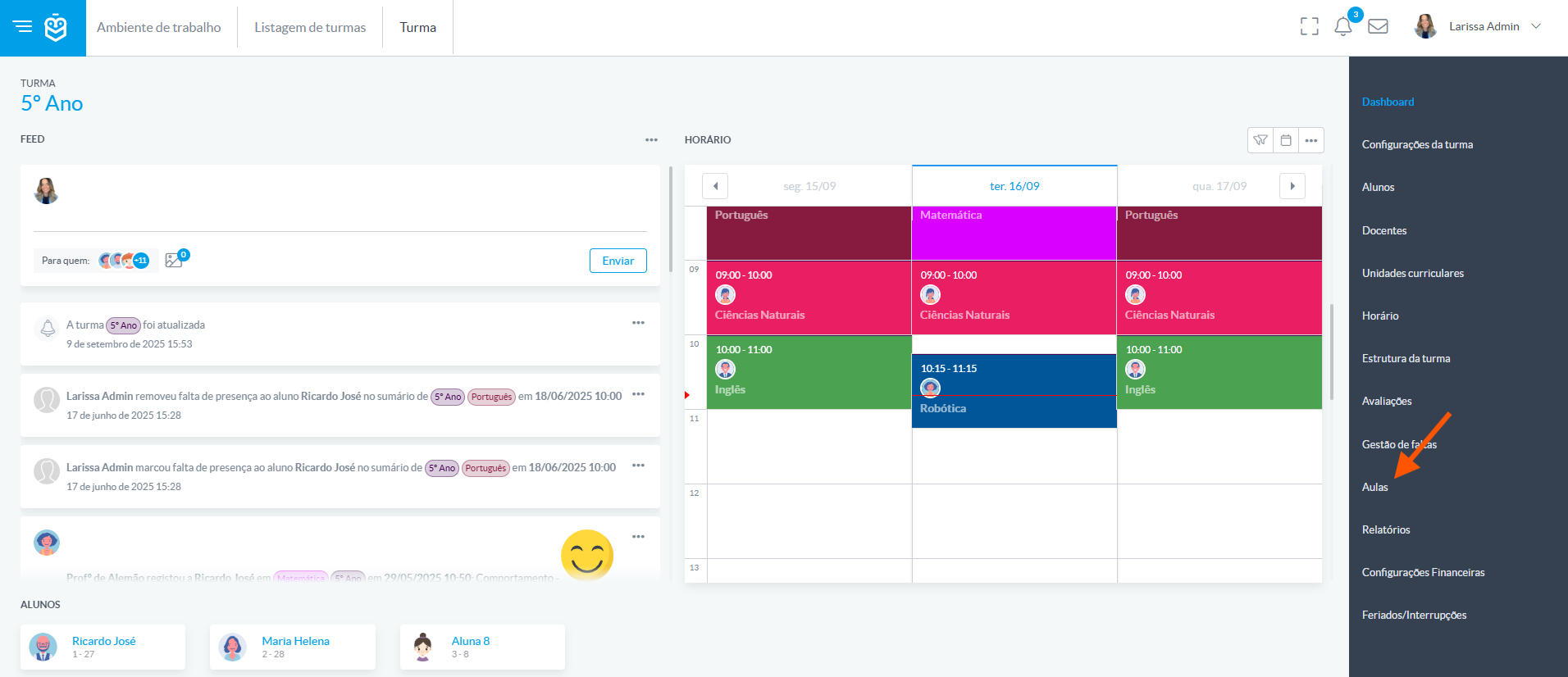
In the right-hand side menu, click on Lessons
Use the filters or search bar to locate the lesson you want to delete
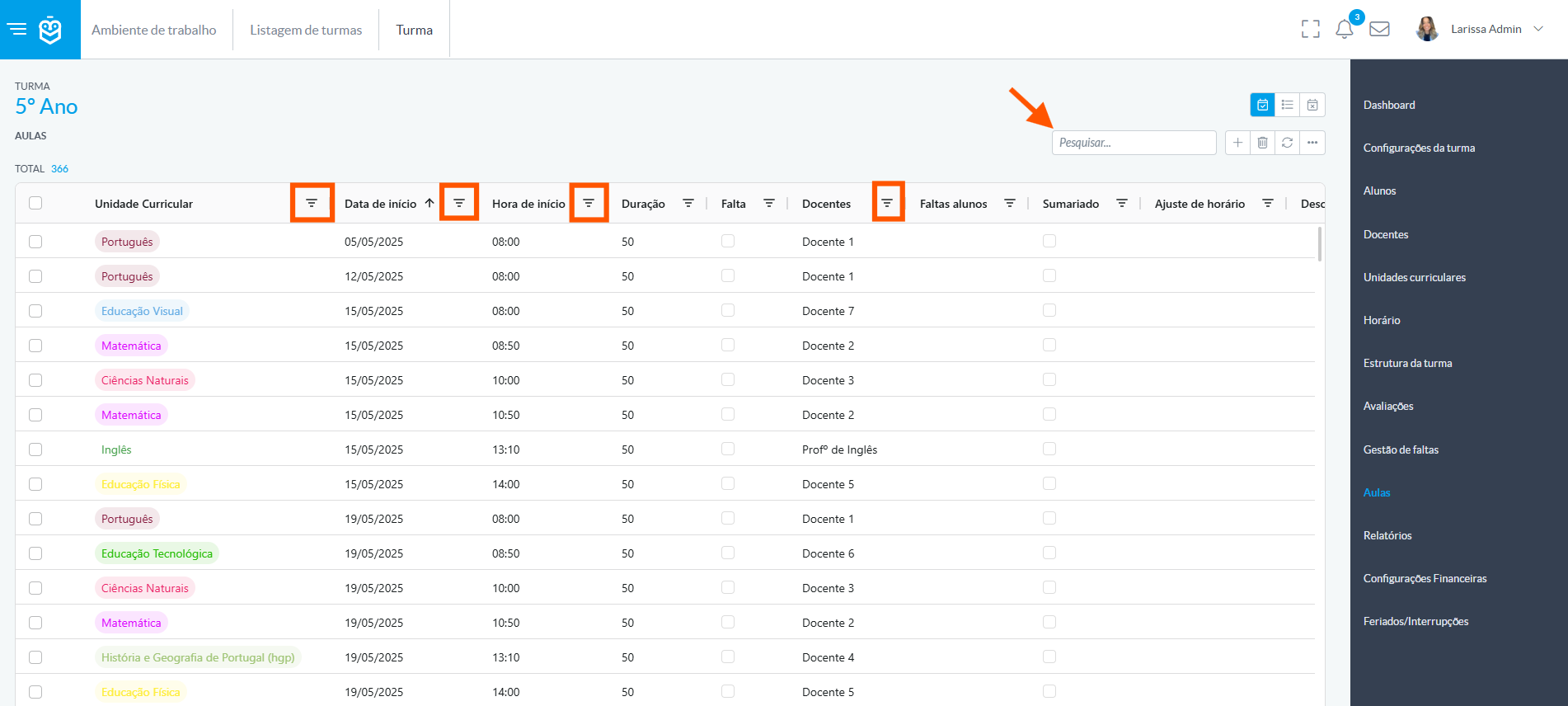
In the lesson row, click on the lesson and then on the trash bin icon

Once deleted, the lesson will no longer appear in the calendars of the student, teacher, or class.
Deleting lessons in e-Schooling should be done carefully, especially to avoid impacting pedagogical records. Whenever possible, consider editing or reassigning the lesson instead. Use this feature only when deletion is truly necessary.
Was this article helpful?
That’s Great!
Thank you for your feedback
Sorry! We couldn't be helpful
Thank you for your feedback
Feedback sent
We appreciate your effort and will try to fix the article