It is now possible to create chat groups directly from the class dashboard, without manually searching for contacts.
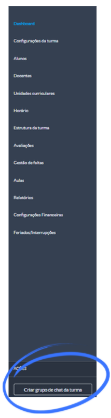
Action in the context menu: On the class dashboard, open the context menu and select “Create class chat group.”
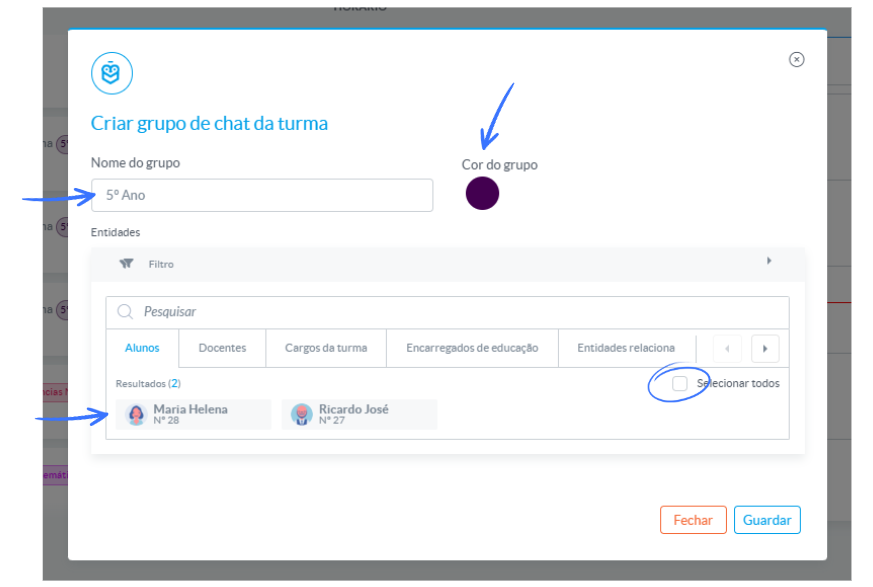
 Creation modal: A modal window will open, where you can:
- Customize the group name
- Choose the group color
- Select the entities to associate
Role identification: In the “roles” tab of the class, entity cards display the role each person occupies, making selection easier.
Only entities that have an e‑Schooling user account will appear.
Was this article helpful?
That’s Great!
Thank you for your feedback
Sorry! We couldn't be helpful
Thank you for your feedback
Feedback sent
We appreciate your effort and will try to fix the article