This article explains how to individually record student absences directly from the student’s profile using lesson mode. This feature is useful for specific situations where only one student is absent.
1. Access the Lesson
There are two ways to access the lesson:
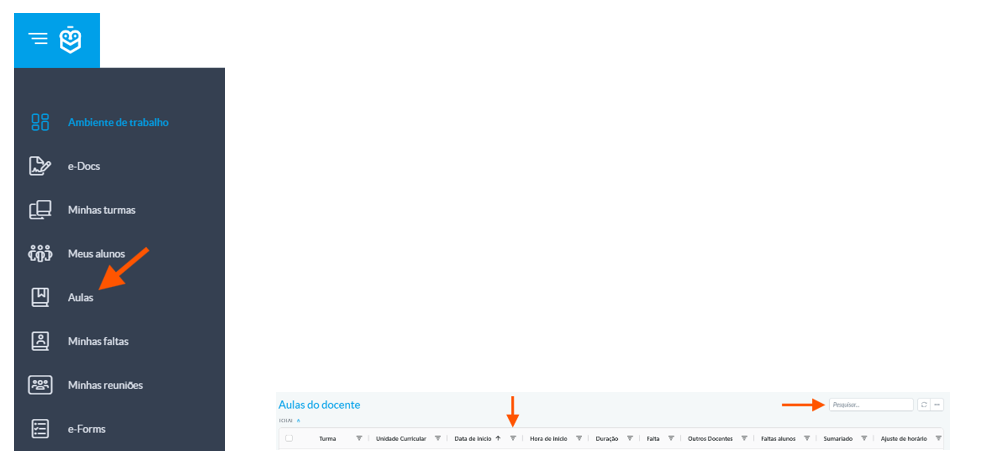
Through the Lessons menu: select the lesson using filters such as start date or search by name
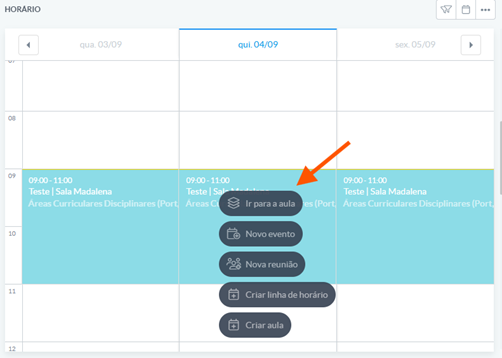
From the dashboard, via the schedule, by clicking Go to lesson
2. Mark the Student as Absent
Once inside the lesson, the lesson dashboard will be displayed.
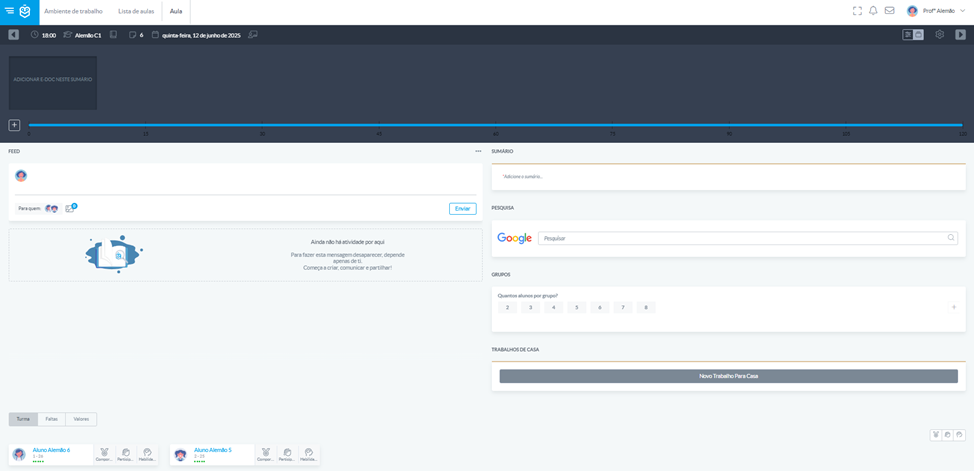
Locate the student in the list and click on their name
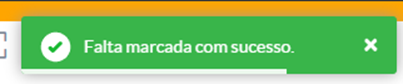
The absence will be automatically recorded
This action can be performed by roles defined by the school, such as administration, class director, teachers, or others with assigned permissions.Was this article helpful?
That’s Great!
Thank you for your feedback
Sorry! We couldn't be helpful
Thank you for your feedback
Feedback sent
We appreciate your effort and will try to fix the article