This article explains how to issue an invoice in e-Schooling, even for entities that are not yet associated with students or guardians. The process includes creating the entity, configuring the item, and issuing the invoice.
1. Create the Entity
Before issuing an invoice, the entity must exist in the system:
Go to Community > All
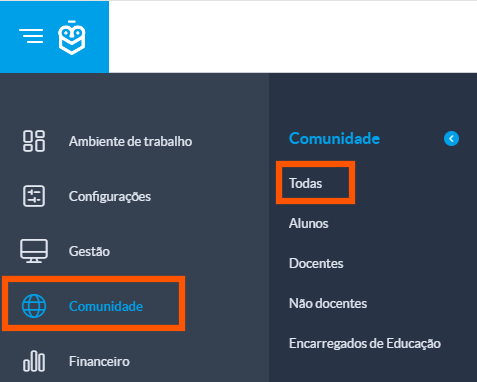
Click on Create new entity

Fill in the required fields:
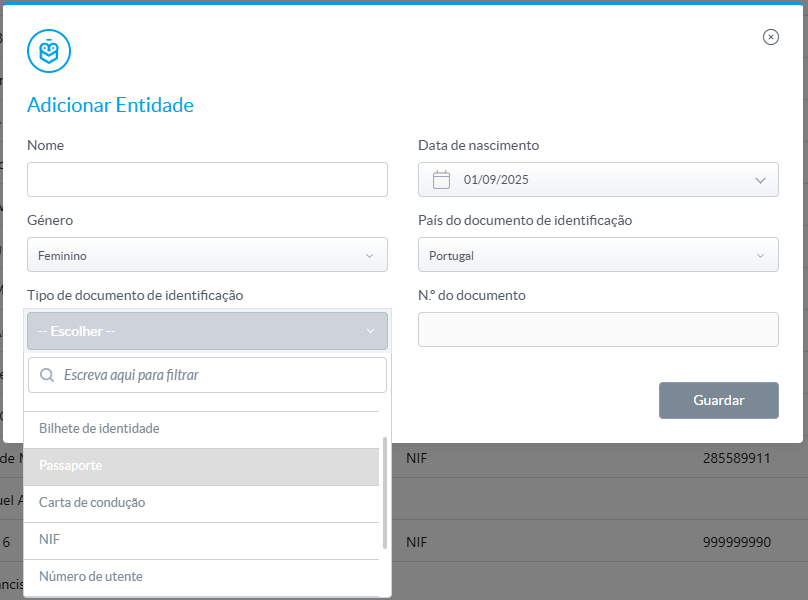
- Name
- Gender
- Identification document (e.g., Tax ID)
Click Save
It is not necessary to associate the entity with a specific group (such as Students or Guardians) to issue the invoice.2. Issue the Invoice
There are two ways to issue an invoice:
Via the entity’s account statement
Access the entity’s profile and go to the Account Statement section
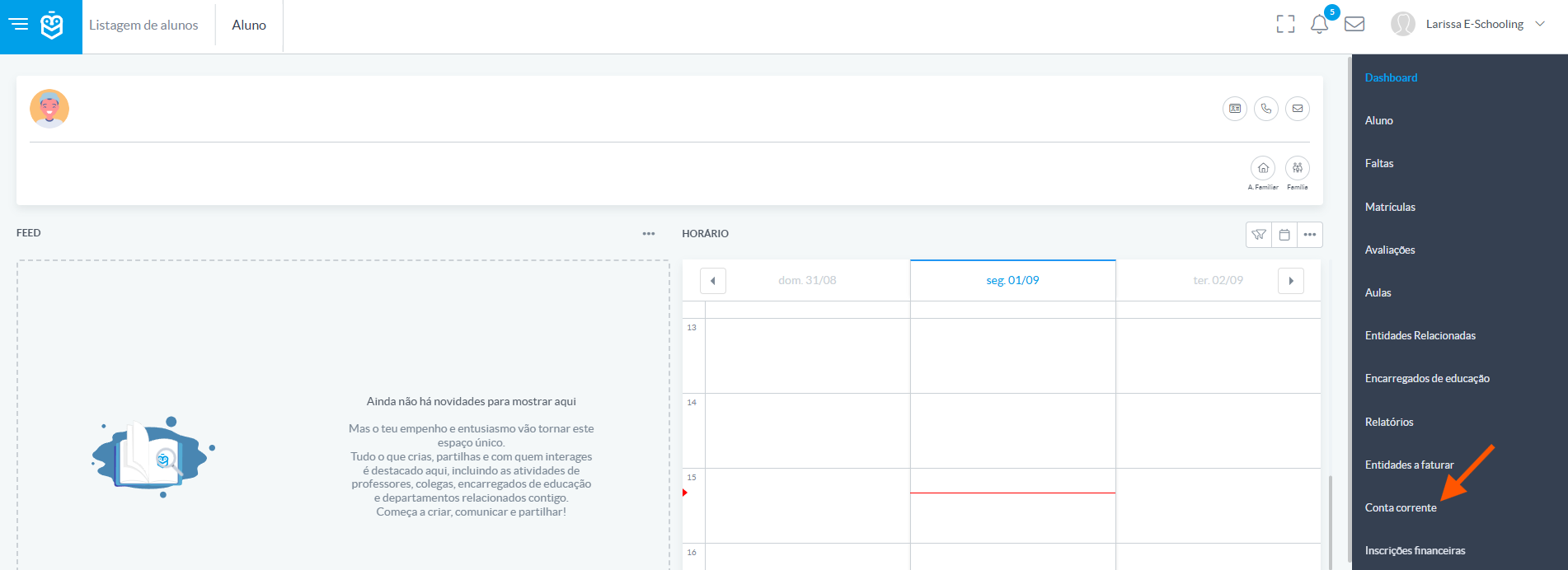
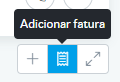
Click on Document to Add Invoice
Fill in the details:
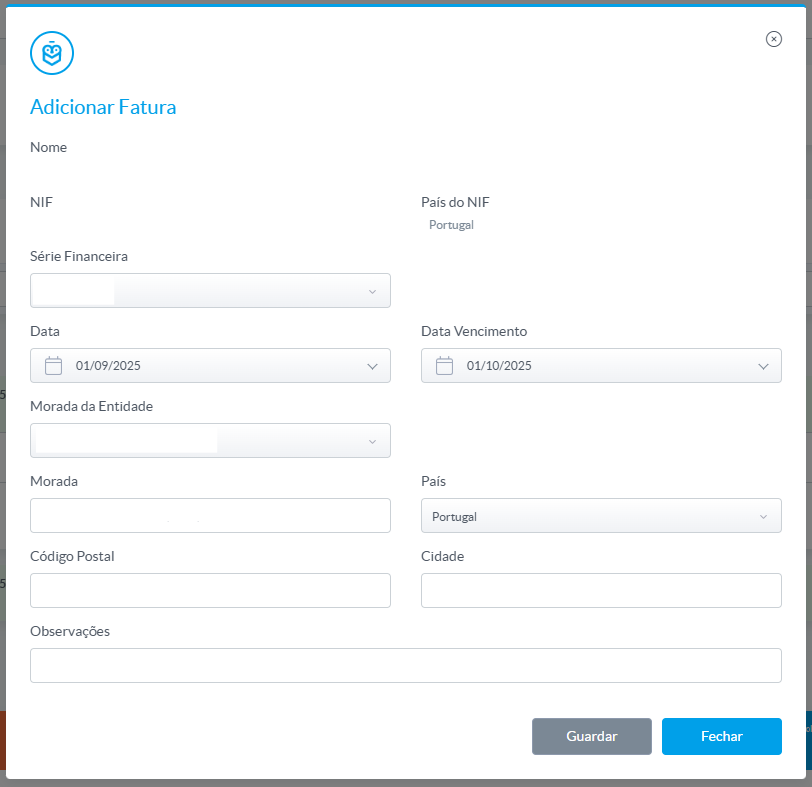
- Financial series
- Date
- Item (e.g., Enrollment)
- Quantity (e.g., number of students)
- Discounts (if applicable)
Click Save
A new page will open with the invoice details and the Invoice Lines section.
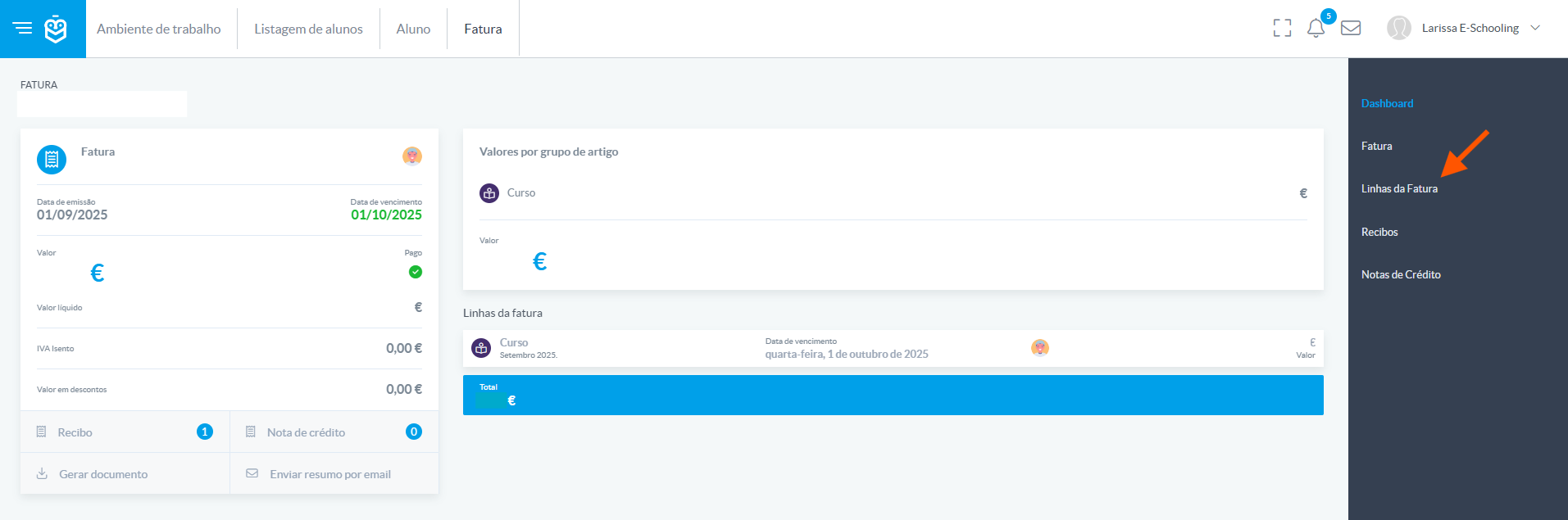
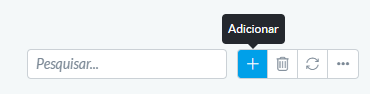
Click on "+" to add a line
Select the item (e.g., Enrollment 25/26)
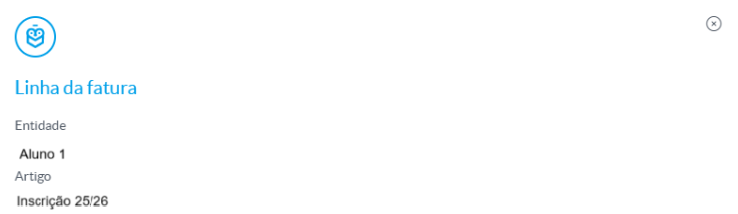
The price and unit value will be automatically filled based on the item configuration.
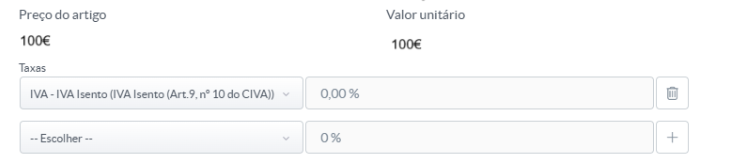
Adjust the quantity if needed
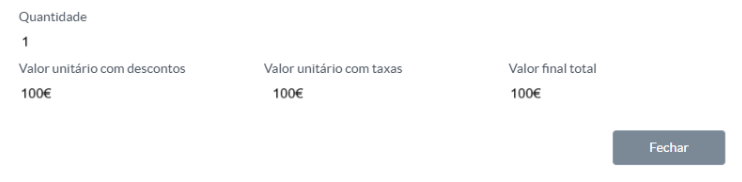
Apply discounts if applicable

Click Save to finalize the line
Via the Financial menu
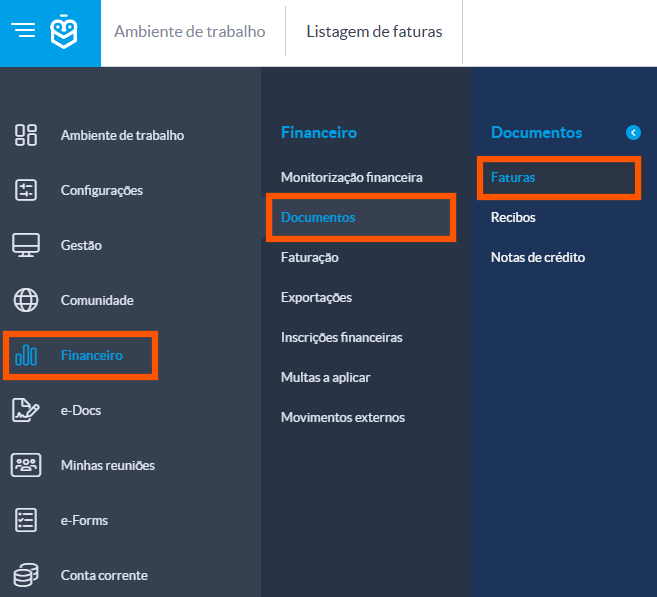
Go to Financial > Documents > Invoices
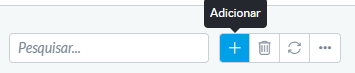
Click on "+"
Select the entity
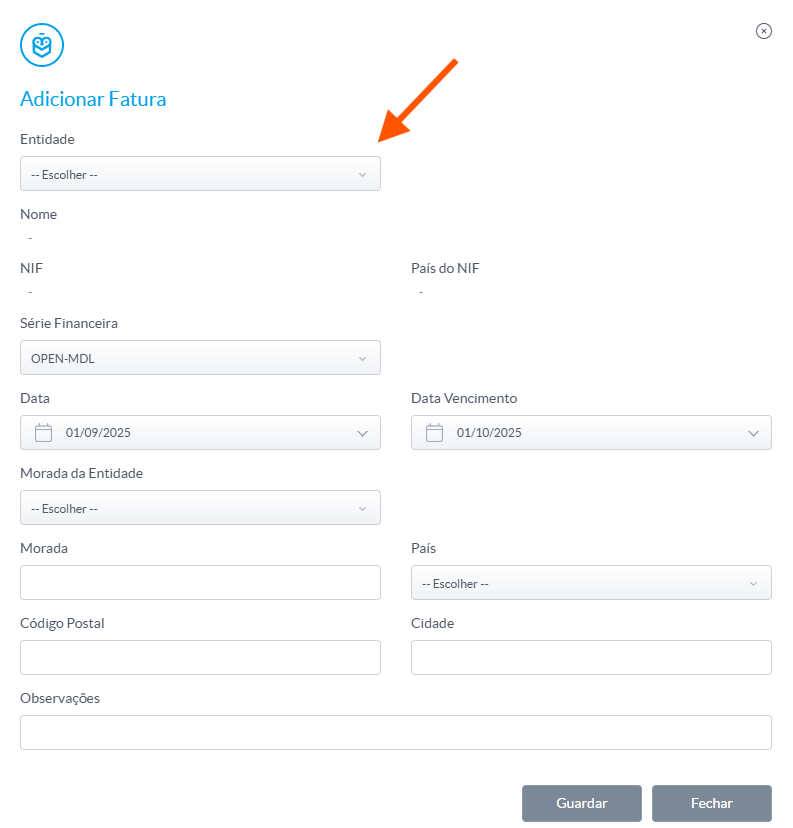
Follow the same steps as described above:
- Select the item
- Automatic filling of price and unit value
- Adjust quantity
- Apply discounts if needed
Click Save to finalize each line.
To issue an invoice in e-Schooling, simply ensure the entity is created with the minimum required data and that the item is properly configured. The process can be completed either through the account statement or the financial menu, depending on what is most convenient.
Was this article helpful?
That’s Great!
Thank you for your feedback
Sorry! We couldn't be helpful
Thank you for your feedback
Feedback sent
We appreciate your effort and will try to fix the article