It is possible to view all financial documents issued by the school such as invoices, receipts, and credit notes directly in the Account Statement area. Below, we explain how to access and use this feature.
1. Access the Account Statement
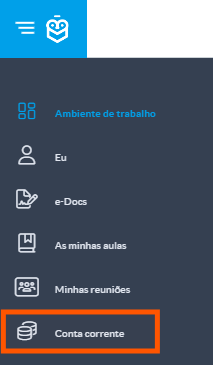
From the left-hand side menu, click on Account Statement
2. View Financial Documents
In this area, you can view all issued documents: invoices, receipts, and credit notes.
- Use the timeline to navigate through months and view financial transactions.
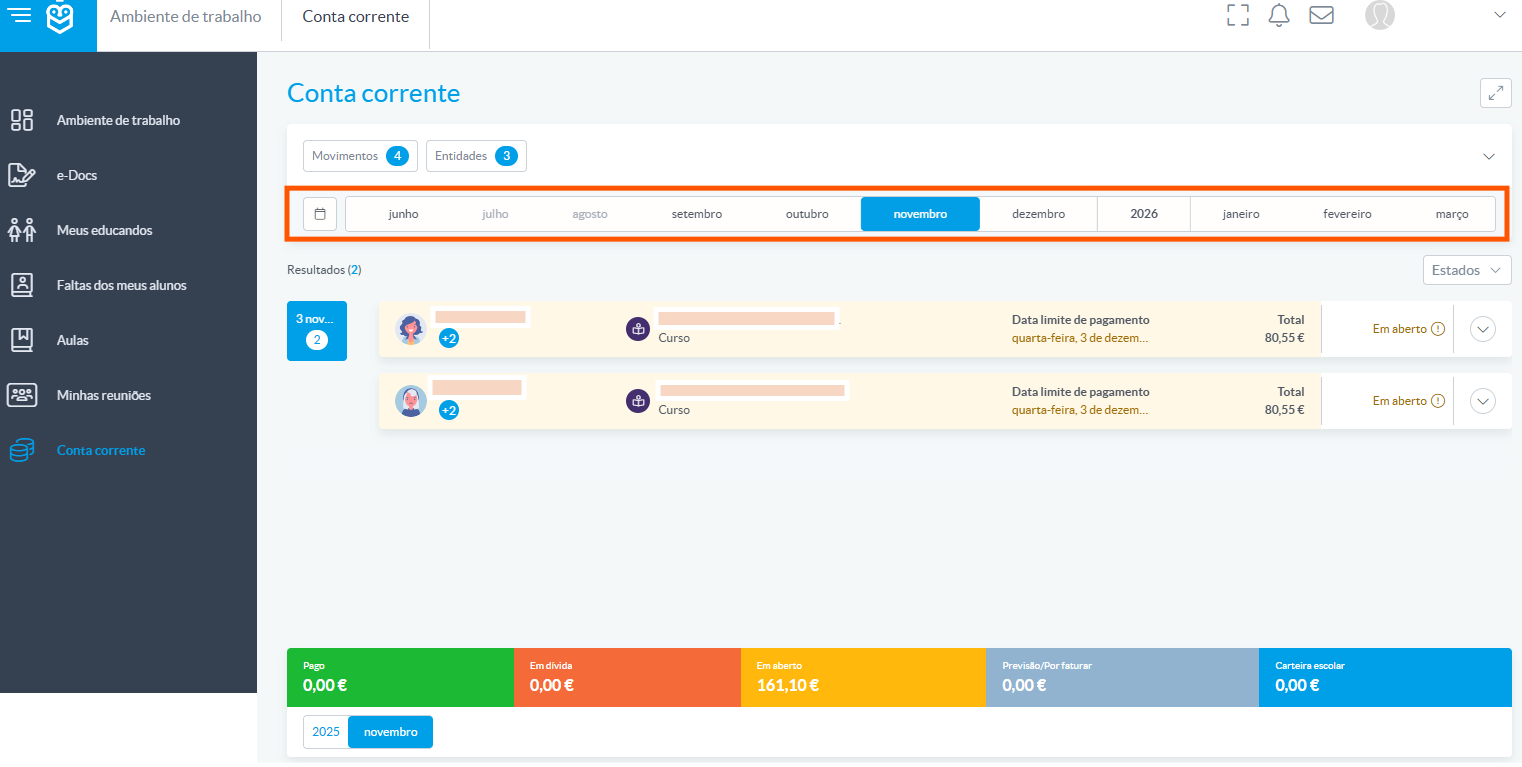
If you have multiple children linked to your account, all transactions will be displayed in a global view.3. Filter by Student
You can select or deselect students to view only the documents related to each one (1) (2).
Next to the service type icon, the student’s photo appears to help with identification.4. Identify Invoice Status
After filtering or viewing invoices, you can quickly identify the status of each one using the color coding:
- Red: unpaid
- Yellow: open
- Green: paid
This color coding is visible in the invoice list and also in the entity profile, making it easier to track payments.
5. View and Download Documents
Click the icon next to the invoice status to view or download the document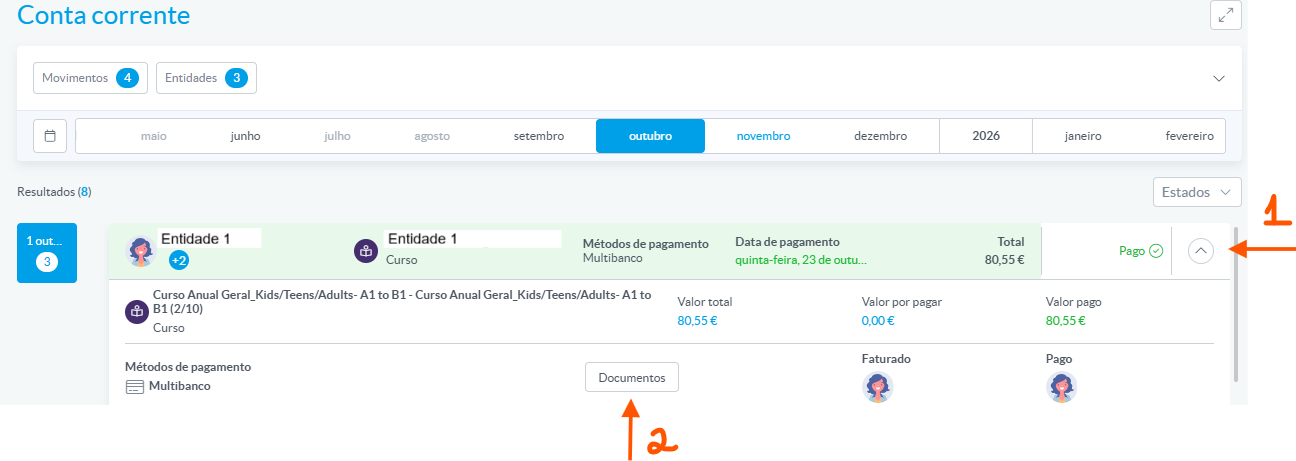
If there are associated receipts or credit notes, they will be listed in the same area (1).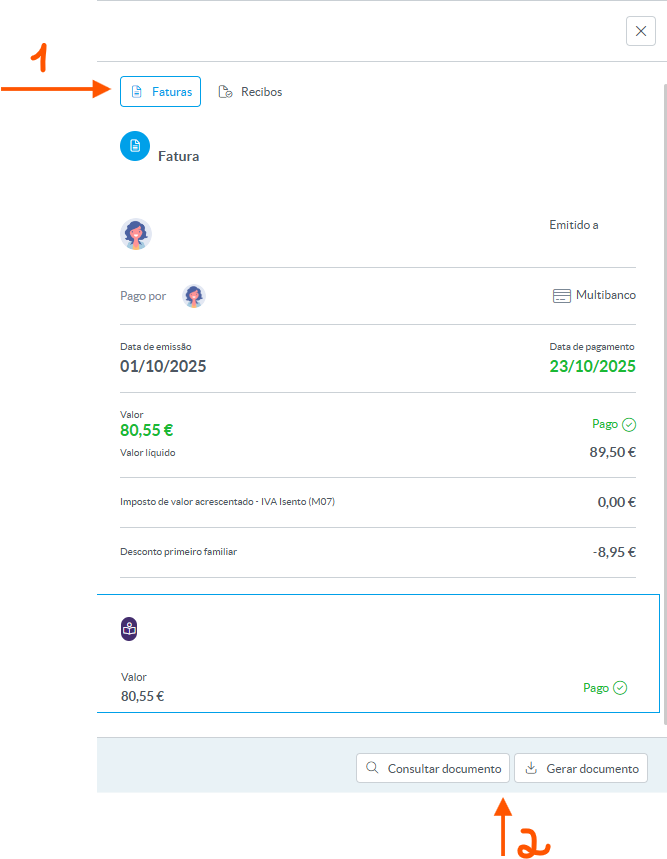
To download, click Generate Document (2). The document will be generated and made available in the Downloads section (bell icon).
To view other transactions, you can return to the Account Statement area via the side menu or the breadcrumb at the top of the page.
Was this article helpful?
That’s Great!
Thank you for your feedback
Sorry! We couldn't be helpful
Thank you for your feedback
Feedback sent
We appreciate your effort and will try to fix the article