This article explains how to configure subjects directly within a course or class in e-Schooling, including the ordering of curricular units and the definition of their components. This configuration is done in the course context and allows the pedagogical structure to be adapted to the reality of each class.
1. Access Subject Configuration in the Course
To begin configuring subjects:
Management > Courses > Select the course > Curricular Units
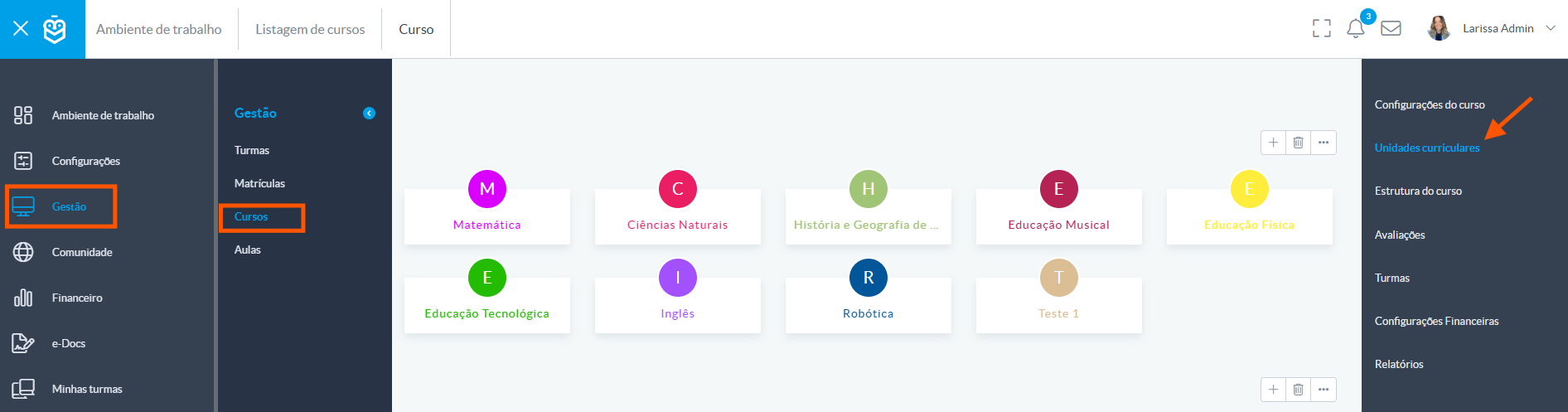
2. Configure the Subject – Step by Step
After accessing the Curricular Units menu of the course, click on the three dots (⋮) and select Read/Edit Mode.
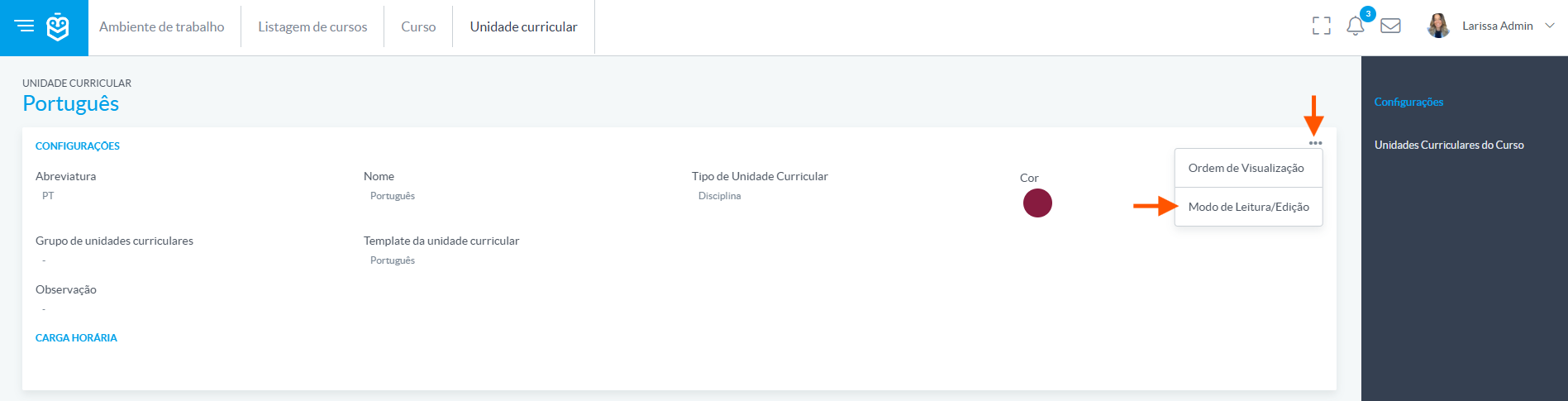
When editing a curricular unit, the following fields will be available:
- Abbreviation and Name
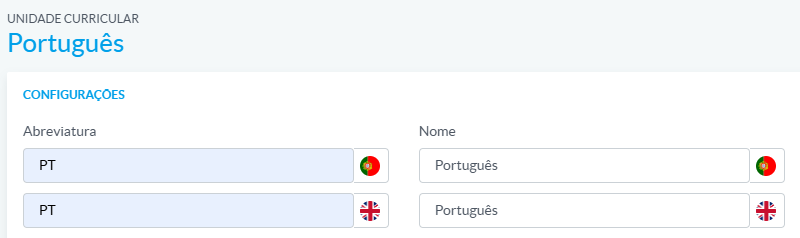
- Type of Curricular Unit (Subject, Activity, Module, etc.)
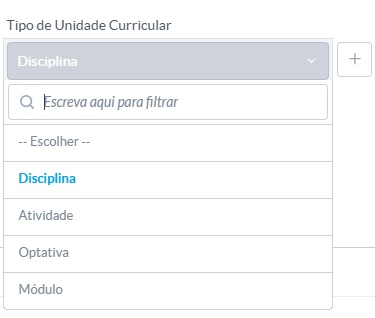
- Color (used to visually represent the subject in the system)

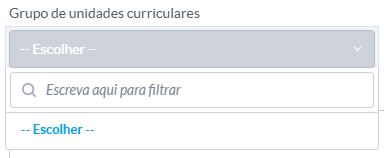
- Curricular Unit Group (grouping subjects by area or learning block)
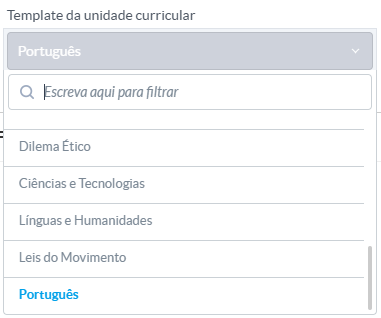
- Curricular Unit Template (predefined template – name and abbreviation only)
- Notes (optional field for internal comments or additional specifications)

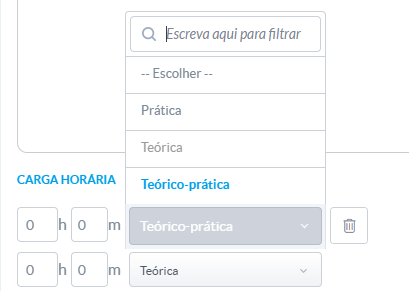
- Workload (total number of hours for the subject in the course)
After filling in the fields, click Save to apply the settings.
3. Subject Components
After configuring the main subject data, you can define its components. These represent units of competence, modules, or specific activities that structure the subject content.
In the course context, go to:
Management > Courses > Select the course > Curricular Units > Select the subject > Subject Components (side menu)

You can configure the following for each component:
- Name (e.g., Apply fundamentals of direct current electricity)
- Code (unique identifier for the unit of competence, e.g., UC.FPB020519/2)
- Type of Curricular Unit (e.g., Module, Project, Activity)
- Workload (expected teaching time in hours and minutes)
- Order (position of the component in the subject sequence)
Was this article helpful?
That’s Great!
Thank you for your feedback
Sorry! We couldn't be helpful
Thank you for your feedback
Feedback sent
We appreciate your effort and will try to fix the article