Each school can define specific rules to control who can view and who can share e-Docs. e-Schooling provides a configuration area for these permissions, ensuring security and flexibility.
1. Access the Configuration Menu
To configure the rules:
Settings > System > e-Docs > Assignment Rules / Viewing Rules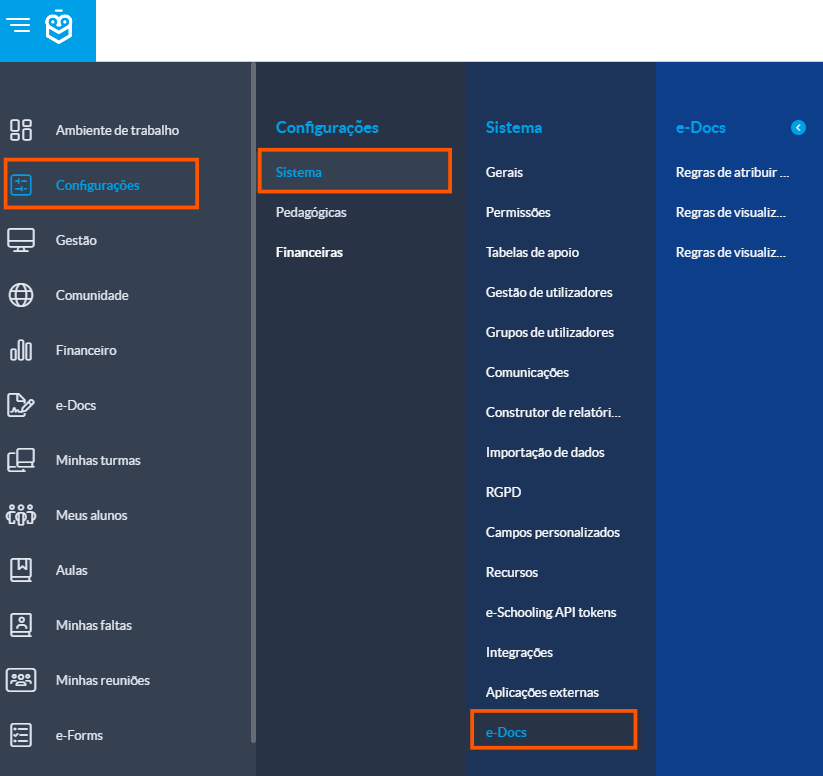
Only users with the “School Administrators” profile have access.2. Create Assignment Rules (Sharing)
Assignment rules define who can share e-Docs and with whom:
Left column: sender groups (who shares)
Right column: recipient groups (who receives)
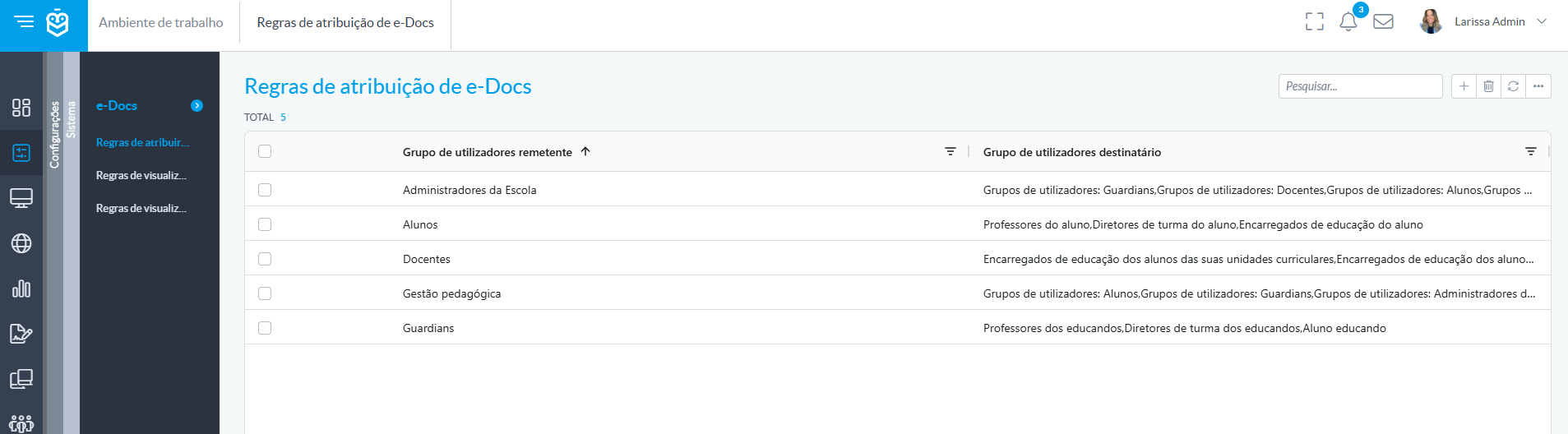
To view or edit a rule, click on the corresponding row:
Sender user groups (e.g., Teachers) → List of recipient user groups
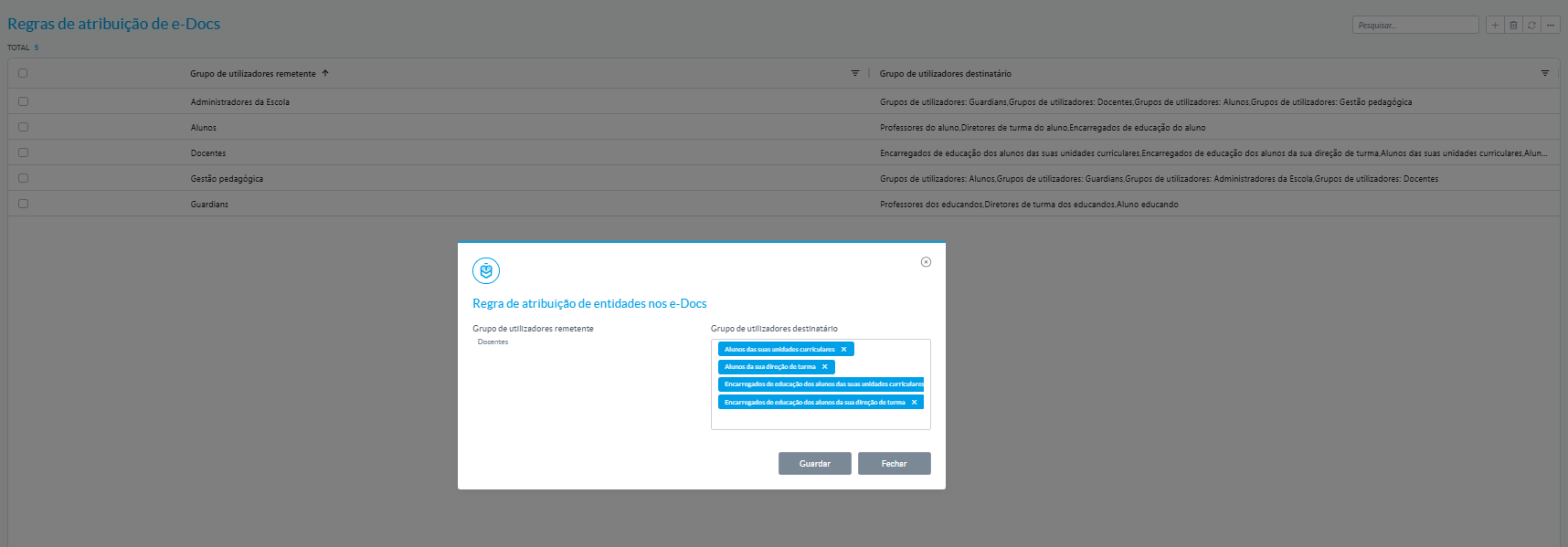
Click “+” to add a new rule
Define sender and recipient
3. Create Viewing Rules
There are two distinct configurations for viewing:
Viewing Rules for e-Docs Assigned to Entities
Settings → System → e-Docs → Viewing Rules for e-Docs Assigned to Entities
Allows you to configure who can view e-Docs associated with other entities.
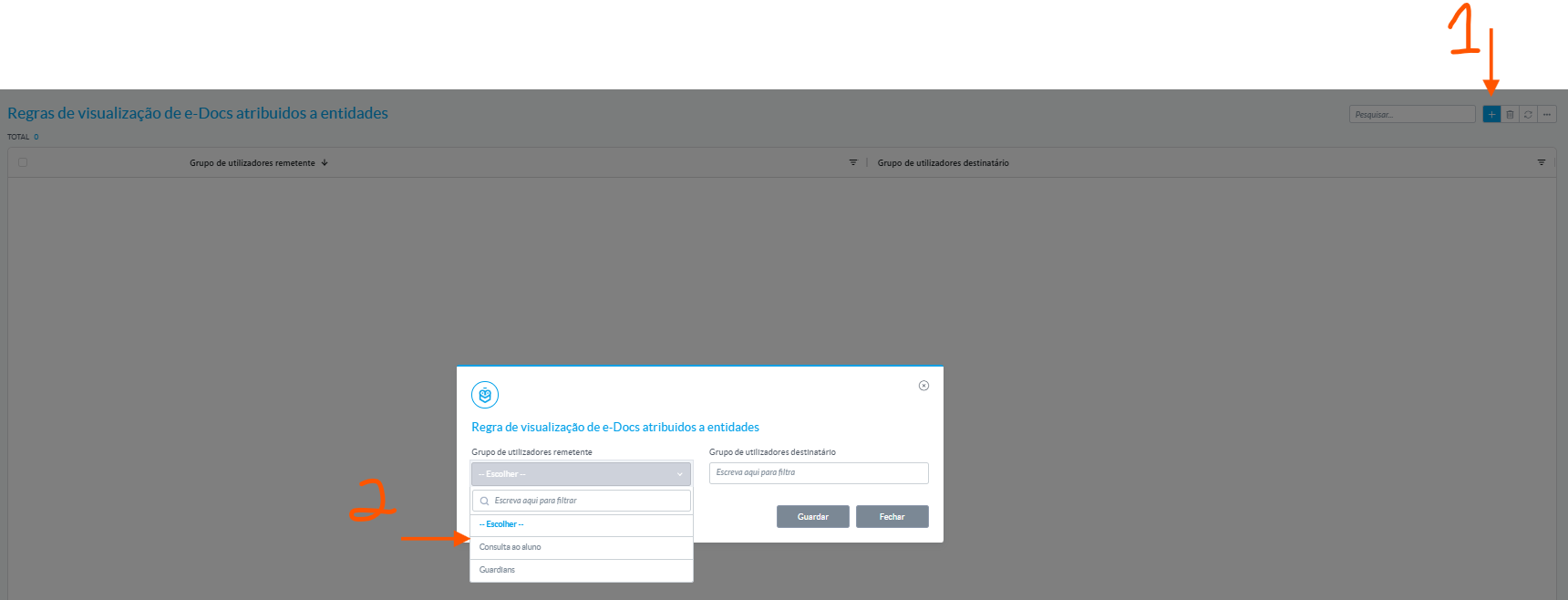
Available origin groups:
- Guardians
- Read-only users
Destination rules:
- Limited to rules related to students.
Viewing Rules for e-Docs Created by Entities
Settings → System → e-Docs → Viewing Rules for e-Docs Created by Entities
Allows you to configure who can view e-Docs created by other entities
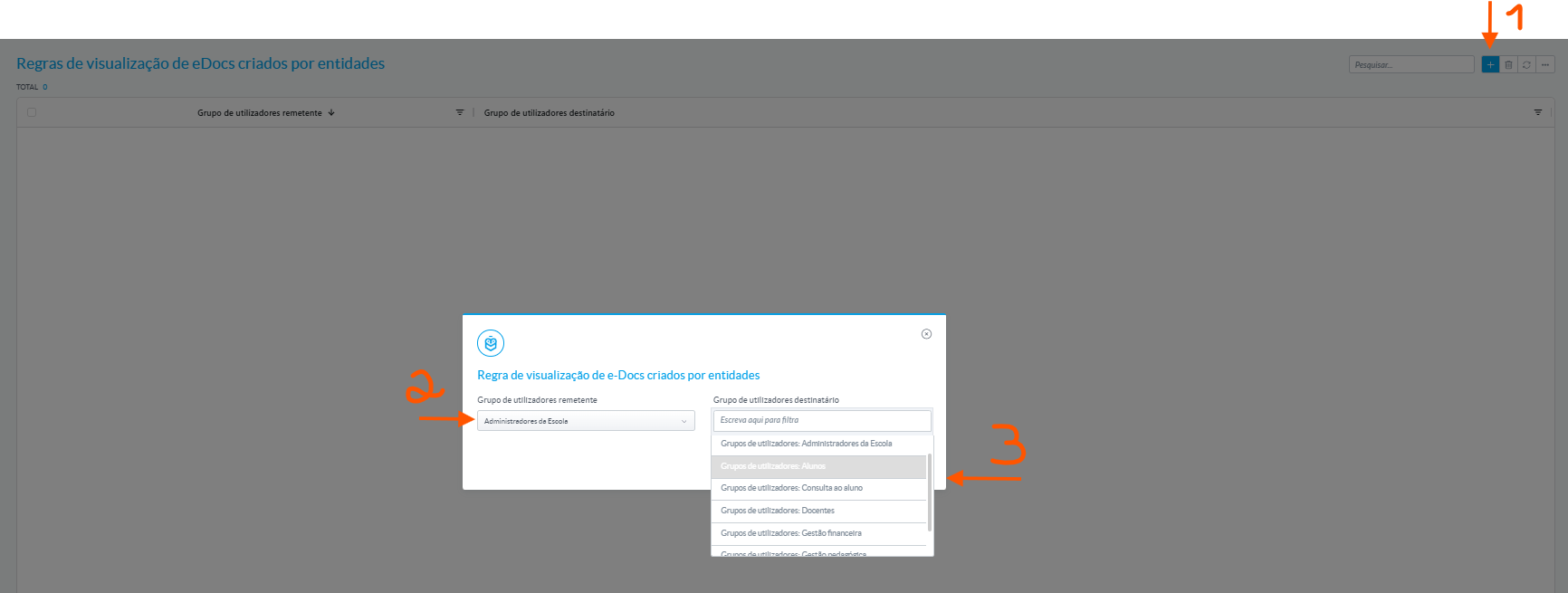
Available origin groups:
- School Administrators
- Guardians
- Read-only users
Destination rules:
- For Guardians and Read-only users: limited to rules related to students.
- For School Administrators: can be configured to view all e-Docs created by all users in the school.
Configuring assignment and viewing rules in e-Docs is essential to ensure security, organization, and flexibility in document management within the school. By correctly defining who can share and who can view materials, you ensure that each user has access only to the information relevant to their role.
Was this article helpful?
That’s Great!
Thank you for your feedback
Sorry! We couldn't be helpful
Thank you for your feedback
Feedback sent
We appreciate your effort and will try to fix the article