This article explains how to use the e-Schooling feed to communicate with the school community, either through the general feed or the specific feed for each lesson.
1. General Feed
The general feed is used for institutional communications and broad messages, visible to the entire school community or to specific groups.
Who Can Post?
By default, only the School Administrator has permission to post directly in the general feed.
This setting can be adjusted in the system configurations, allowing other profiles to post in the general feed according to the school’s communication policy.How to Post in the General Feed
If you are logged in as a School Administrator, the general feed posting field appears directly on the homepage.
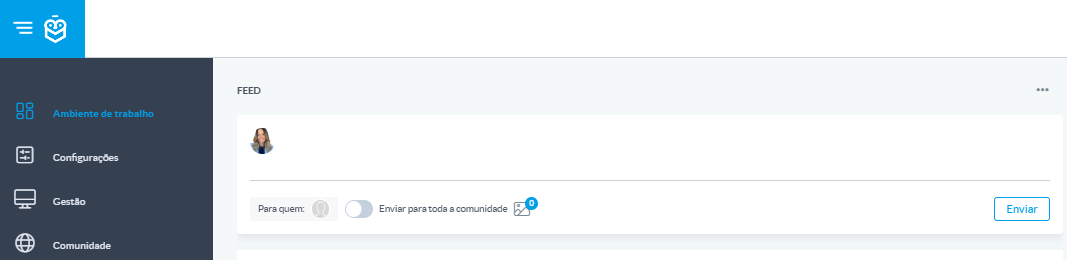
Write your message in the text field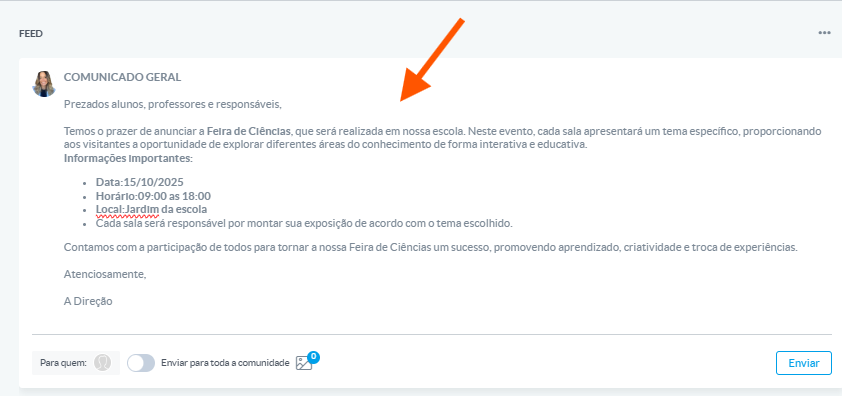
Attach files or images if needed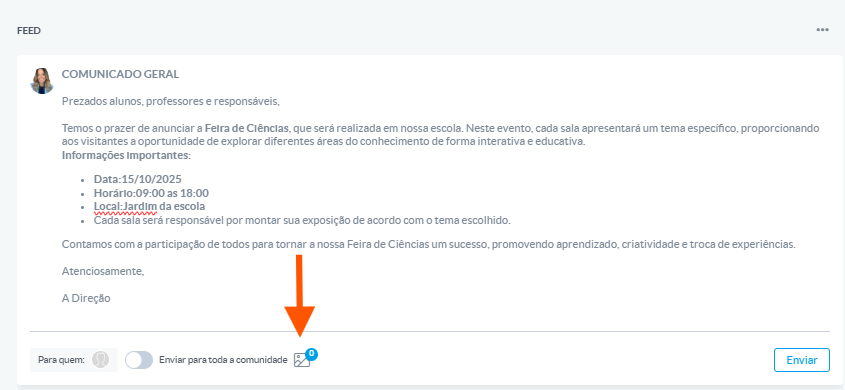
Use the “To” field to select recipients:
You can choose the entire school community or specific segments (grades, classes, profiles, students, or guardians)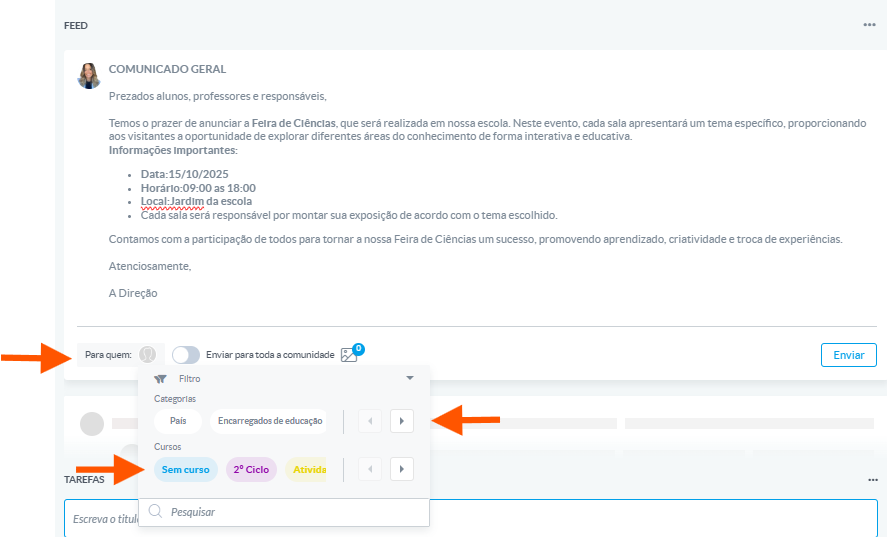
Click Send to publish.
It is possible to send a post targeted to a single student or guardian using the audience filters at the time of publication.It is possible to send a post targeted to a single student or guardian using the audience filters at the time of publication.
2. Lesson Feed
The lesson feed is a direct communication tool between the teacher and the students of a class, within the context of a specific subject.
Who Can Post?
Teachers who are associated with classes and lessons in the system.
How to Post in the Lesson Feed
Go to the Lessons section and select the desired lesson
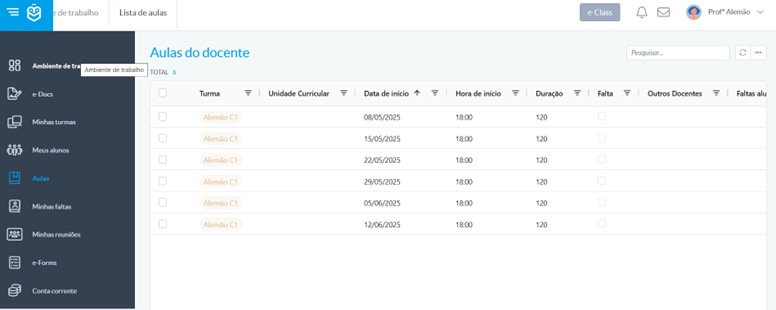
In the lesson dashboard, you will find the feed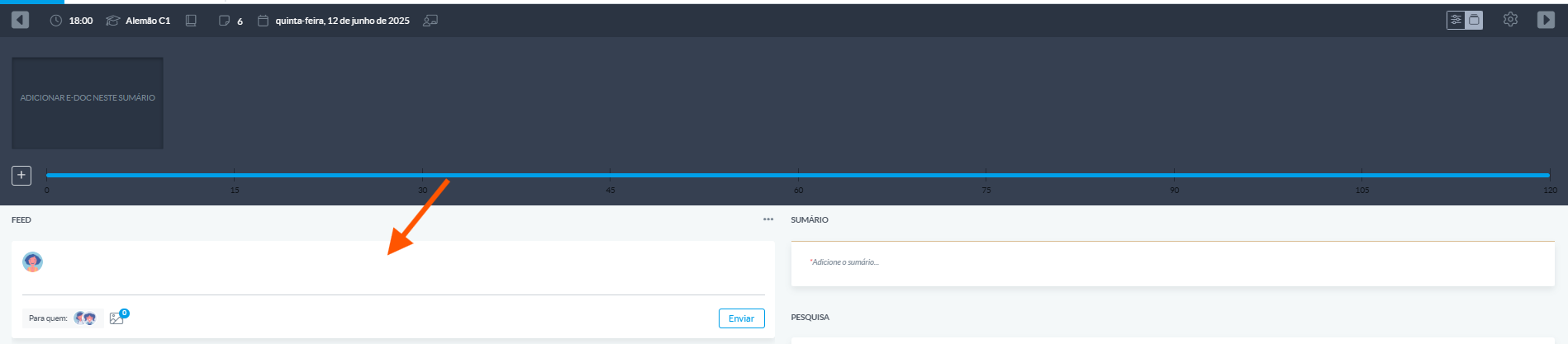
Write your message, attach files if needed, and publish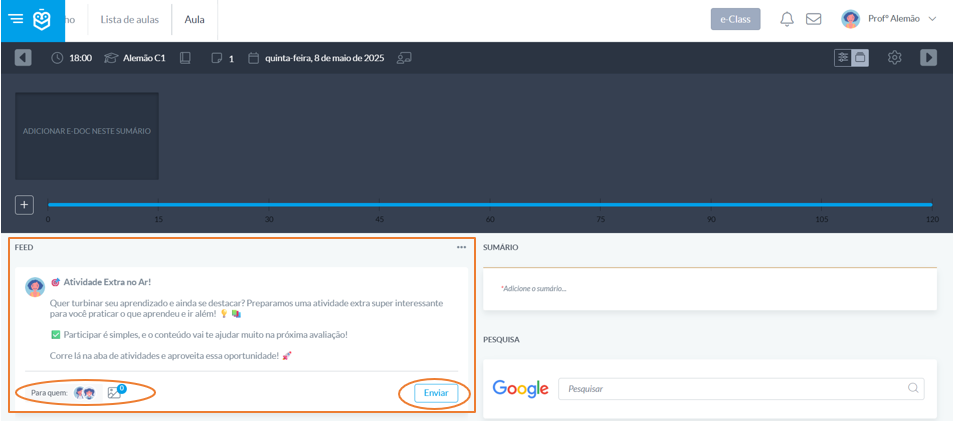
Students in the class will be automatically notified.
This is the most practical way to communicate directly within the context of the subject.
e-Schooling offers two distinct spaces for feed communication: the general feed, for broad institutional messages, and the lesson feed, for specific pedagogical communication. Using each appropriately ensures that information reaches the right audience at the right time.
Was this article helpful?
That’s Great!
Thank you for your feedback
Sorry! We couldn't be helpful
Thank you for your feedback
Feedback sent
We appreciate your effort and will try to fix the article