In e‑Schooling, associating Guardians with a student’s profile is essential to ensure effective communication between the school and the family.
Guardians have access to important information such as grades, attendance, justifications, notifications, and financial documents, allowing them to closely follow the student’s academic life.
This article provides a step‑by‑step guide on how to correctly make this association, ensuring that guardians stay informed and involved in the educational process.
1. Associate the Guardian's Entity
Before assigning a Guardian to a student, it is important to confirm whether the corresponding entity (e.g., mother, father, legal guardian) already exists in the system.
There are two ways to make this association:
1.1. Associate the Guardian through Related Entities (within the student’s profile)
After accessing the student’s profile:
In the Related Entities tab, once the relevant entities (e.g., mother, father) are associated, click the desired entity and select “Add guardian”.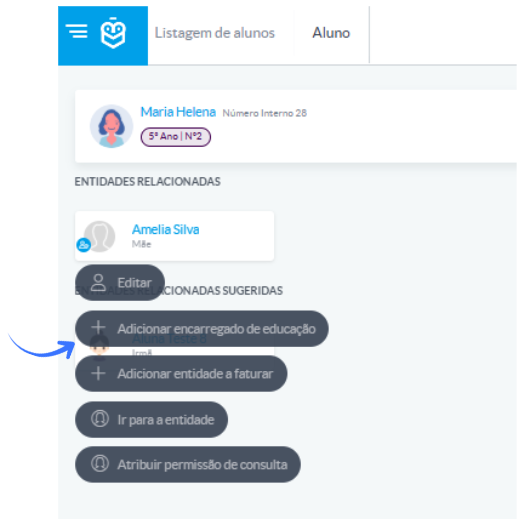
A student may have more than one Guardian.
If an entity stops acting as Guardian, you can add an end date to terminate the relationship.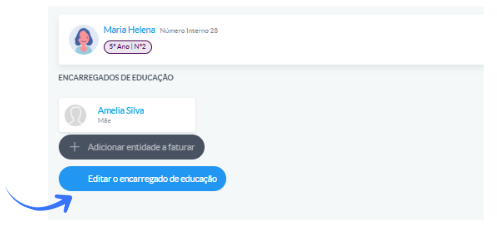
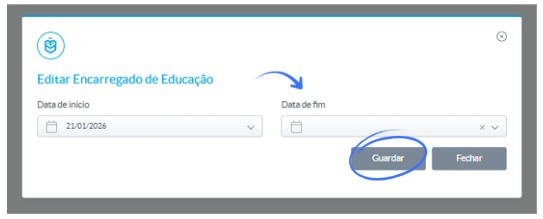
This is usually the quickest option when the entity is already linked to the student as a family relationship.
1.2. Associate the Guardian directly via the “Community” menu
If the entity does not yet exist in the system:
Go to Community > All
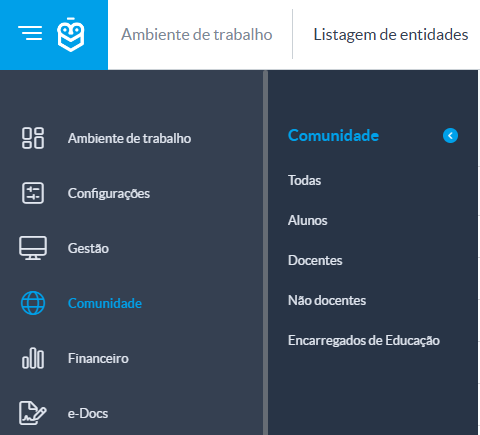
Search for the desired entity or, if it does not exist, click Add [+] to create a new one. 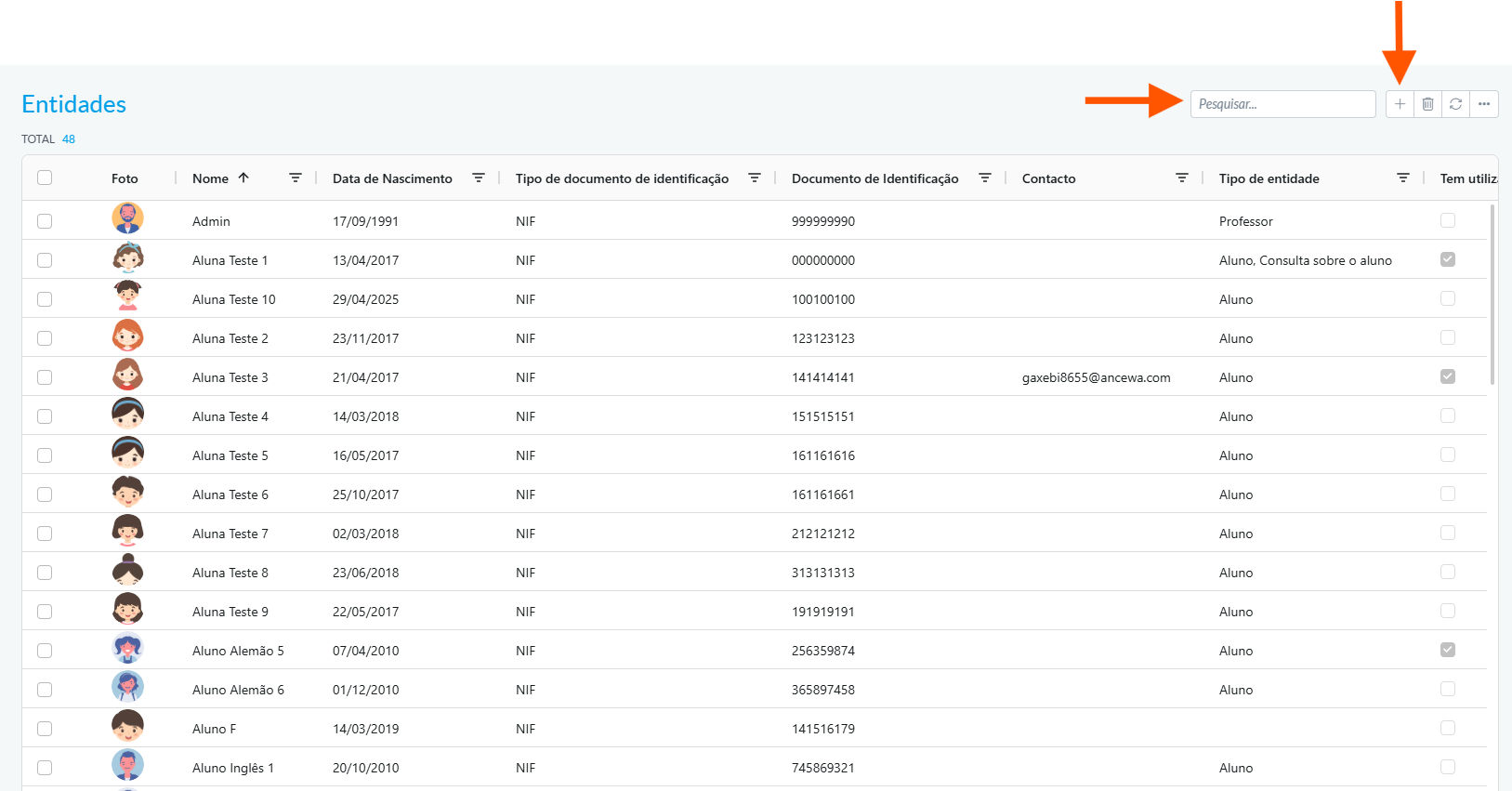
Entities such as parents, mothers or grandparents should be created under the All group, as they do not belong to predefined groups (Students, Teachers, Staff).
Once created, the entity can then be associated with the student.
2. Associate the Guardian with the Student
Access the student’s profile (e.g., Maria Helena)
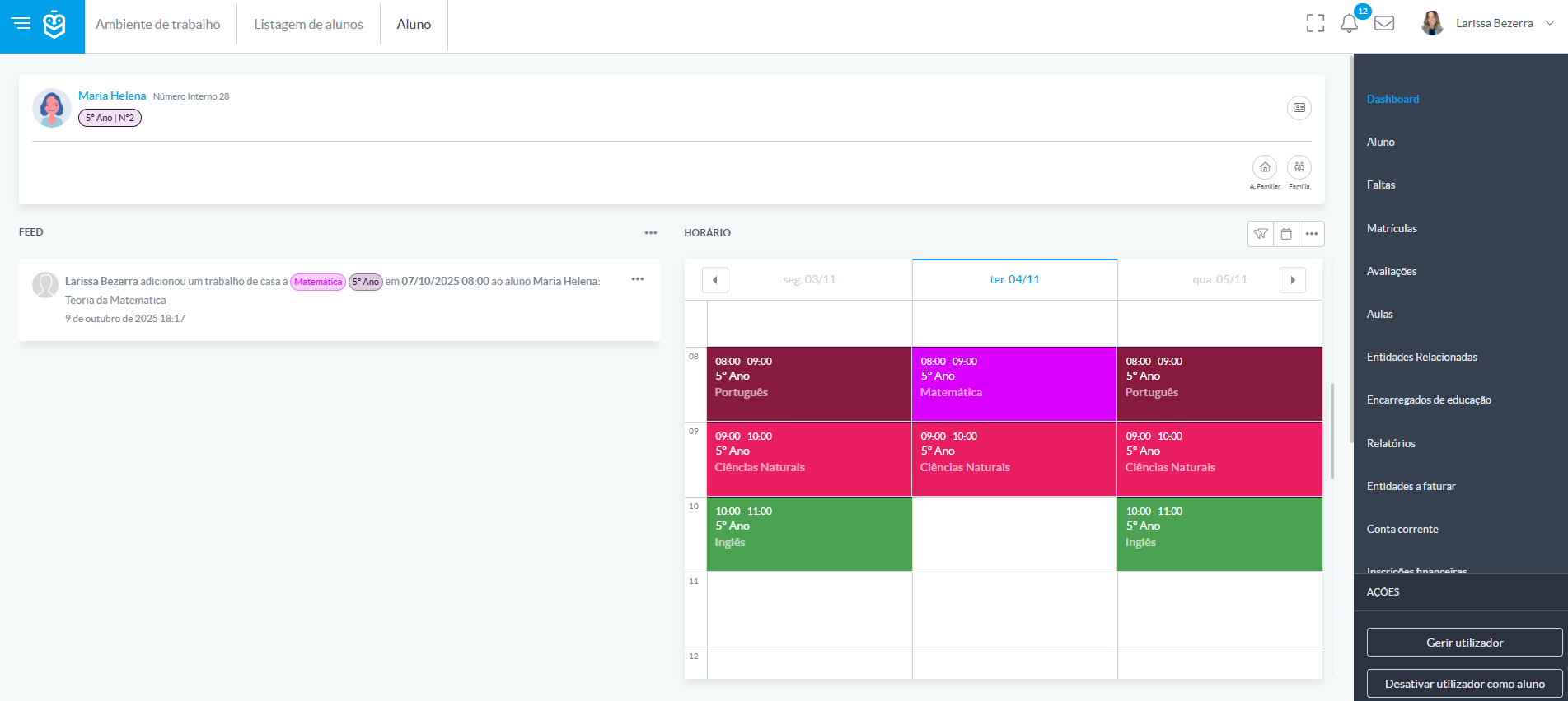
In the side menu, select Guardians.
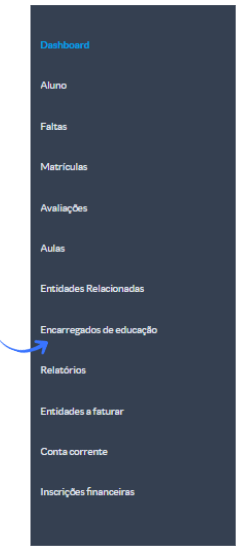
Click one of the [+] options to add a new Guardian.

In the window that opens:
- Search for the entity by name or create a new one.
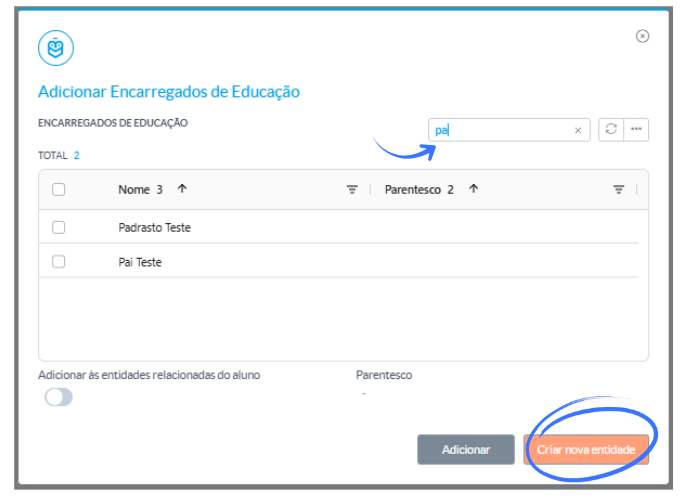
- Click Add to complete the Guardian association.
After adding the Guardian, verify that all information is correct.
Once confirmed, the process is complete and the Guardian will have access to the student’s information according to their profiles and permissions in e‑Schooling.
Was this article helpful?
That’s Great!
Thank you for your feedback
Sorry! We couldn't be helpful
Thank you for your feedback
Feedback sent
We appreciate your effort and will try to fix the article