In e-Schooling, the All menu is used to create entities that do not fit into the predefined groups (Students, Teachers, and Non-Teaching Staff). This article explains how to perform this registration in a simple way.
1. Access the Community Menu
From the side menu, click on Community and select the All group.
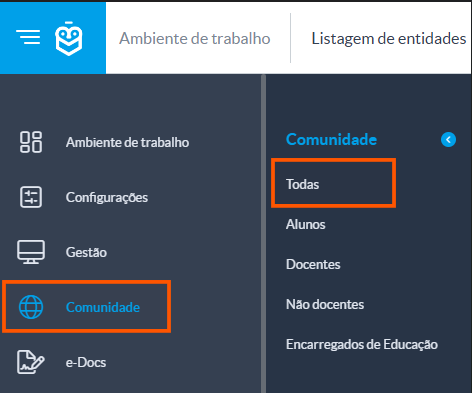
All: Access to the list of all entities. This is also the menu where entities that are not of the type Student, Teacher, or Non-Teaching Staff should be created.The Guardians group is available only for viewing entities that are already associated as guardians in student profiles. It is not possible to create new entities directly in this group.2. How to Create an Entity
In the selected group, click the Add [+] button to start registering a new entity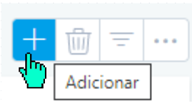
A window will appear with the basic fields of the entity profile
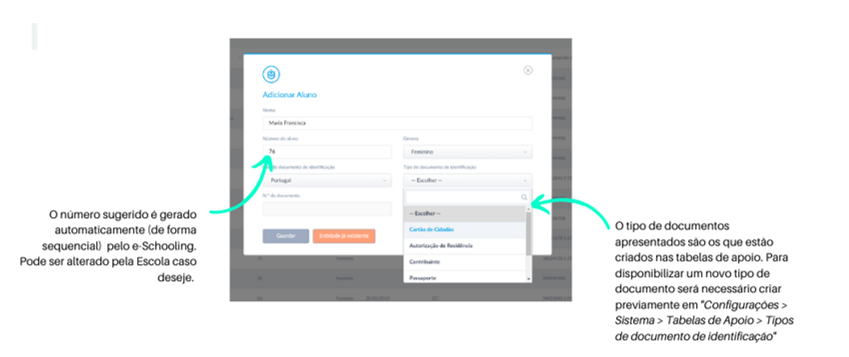
After saving, you will be redirected to the full entity profile, where you can add additional information.
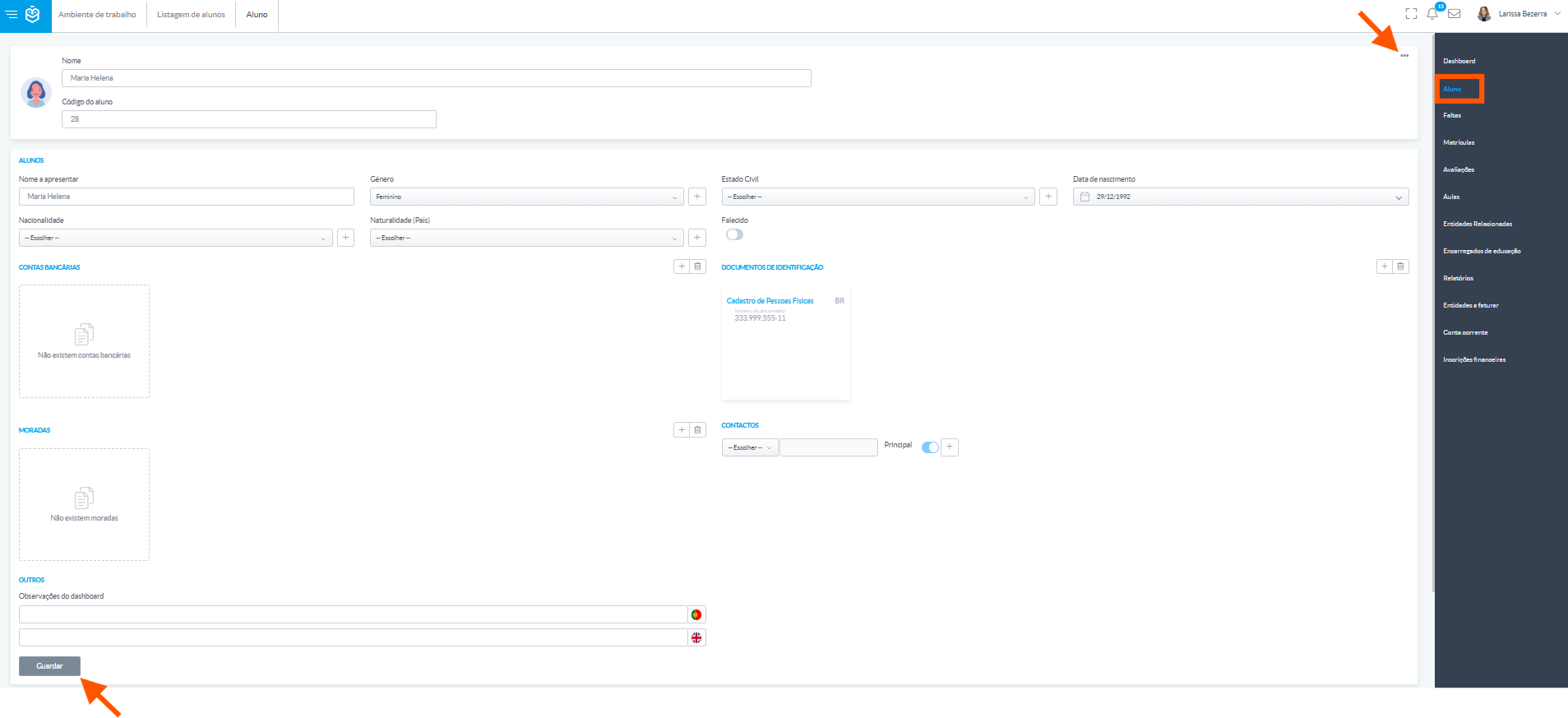
Once the entity is created, the complete profile will open. Use this area to update or add relevant information, such as personal details, contacts, and guardian information.
3. Associate the Entity Created in “All” with Another Group (Students, Teachers, or Non-Teaching Staff)
If the entity was created in the All group and you wish to include it in another group (e.g., Students), follow these steps:
Access the desired group (e.g., Students) from the Community menu and click the Add [+] button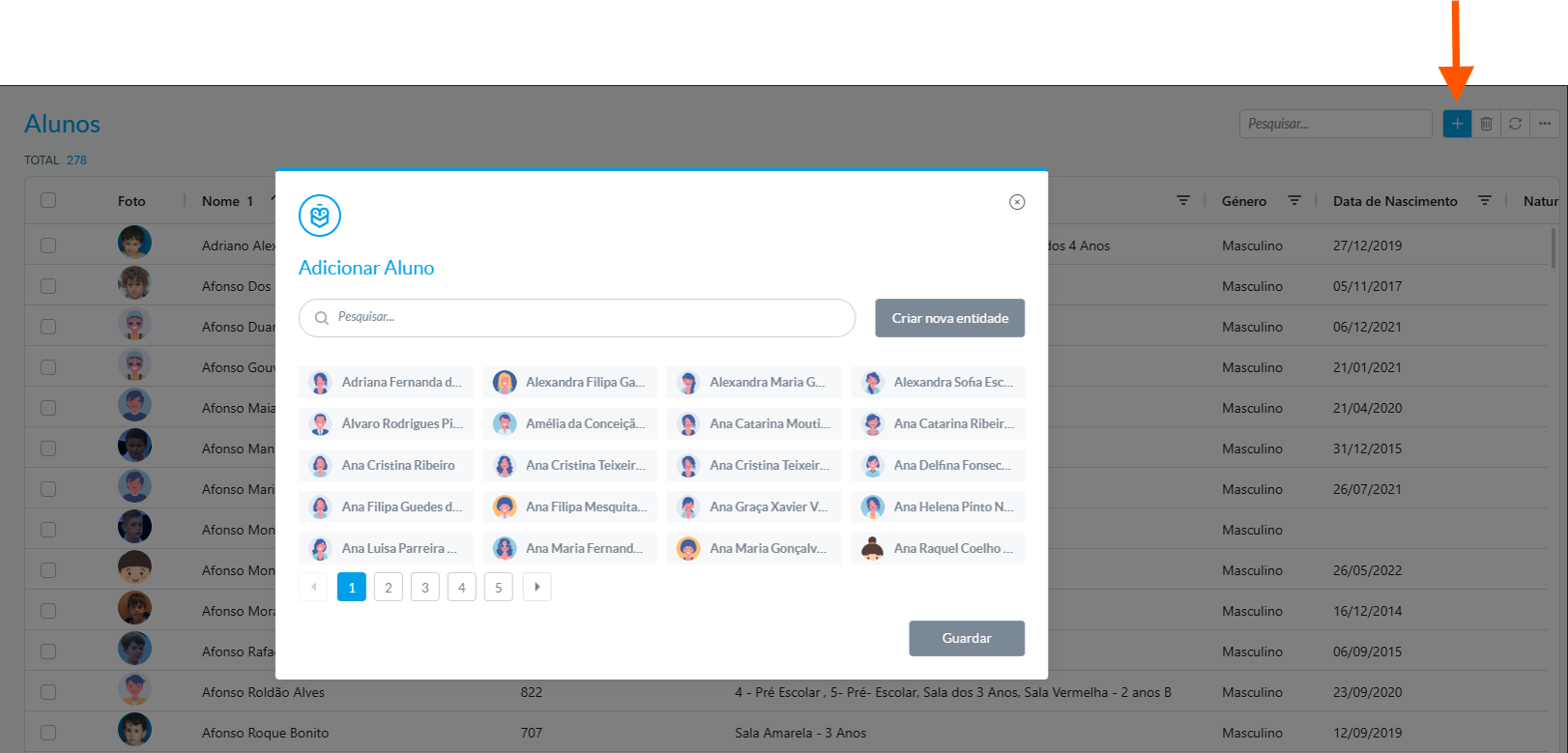
Use the search field to find the entity by name and select the corresponding option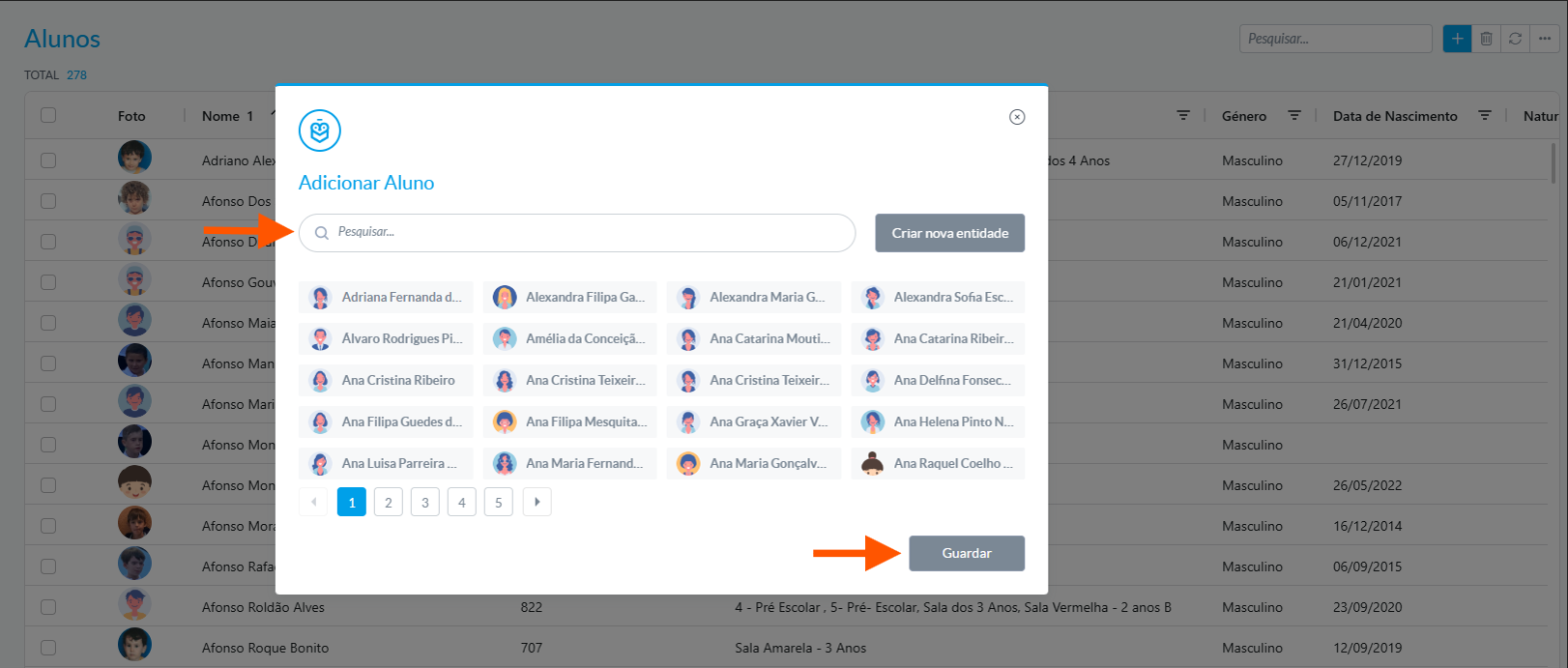
Click Save to complete the association.
The association is now complete. From this point on, the entity will be part of the selected group and can be managed normally within e-Schooling functionalities.
Was this article helpful?
That’s Great!
Thank you for your feedback
Sorry! We couldn't be helpful
Thank you for your feedback
Feedback sent
We appreciate your effort and will try to fix the article