e‑Schooling allows you to insert the online class link directly in the timetable or in lesson mode, making it easier for students and teachers to access remote sessions.
This link is available to all class participants and can be edited by users with the appropriate permissions (Teacher, Pedagogical Management, or Administrator), while students only have access to the link to join the session.
1. Adding the Online Class Link in the Class Timetable
The link can be configured directly in the class timetable, ensuring that all future events for that lesson have the same link associated.
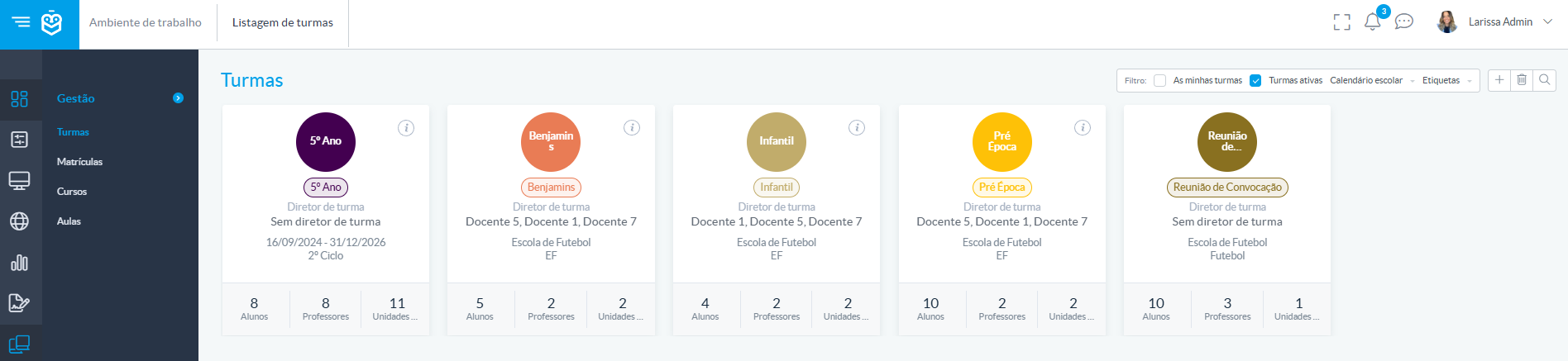
Go to the Classes menu and select the desired class
In the submenu, click Timetable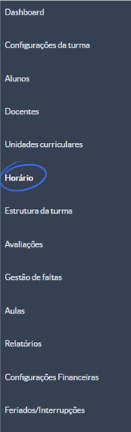
Create a new timetable line or edit an existing one
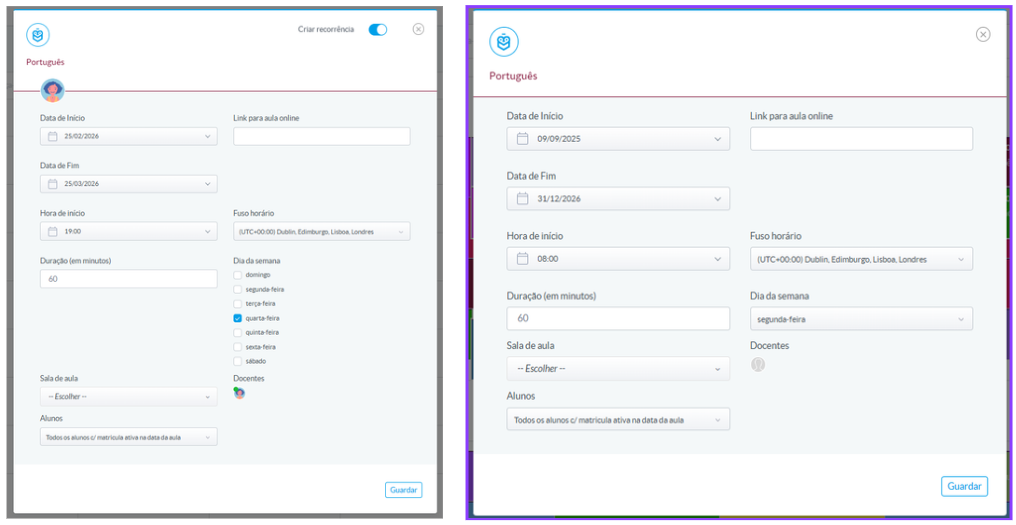
In the Online class link field, insert the URL of the platform used (Teams, Zoom, Google Meet, or another)
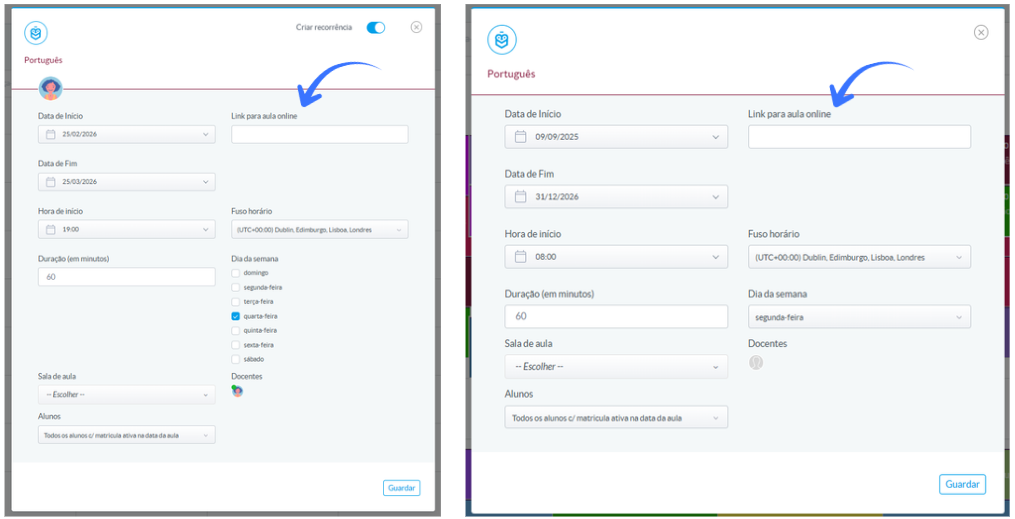
Save the changes.
From that moment on, the link will be available for all lessons associated with that timetable line.
If necessary, the class link can be changed at any time, either in the timetable line or directly in lesson mode. If the change is only for a specific day, it should be made in lesson mode. Editing the link is available only to users with the Teacher, Pedagogical Management, or Administrator profiles.2. Adding the Link Directly in Lesson Mode
If the online class link has been configured previously in the timetable line, it will automatically appear in lesson mode whenever that lesson takes place.
However, if you need to change the link only for a specific day or if no link has been defined the teacher can update it directly in lesson mode.
To do so:
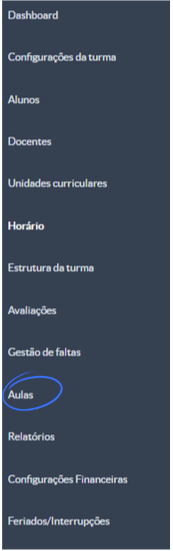
Access the Lessons menu through the class dashboard
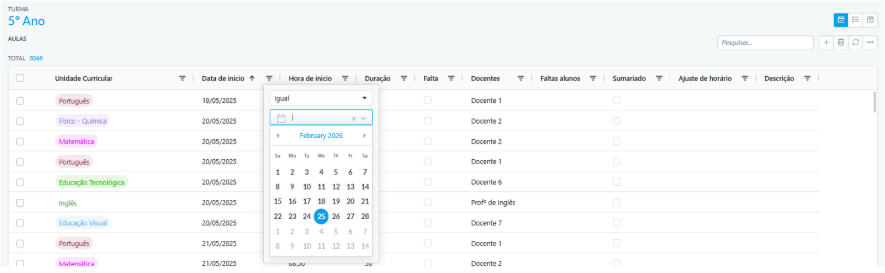
Search for the lesson using one of the available options in the search bar and select the session corresponding to the day you want to edit

Click inside the link field, enter the new URL (either to replace the previous one or to add a missing link), and click outside the field so the system automatically saves the change

This change applies only to the current lesson, without modifying the link defined in the timetable line.Was this article helpful?
That’s Great!
Thank you for your feedback
Sorry! We couldn't be helpful
Thank you for your feedback
Feedback sent
We appreciate your effort and will try to fix the article