Form fields allow you to define the information that will be collected through the e‑Form.
Each field must be configured based on the selected control type, which determines how the user will provide their response.
1. Add a Field to the Form
- Go to the desired e‑Form
- Click Add field
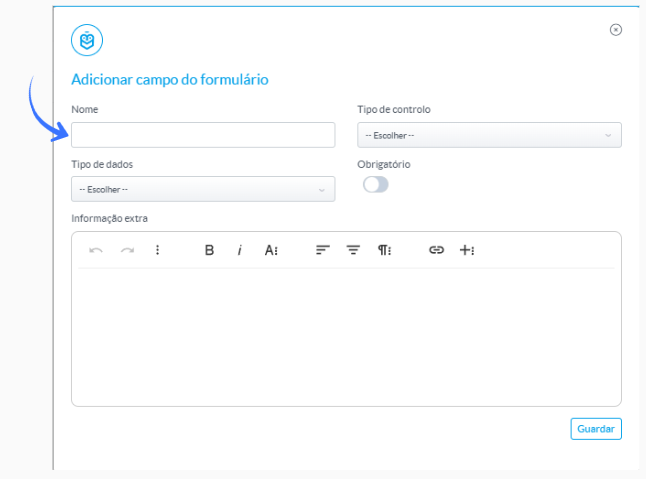
The field creation window will be displayed.

2. Define the Basic Field Information
When creating a field, fill in the following elements:
- Name
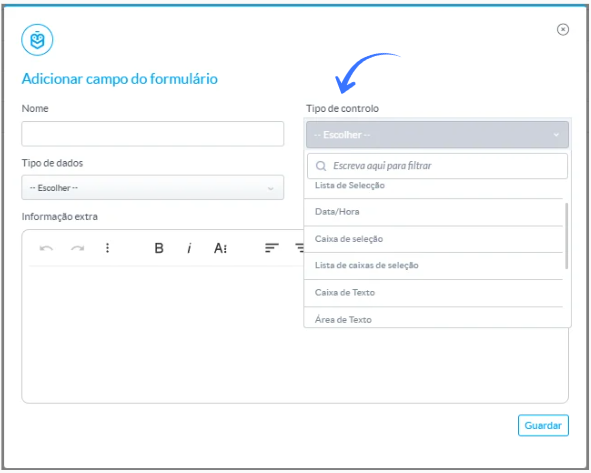
- Control type
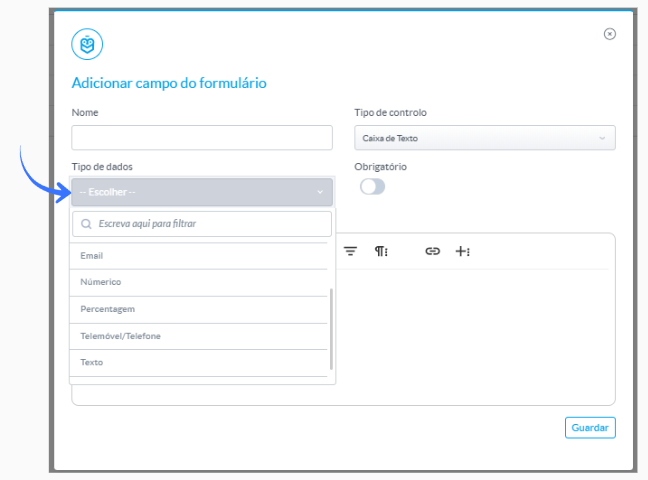
- Data type
- Required

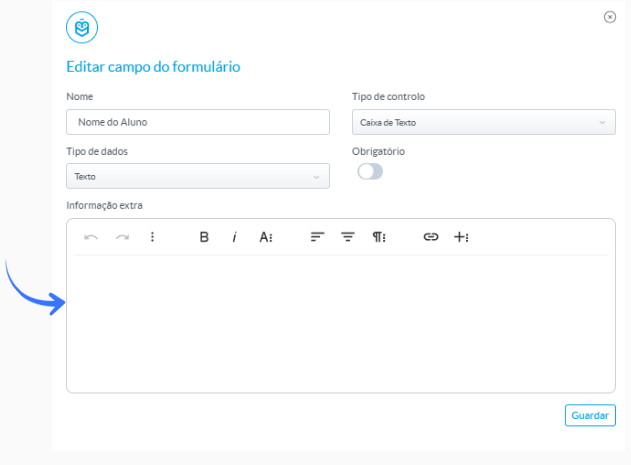
- Additional information
3. Configure the Field According to the Control Type
After defining the Control type, specific configurations may be displayed depending on the selected option.
Text box
Allows entering a short response
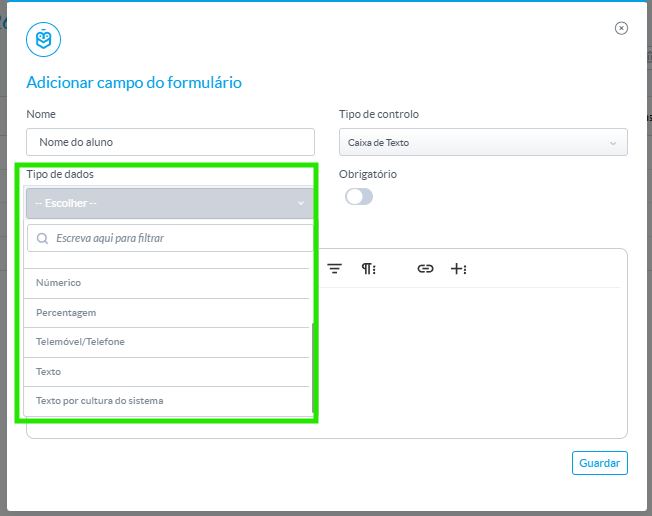
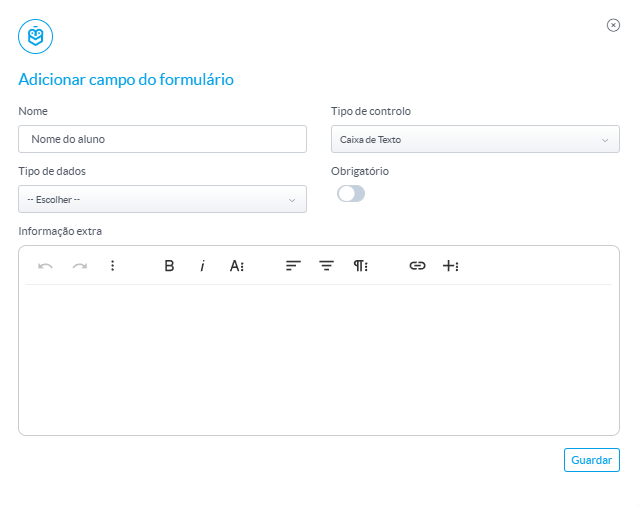 Configuration:
- Define the data type, such as:
- Text
- Decimal
- Currency
- Numeric
- Percentage
- Mobile/Phone
Text area
Allows entering longer responses (e.g., comments or descriptions)
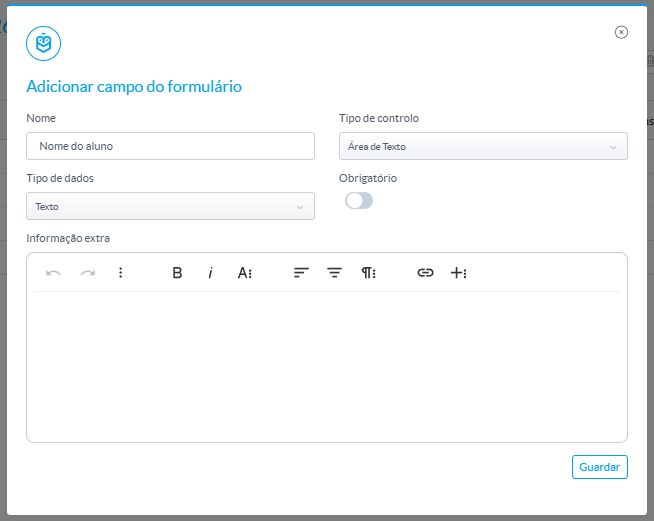
Configuration:
- Free text input only
- No data type selection available
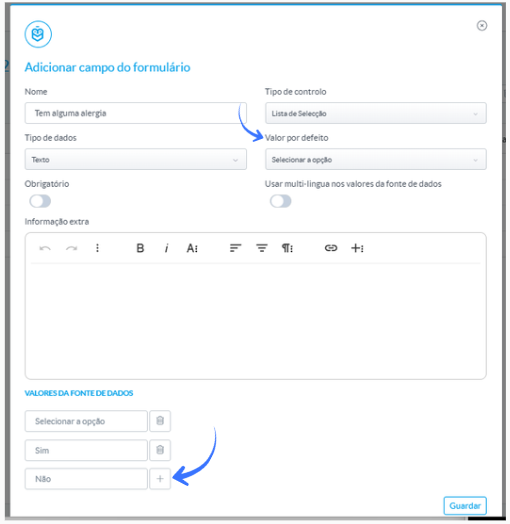
Allows selecting a single option
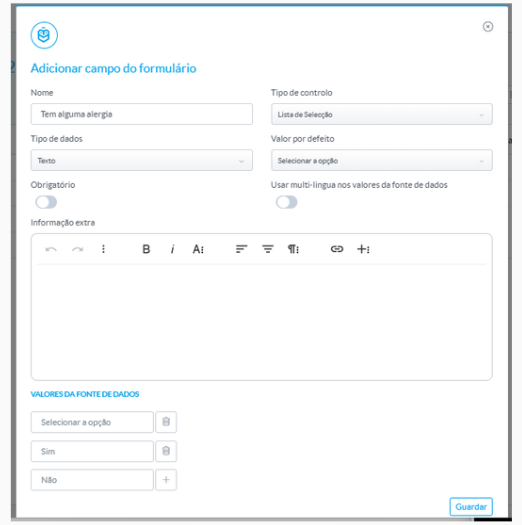
Configuration
- Define data source values
- Define default value
- Use the “+” button to add options
Multi‑select dropdown
Allows selecting multiple options
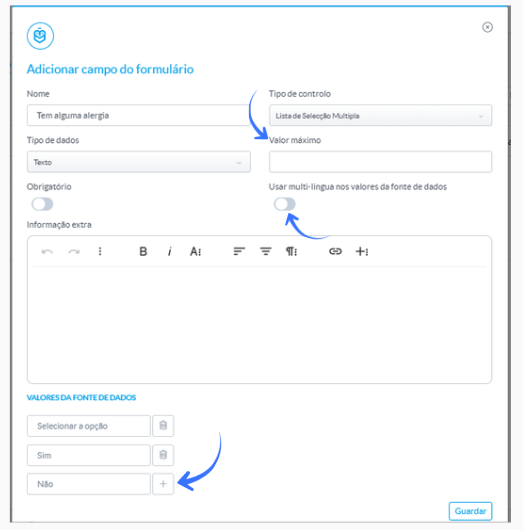 Configuration
- Define data source values
- Define:
- Maximum number of selections
- Option to enable:
- Multi‑language in data source values
- Multi‑language in data source values
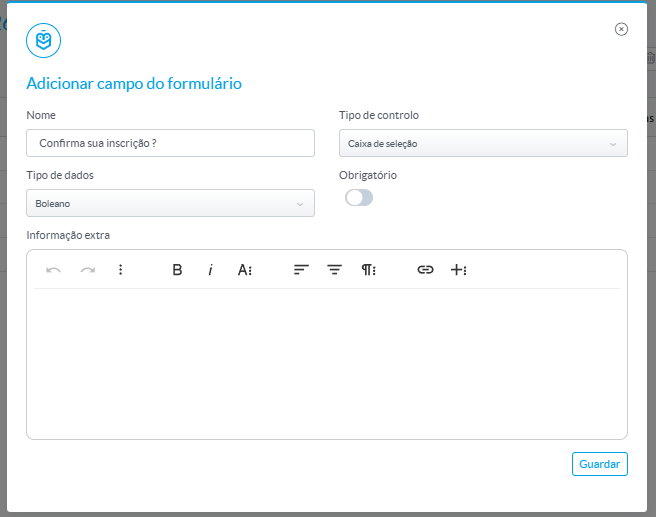
Checkbox
Allows enabling or disabling an option (yes/no)
Checkbox list
Allows selecting multiple options
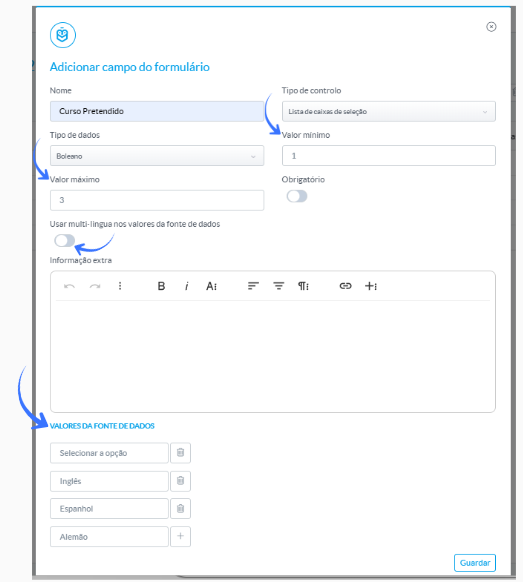 Configuration:
- Define data source values
- Define:
- Minimum value (minimum number of selections)
- Maximum value (maximum number of selections)
- Option to enable:
- Multi‑language in data source values
Date / Time
Allows selecting date, time, or both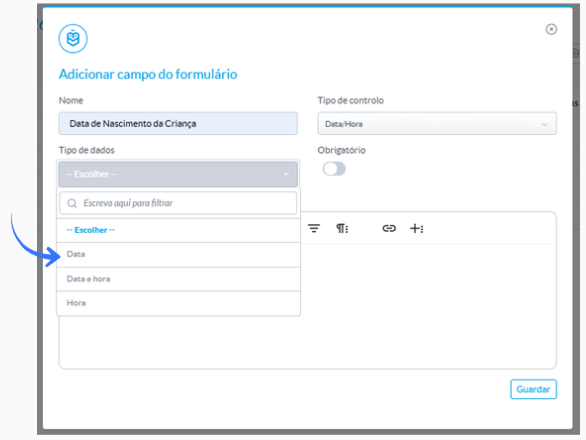 Configuration:
- Define the data type:
- Date
- Time
- Date and time
File upload
Allows attaching files to the form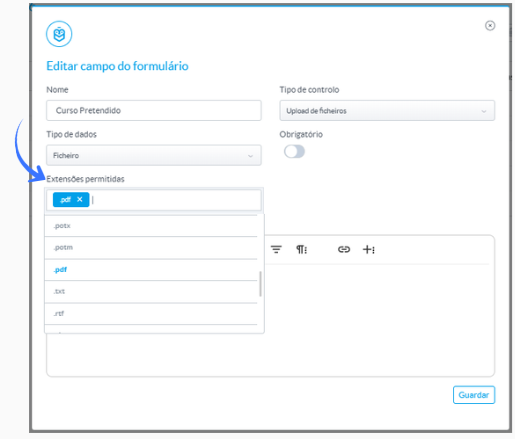
Configuration:
- Define data type (file)
- Define allowed extensions, such as:
- DOCX
- TXT
- among others
- Option to select multiple extensions
Image
Allows adding an image to the form
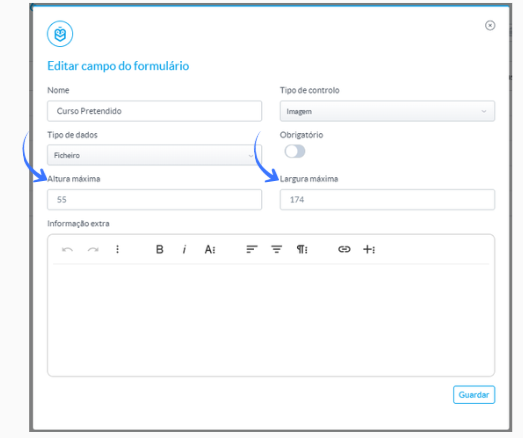 Configuration:
- Define:
- Maximum height
- Maximum width
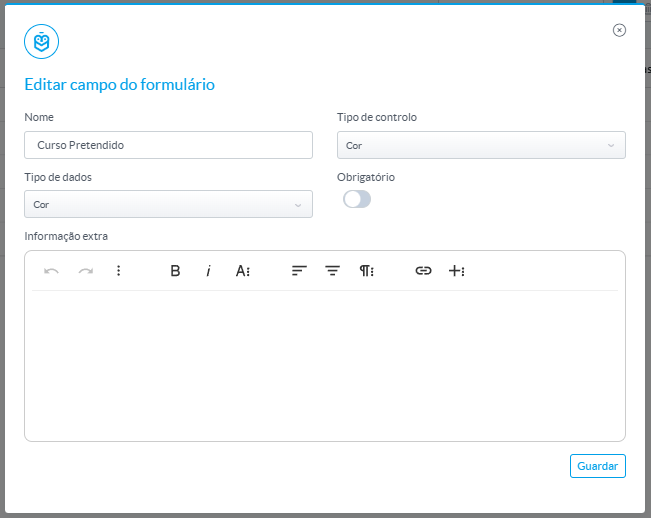
Color
Allows the user to select a color

Configuration:
- Color selection through a visual palette
After configuring the form fields, the e‑Form will be ready to collect the intended information in a structured way aligned with its purpose.
Was this article helpful?
That’s Great!
Thank you for your feedback
Sorry! We couldn't be helpful
Thank you for your feedback
Feedback sent
We appreciate your effort and will try to fix the article